
Fix for Code-1000 noProductIDsFound error in Unity SDK
The 1000-code error, noProductIDsFound, indicates that none of the products you requested on the paywall are available for purchase in the App Store, even though they’re listed there. This error may sometimes come with an InvalidProductIdentifiers warning. If the warning appears without an error, safely ignore it.
If you’re encountering the noProductIDsFound error, follow these steps to resolve it:
Step 1. Check bundle ID
-
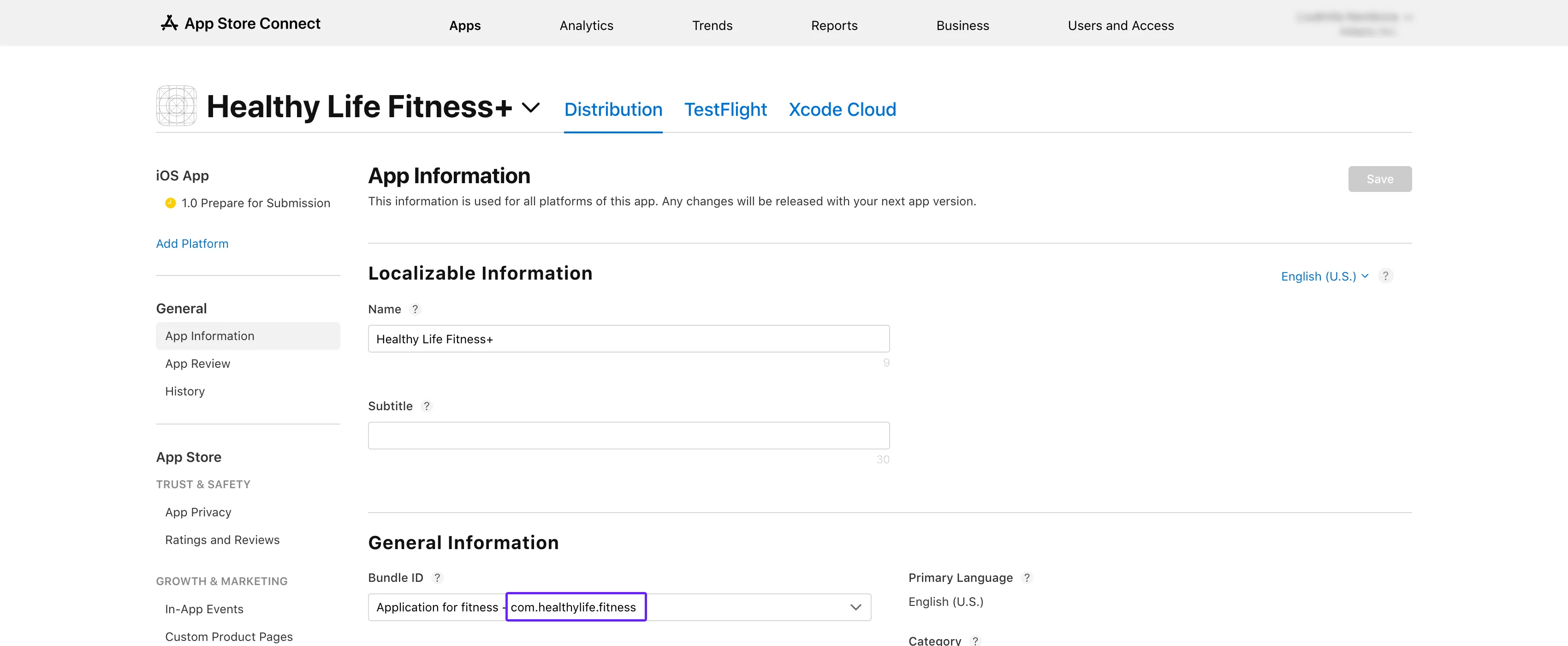
打开 App Store Connect。选择您的应用,进入 General → App Information 页面。
-
在 General Information 子页面中复制 Bundle ID。
只复制标识符——反向 DNS 格式,不含空格,例如
com.company.app。App Store Connect 在某些视图(如应用列表)中会在其旁边显示应用名称;如果误将应用名称粘贴进去而非标识符,连接验证将会失败。
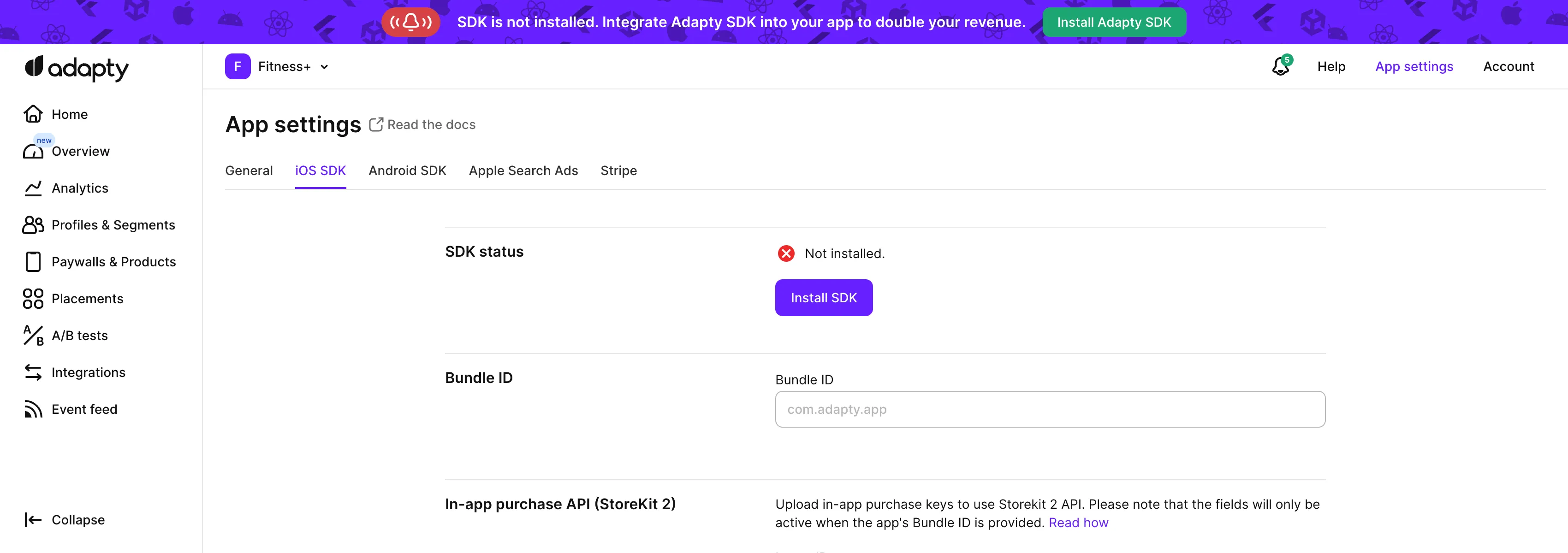
- 从 Adapty 顶部菜单打开 App settings -> iOS SDK 标签页,将复制的值粘贴到 Bundle ID 字段中。
- 返回 App Store Connect 中的 App information 页面,复制其中的 Apple ID。
- 在 Adapty 看板的 App settings -> iOS SDK 页面中,将该 ID 粘贴到 Apple app ID 字段。
Step 2. Check products
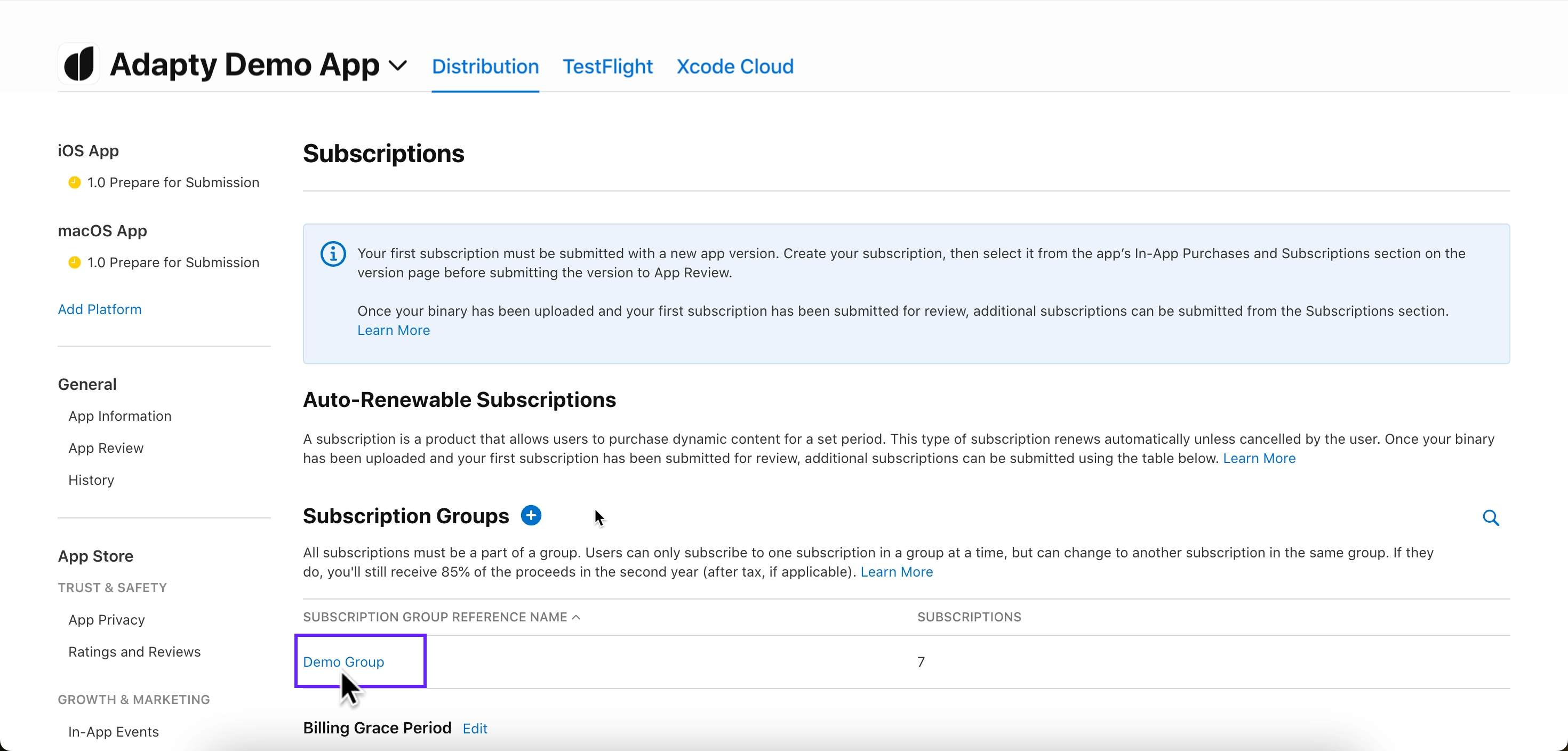
- Go to App Store Connect and navigate to Monetization → Subscriptions in the left-hand menu.
-
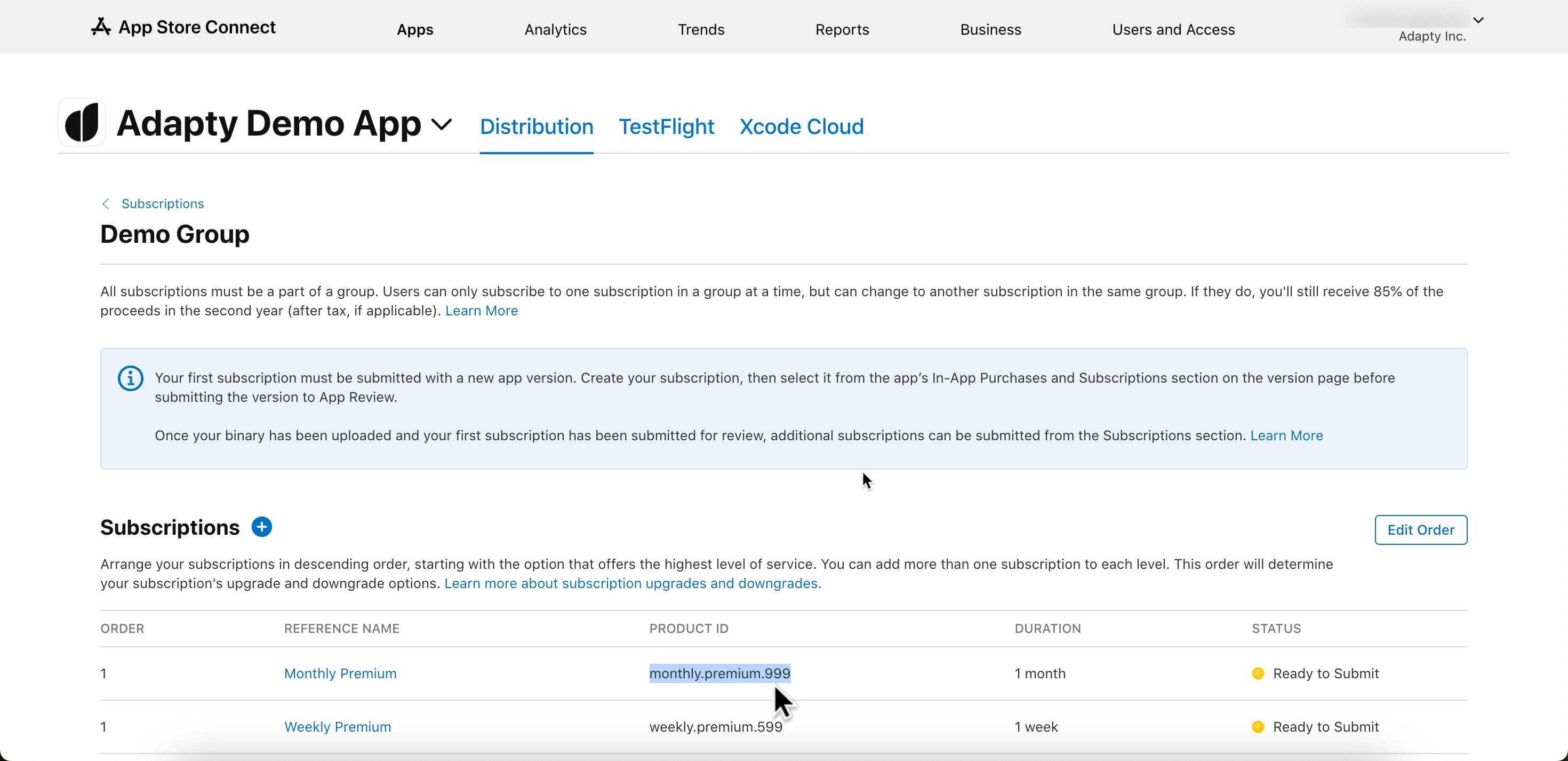
Click on the subscription group name. You’ll see your products listed under the Subscriptions section.
-
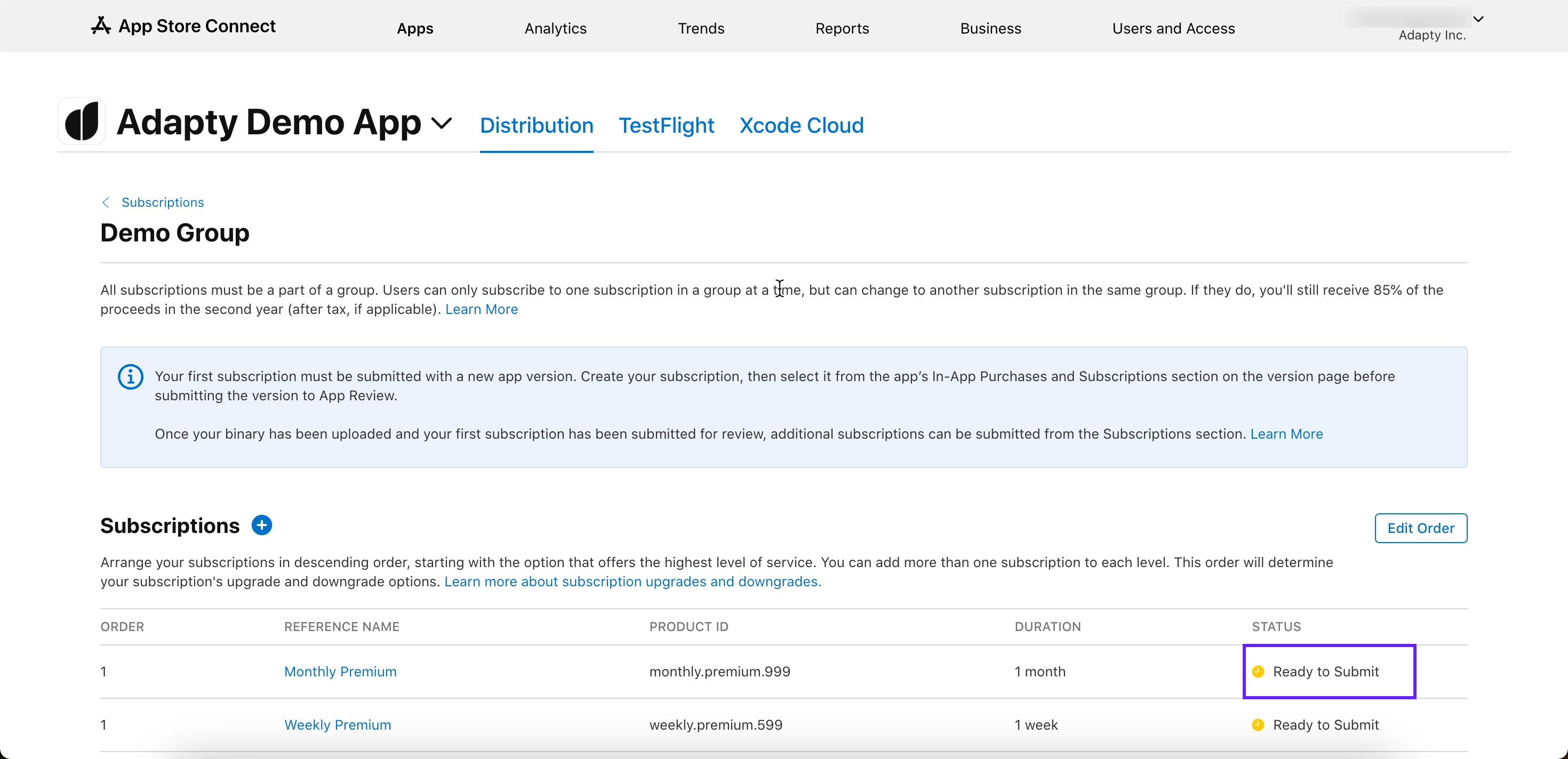
Ensure the product you’re testing is marked Ready to Submit.
-
Compare the product ID from the table with the one in the Products tab in the Adapty Dashboard. If the IDs don’t match, copy the product ID from the table and create a product with it in the Adapty Dashboard.
Step 3. Check product availability
- Go back to App Store Connect and open the same Subscriptions section.
-
Click the subscription group name to view your products.
-
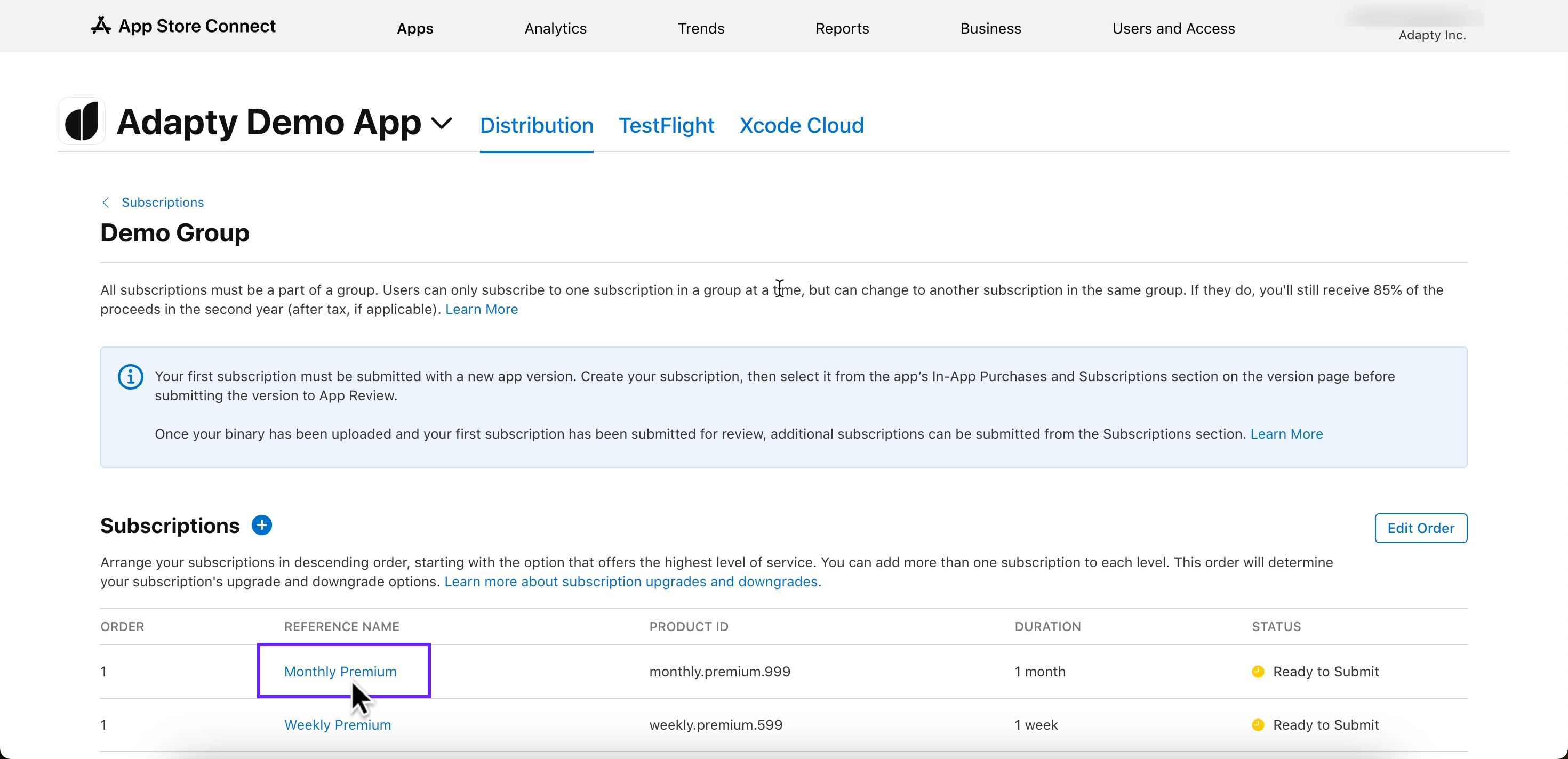
Select the product you’re testing.
-
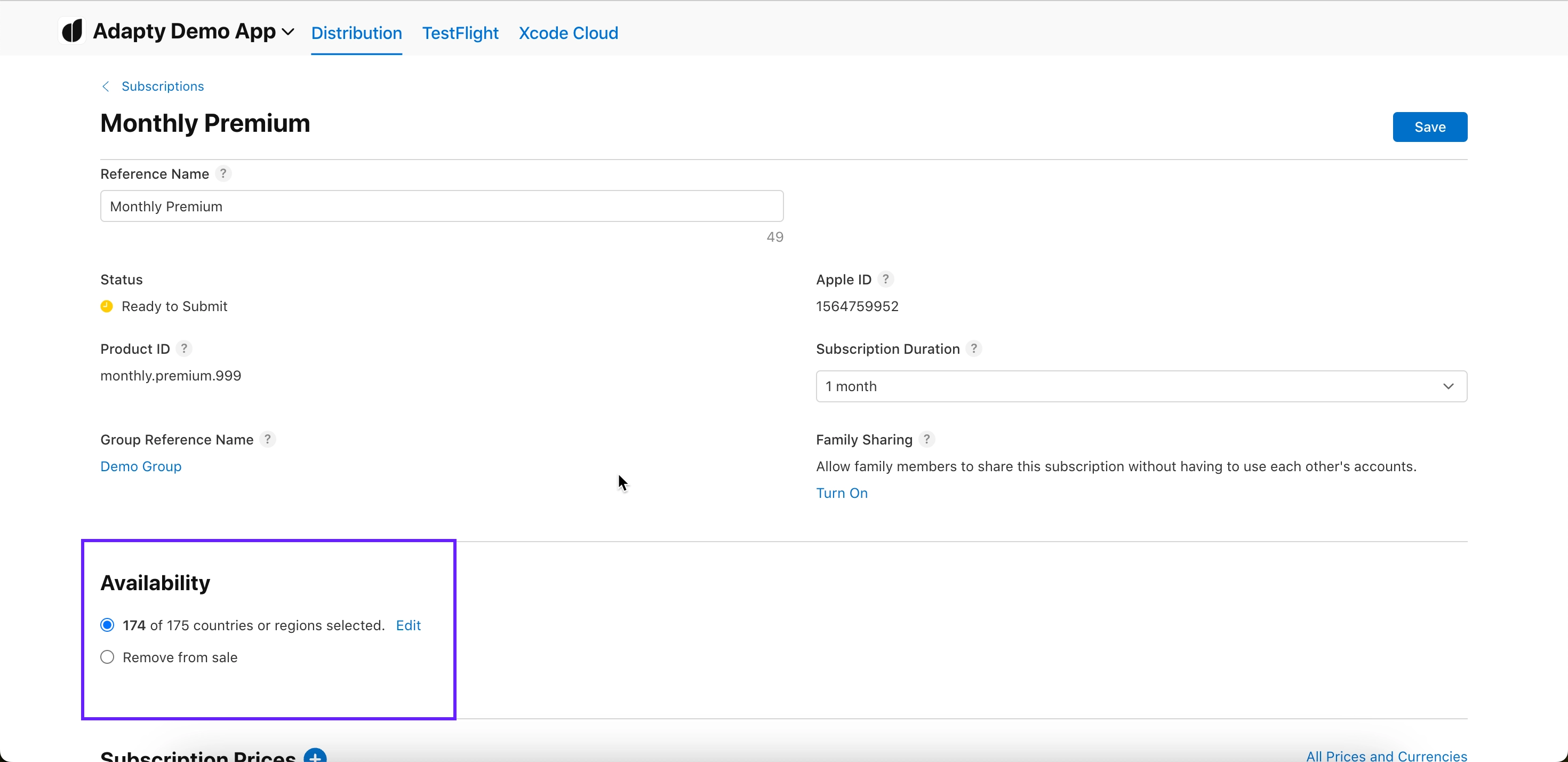
Scroll to the Availability section and check that all the required countries and regions are listed.
Step 4. Check product prices
- Again, head to the Monetization → Subscriptions section in App Store Connect.
-
Click the subscription group name.
-
Select the product you’re testing.
-
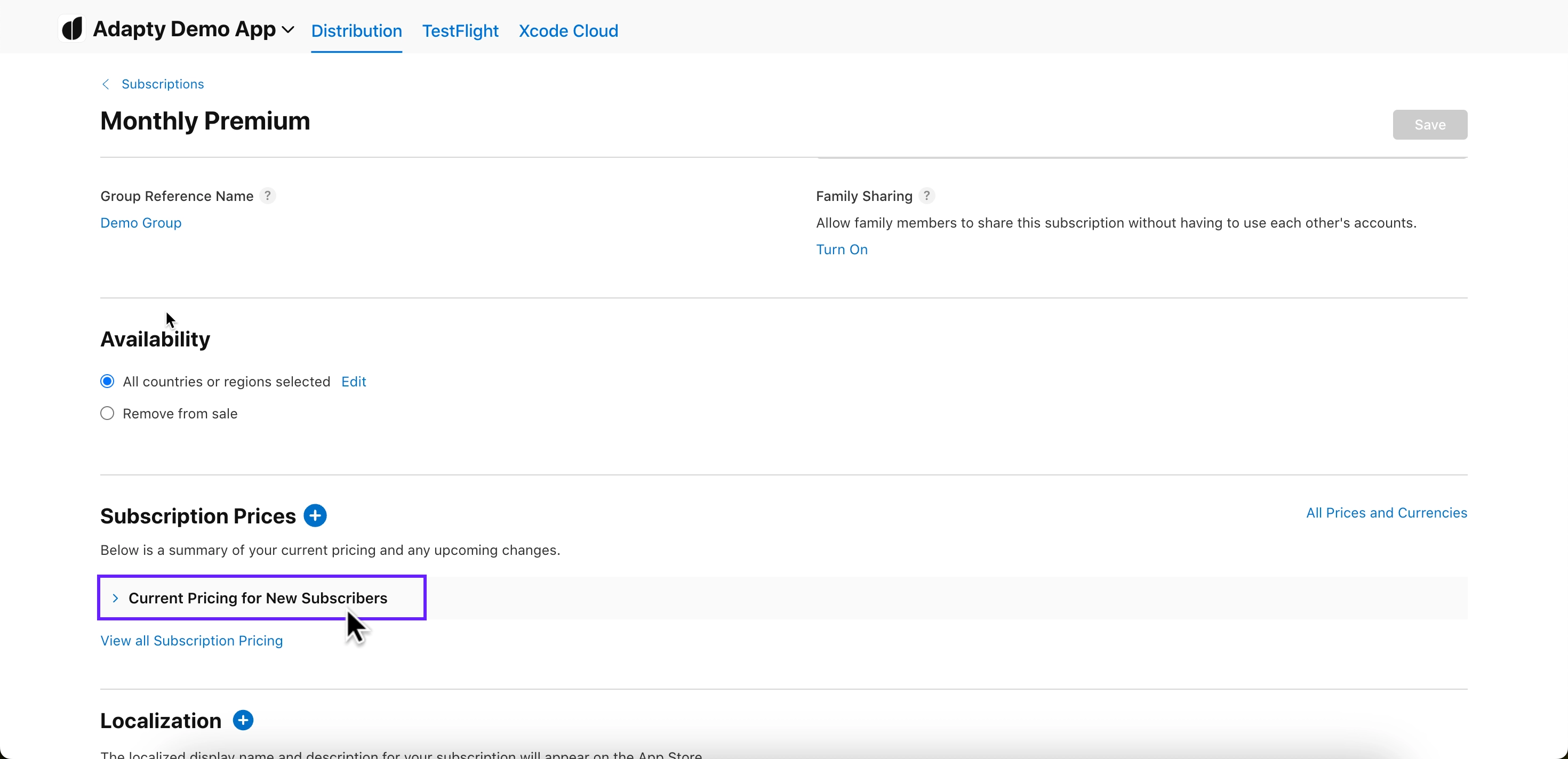
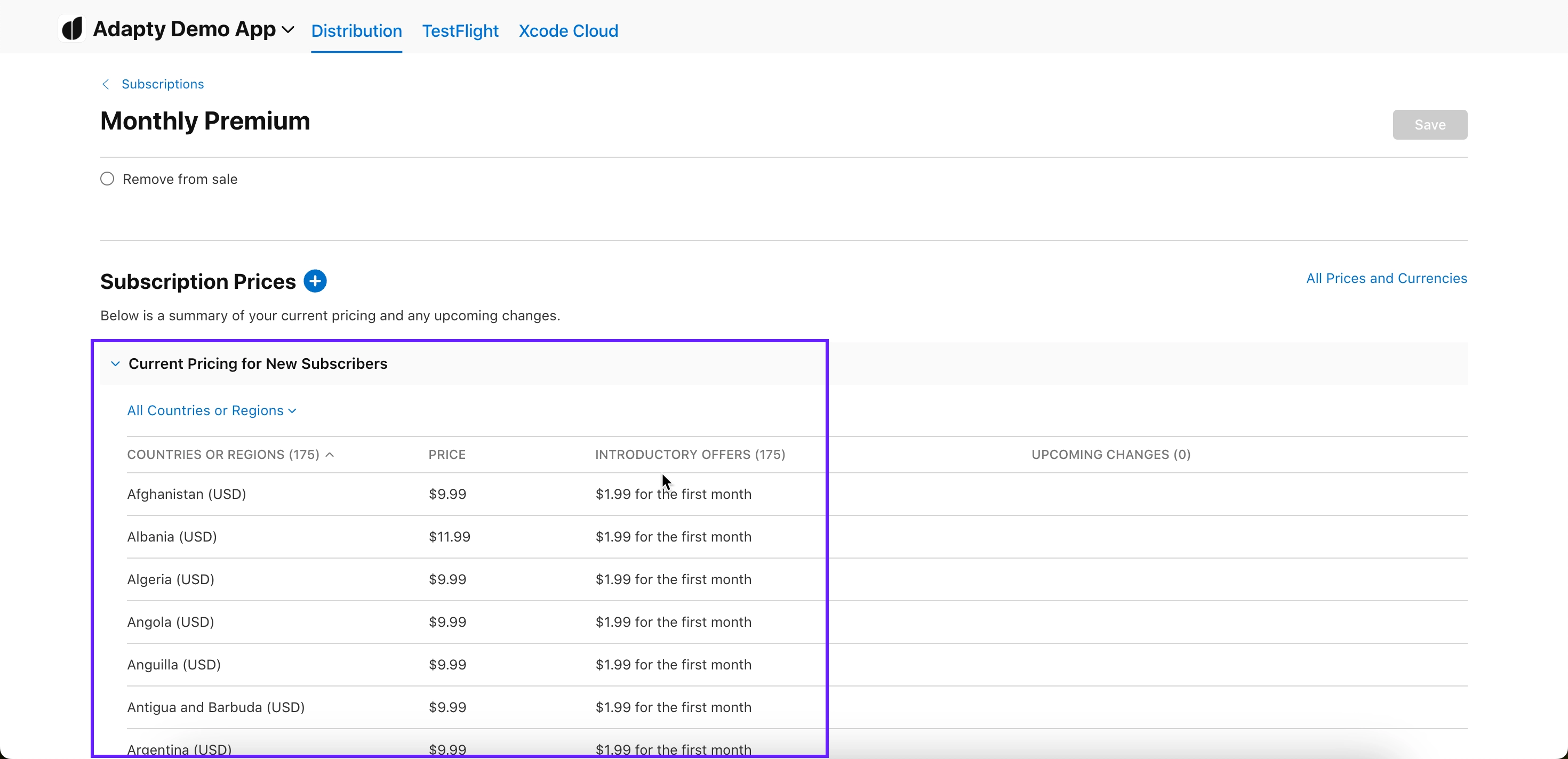
Scroll down to Subscription Pricing and expand the Current Pricing for New Subscribers section.
-
Ensure that all required prices are listed.
Step 5. Check app paid status, bank account, and tax forms are active
-
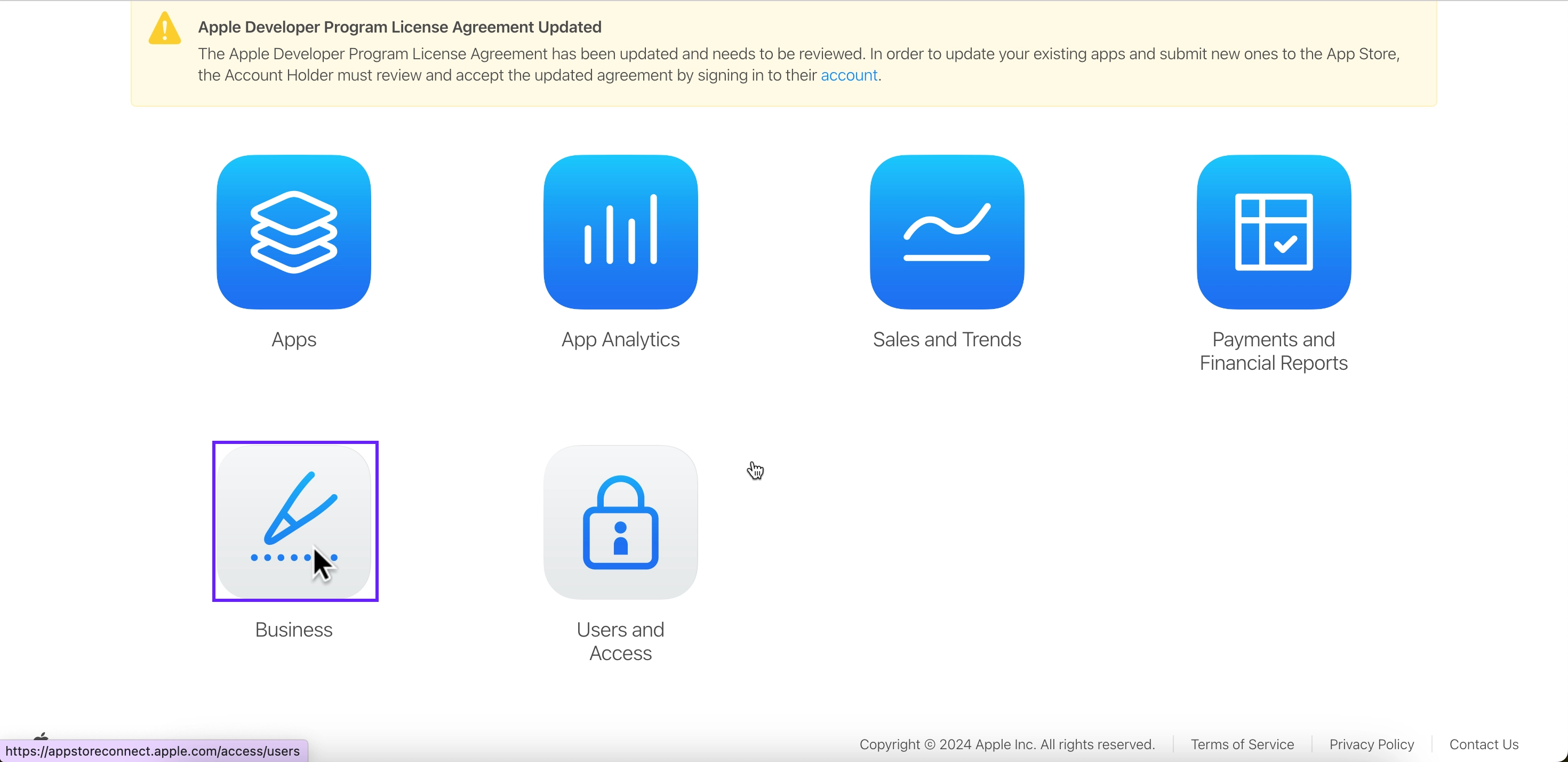
In App Store Connect](https://appstoreconnect.apple.com/) homepage, click Business.
-
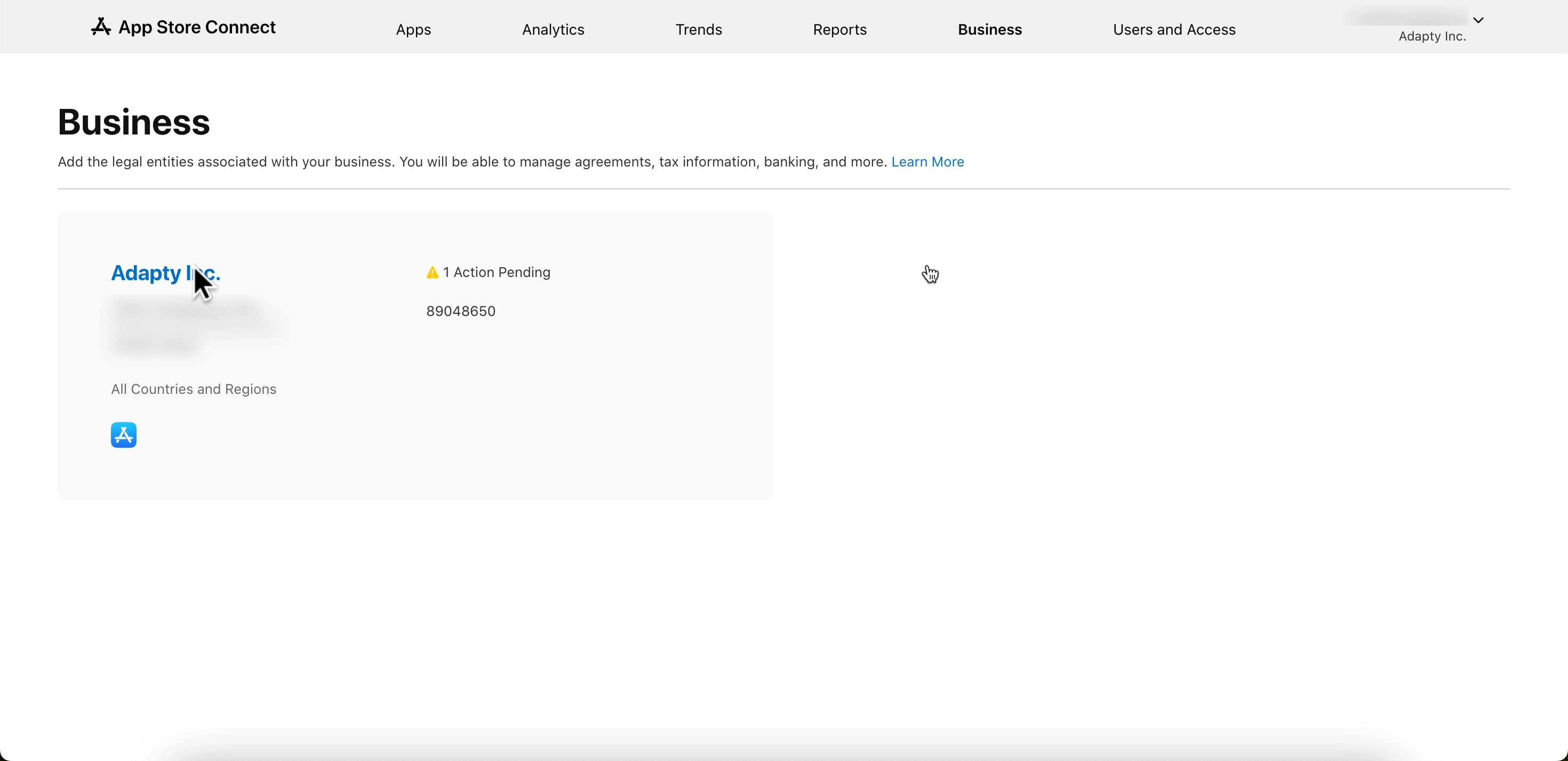
Select your company name.
-
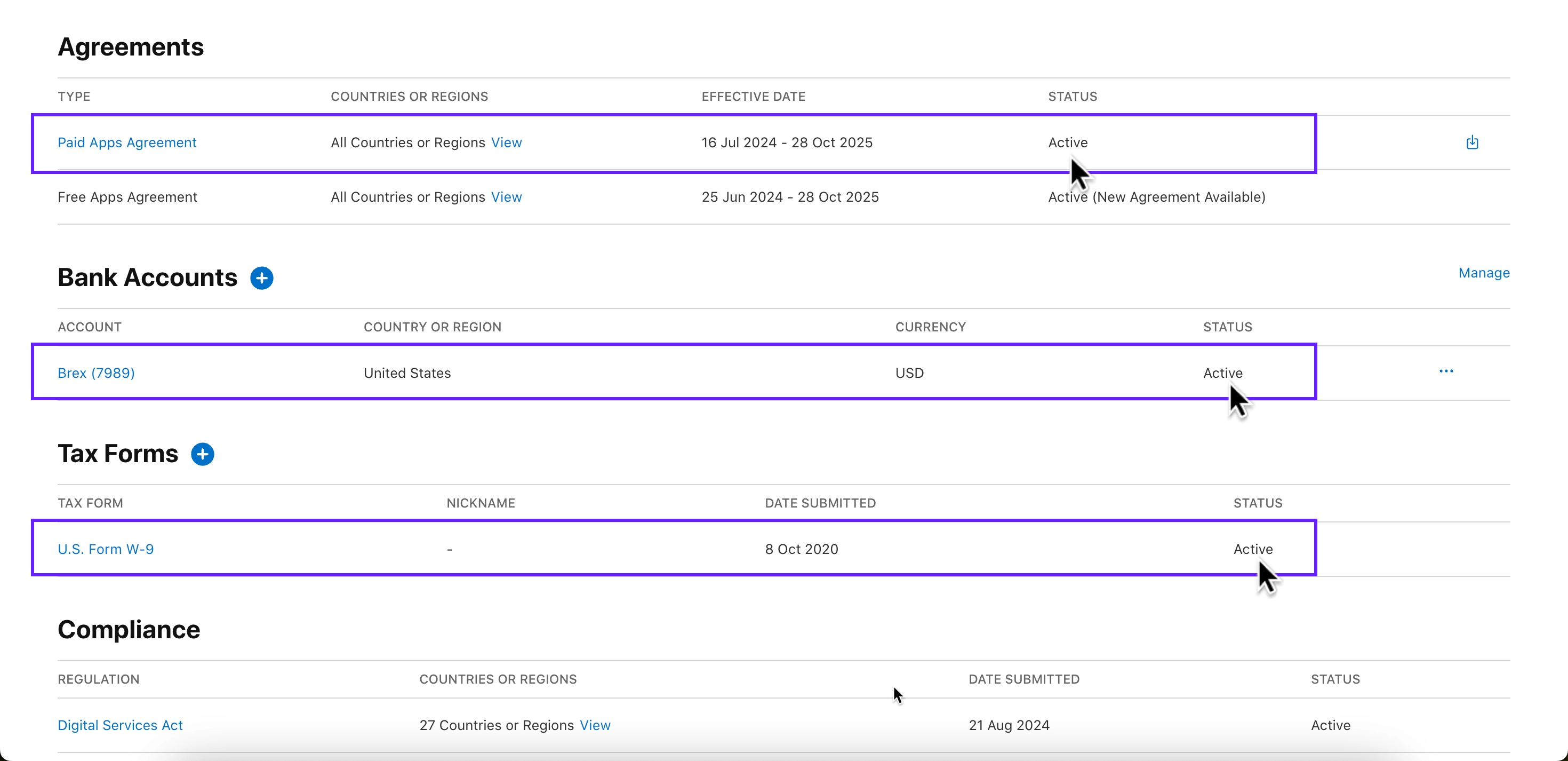
Scroll down and check that your Paid Apps Agreement, Bank Account, and Tax forms all show as Active.
By following these steps, you should be able to resolve the InvalidProductIdentifiers warning and get your products live in the store
Step 6. Recreate the product if it’s stuck
Steps 1–5 may all pass — Approved status, matching Bundle ID, valid API key — yet the SDK still returns 1000 noProductIDsFound. In that case, the product may be stuck in Apple’s registry. Apple’s product registry occasionally enters a state where a product exists in App Store Connect’s UI but isn’t exposed to the StoreKit lookup path.
Delete the product in App Store Connect and recreate it with the same product ID. Wait up to 24 hours after recreation for propagation.