
Handle onboarding events in Unity SDK
Onboardings are deprecated starting with Adapty SDK v4. Build flows instead: unlike onboardings, which run inside a WebView, flows render natively on the device — smoother animations, a consistent native look and feel, faster load times, and no WebView runtime dependency.
Before you start, ensure that:
- You have installed Adapty Unity SDK 3.14.0 or later.
- You have created an onboarding.
- You have added the onboarding to a placement.
Onboardings configured with the builder generate events your app can respond to. Learn how to respond to these events below.
To control or monitor processes occurring on the onboarding screen within your Unity app, implement the AdaptyOnboardingsEventsListener interface.
In SDK 4.1, listener interfaces follow the C# I-prefix convention: implement IAdaptyOnboardingsEventsListener instead of AdaptyOnboardingsEventsListener. The methods are unchanged. See the migration guide.
Custom actions
In the builder, you can add a custom action to a button and assign it an ID.
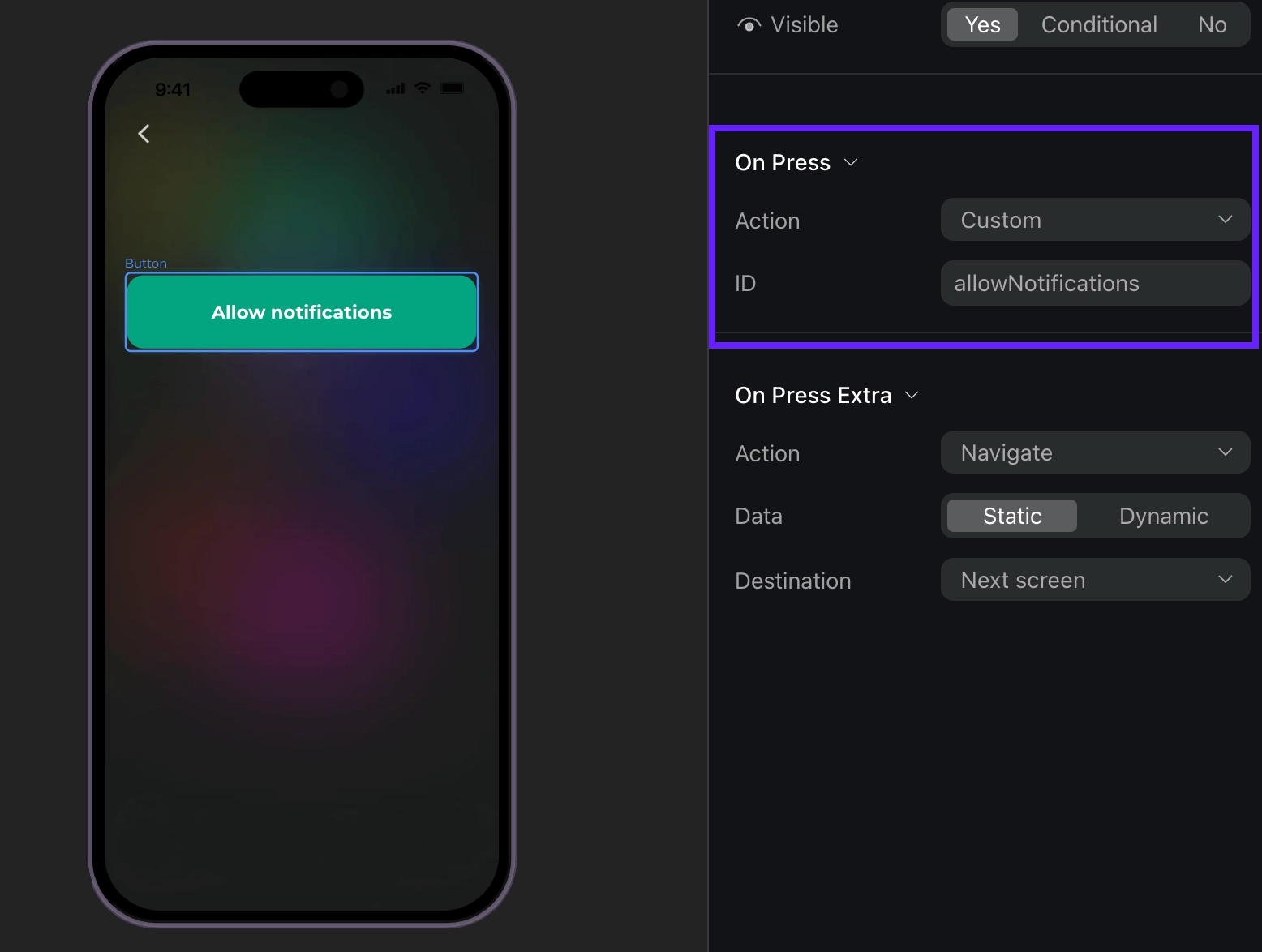
Then, you can use this ID in your code and handle it as a custom action. For example, if a user taps a custom button, like Login or Allow notifications, the method OnboardingViewOnCustomAction will be triggered with the actionId parameter being the Action ID from the builder. You can create your own IDs, like “allowNotifications”.
To handle onboarding events, implement the AdaptyOnboardingsEventsListener interface:
public class OnboardingManager : MonoBehaviour, AdaptyOnboardingsEventsListener
{
    void Start()
    {
        Adapty.SetOnboardingsEventsListener(this);
    }

    public void OnboardingViewOnCustomAction(
        AdaptyUIOnboardingView view,
        AdaptyUIOnboardingMeta meta,
        string actionId
    )
    {
        if (actionId == "allowNotifications") {
            // request notification permissions
        }
    }

    public void OnboardingViewDidFailWithError(
        AdaptyUIOnboardingView view,
        AdaptyError error
    )
    {
        // handle errors
    }

    // Implement other required interface methods (see examples below)
}
Event example (Click to expand)
{
  "actionId": "allowNotifications",
  "meta": {
    "onboardingId": "onboarding_123",
    "screenClientId": "profile_screen",
    "screenIndex": 0,
    "screensTotal": 3
  }
}
Closing onboarding
Onboarding is considered closed when a user taps a button with the Close action assigned.
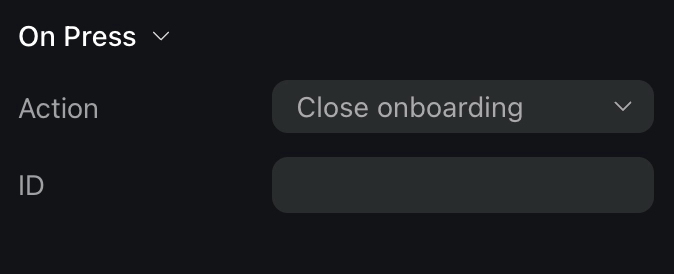
Note that you need to manage what happens when a user closes the onboarding. For instance, you need to stop displaying the onboarding itself.
Implement the OnboardingViewOnCloseAction method in your class:
public class OnboardingManager : MonoBehaviour, AdaptyOnboardingsEventsListener
{
    public void OnboardingViewOnCloseAction(
        AdaptyUIOnboardingView view,
        AdaptyUIOnboardingMeta meta,
        string actionId
    )
    {
        view.Dismiss((error) => {
            if (error != null) {
                // handle the error
            }
        });
    }

    // ... other interface methods
}
Event example (Click to expand)
{
  "action_id": "close_button",
  "meta": {
    "onboarding_id": "onboarding_123",
    "screen_cid": "final_screen",
    "screen_index": 3,
    "total_screens": 4
  }
}
Opening a paywall
Handle this event to open a paywall if you want to open it inside the onboarding. If you want to open a paywall after it is closed, there is a more straightforward way to do it – handle OnboardingViewOnCloseAction and open a paywall without relying on the event data.
The most seamless way to work with paywalls in onboardings is to make the action ID equal to a paywall placement ID. This way, after the OnboardingViewOnPaywallAction, you can use the placement ID to get and open the paywall right away.
Note that, for iOS, only one view (paywall or onboarding) can be displayed on screen at a time. If you present a paywall on top of an onboarding, you cannot programmatically control the onboarding in the background. Attempting to dismiss the onboarding will close the paywall instead, leaving the onboarding visible. To avoid this, always dismiss the onboarding view before presenting the paywall.
public class OnboardingManager : MonoBehaviour, AdaptyOnboardingsEventsListener
{
    public void OnboardingViewOnPaywallAction(
        AdaptyUIOnboardingView view,
        AdaptyUIOnboardingMeta meta,
        string actionId
    )
    {
        // Dismiss onboarding before presenting paywall
        view.Dismiss((dismissError) => {
            if (dismissError != null) {
                // handle the error
                return;
            }

            Adapty.GetPaywall(actionId, (paywall, error) => {
                if (error != null) {
                    // handle the error
                    return;
                }

                AdaptyUI.CreatePaywallView(paywall, (paywallView, createError) => {
                    if (createError != null) {
                        // handle the error
                        return;
                    }

                    paywallView.Present((presentError) => {
                        if (presentError != null) {
                            // handle the error
                        }
                    });
                });
            });
        });
    }

    // ... other interface methods
}
Event example (Click to expand)
{
    "action_id": "premium_offer_1",
    "meta": {
        "onboarding_id": "onboarding_123",
        "screen_cid": "pricing_screen",
        "screen_index": 2,
        "total_screens": 4
    }
}
Finishing loading onboarding
When an onboarding finishes loading, implement the OnboardingViewDidFinishLoading method:
public class OnboardingManager : MonoBehaviour, AdaptyOnboardingsEventsListener
{
    public void OnboardingViewDidFinishLoading(
        AdaptyUIOnboardingView view,
        AdaptyUIOnboardingMeta meta
    )
    {
        // handle loading completion
    }

    // ... other interface methods
}
Event example (Click to expand)
{
    "meta": {
        "onboarding_id": "onboarding_123",
        "screen_cid": "welcome_screen",
        "screen_index": 0,
        "total_screens": 4
    }
}
Tracking navigation
The OnboardingViewOnAnalyticsEvent method is called when various analytics events occur during the onboarding flow.
The analyticsEvent object can be one of the following types:
| Type | Description |
|---|---|
AdaptyOnboardingsAnalyticsEventOnboardingStarted | When the onboarding has been loaded |
AdaptyOnboardingsAnalyticsEventScreenPresented | When any screen is shown |
AdaptyOnboardingsAnalyticsEventScreenCompleted | When a screen is completed. Includes optional ElementId (identifier of the completed element) and optional Reply (response from the user). Triggered when users perform any action to exit the screen. |
AdaptyOnboardingsAnalyticsEventSecondScreenPresented | When the second screen is shown |
AdaptyOnboardingsAnalyticsEventUserEmailCollected | Triggered when the user’s email is collected via the input field |
AdaptyOnboardingsAnalyticsEventOnboardingCompleted | Triggered when a user reaches a screen with the final ID. If you need this event, assign the final ID to the last screen. |
AdaptyOnboardingsAnalyticsEventUnknown | For any unrecognized event type. Includes Name (the name of the unknown event) and meta (additional metadata) |
Each event includes meta information containing:
| Field | Description |
|---|---|
OnboardingId | Unique identifier of the onboarding flow |
ScreenClientId | Identifier of the current screen |
ScreenIndex | Current screen’s position in the flow |
ScreensTotal | Total number of screens in the flow |
Here’s an example of how you can use analytics events for tracking:
public class OnboardingManager : MonoBehaviour, AdaptyOnboardingsEventsListener
{
    public void OnboardingViewOnAnalyticsEvent(
        AdaptyUIOnboardingView view,
        AdaptyUIOnboardingMeta meta,
        AdaptyOnboardingsAnalyticsEvent analyticsEvent
    )
    {
        switch (analyticsEvent) {
            case AdaptyOnboardingsAnalyticsEventOnboardingStarted:
                // track onboarding start
                TrackEvent("onboarding_started", meta);
                break;
            case AdaptyOnboardingsAnalyticsEventScreenPresented:
                // track screen presentation
                TrackEvent("screen_presented", meta);
                break;
            case AdaptyOnboardingsAnalyticsEventScreenCompleted screenCompleted:
                // track screen completion with user response
                TrackEvent("screen_completed", meta, screenCompleted.ElementId, screenCompleted.Reply);
                break;
            case AdaptyOnboardingsAnalyticsEventOnboardingCompleted:
                // track successful onboarding completion
                TrackEvent("onboarding_completed", meta);
                break;
            case AdaptyOnboardingsAnalyticsEventUnknown unknownEvent:
                // handle unknown events
                TrackEvent(unknownEvent.Name, meta);
                break;
            // handle other cases as needed
        }
    }

    // ... other interface methods
}The TrackEvent method is a placeholder that you need to implement yourself to send analytics to your preferred analytics service.
Event examples (Click to expand)
// onboardingStarted
{
  "name": "onboarding_started",
  "meta": {
    "onboarding_id": "onboarding_123",
    "screen_cid": "welcome_screen",
    "screen_index": 0,
    "total_screens": 4
  }
}

// screenPresented

{
    "name": "screen_presented",
    "meta": {
        "onboarding_id": "onboarding_123",
        "screen_cid": "interests_screen",
        "screen_index": 2,
        "total_screens": 4
    }
}

// screenCompleted

{
    "name": "screen_completed",
    "meta": {
        "onboarding_id": "onboarding_123",
        "screen_cid": "profile_screen",
        "screen_index": 1,
        "total_screens": 4
    },
    "params": {
        "element_id": "profile_form",
        "reply": "success"
    }
}

// secondScreenPresented

{
    "name": "second_screen_presented",
    "meta": {
        "onboarding_id": "onboarding_123",
        "screen_cid": "profile_screen",
        "screen_index": 1,
        "total_screens": 4
    }
}

// userEmailCollected

{
    "name": "user_email_collected",
    "meta": {
        "onboarding_id": "onboarding_123",
        "screen_cid": "profile_screen",
        "screen_index": 1,
        "total_screens": 4
    }
}

// onboardingCompleted

{
    "name": "onboarding_completed",
    "meta": {
        "onboarding_id": "onboarding_123",
        "screen_cid": "final_screen",
        "screen_index": 3,
        "total_screens": 4
    }
}