
Process data from onboardings in Unity SDK
Onboardings are deprecated starting with Adapty SDK v4. Build flows instead: unlike onboardings, which run inside a WebView, flows render natively on the device — smoother animations, a consistent native look and feel, faster load times, and no WebView runtime dependency.
When your users respond to a quiz question or input their data into an input field, the OnboardingViewOnStateUpdatedAction method will be invoked. You can save or process the field type in your code.
Implement the OnboardingViewOnStateUpdatedAction method in your class:
In SDK 4.1, listener interfaces follow the C# I-prefix convention: implement IAdaptyOnboardingsEventsListener instead of AdaptyOnboardingsEventsListener. The methods are unchanged. See the migration guide.
public class OnboardingManager : MonoBehaviour, AdaptyOnboardingsEventsListener
{
    public void OnboardingViewOnStateUpdatedAction(
        AdaptyUIOnboardingView view,
        AdaptyUIOnboardingMeta meta,
        string elementId,
        AdaptyOnboardingsStateUpdatedParams @params
    )
    {
        switch (@params) {
            case AdaptyOnboardingsSelectParams selectParams:
                // handle single selection
                break;
            case AdaptyOnboardingsMultiSelectParams multiSelectParams:
                // handle multiple selections
                break;
            case AdaptyOnboardingsInputParams inputParams:
                // handle text input
                break;
            case AdaptyOnboardingsDatePickerParams datePickerParams:
                // handle date selection
                break;
        }
    }

    // ... other interface methods
}
The parameters include:
| Parameter | Description |
|---|---|
elementId | A unique identifier for the input element. You can use it to associate questions with answers when saving them. |
@params | The user’s input data object. Can be one of the following types. |
AdaptyOnboardingsSelectParams | Single selection from options. Contains Id, Value, Label |
AdaptyOnboardingsMultiSelectParams | Multiple selections from options. Contains a list of Params (each with Id, Value, Label)• input: Object with type, value• datePicker: Object with day, month, year |
AdaptyOnboardingsInputParams | Text input field. Contains Input which can be AdaptyOnboardingsTextInput, AdaptyOnboardingsEmailInput, or AdaptyOnboardingsNumberInput |
AdaptyOnboardingsDatePickerParams | Date selection. Contains nullable Day, Month, Year |
Saved data examples (may differ in your implementation)
// Example of a saved select action
{
    "elementId": "preference_selector",
    "meta": {
        "onboardingId": "onboarding_123",
        "screenClientId": "preferences_screen",
        "screenIndex": 1,
        "screensTotal": 3
    },
    "params": {
        "type": "select",
        "value": {
            "id": "option_1",
            "value": "premium",
            "label": "Premium Plan"
        }
    }
}

// Example of a saved multi-select action
{
    "elementId": "interests_selector",
    "meta": {
        "onboardingId": "onboarding_123",
        "screenClientId": "interests_screen",
        "screenIndex": 2,
        "screensTotal": 3
    },
    "params": {
        "type": "multiSelect",
        "value": [
            {
                "id": "interest_1",
                "value": "sports",
                "label": "Sports"
            },
            {
                "id": "interest_2",
                "value": "music",
                "label": "Music"
            }
        ]
    }
}

// Example of a saved input action
{
    "elementId": "name_input",
    "meta": {
        "onboardingId": "onboarding_123",
        "screenClientId": "profile_screen",
        "screenIndex": 0,
        "screensTotal": 3
    },
    "params": {
        "type": "input",
        "value": {
            "type": "text",
            "value": "John Doe"
        }
    }
}

// Example of a saved date picker action
{
    "elementId": "birthday_picker",
    "meta": {
        "onboardingId": "onboarding_123",
        "screenClientId": "profile_screen",
        "screenIndex": 0,
        "screensTotal": 3
    },
"params": {
    "type": "datePicker",
    "value": {
        "day": 15,
        "month": 6,
        "year": 1990
        }
    }
}
Use cases
Enrich user profiles with data
If you want to immediately link the input data with the user profile and avoid asking them twice for the same info, you need to update the user profile with the input data when handling the action.
For example, you ask users to enter their name in the text field with the name ID, and you want to set this field’s value as user’s first name. Also, you ask them to enter their email in the email field. In your app code, it can look like this:
public class OnboardingManager : MonoBehaviour, AdaptyOnboardingsEventsListener
{
    public void OnboardingViewOnStateUpdatedAction(
        AdaptyUIOnboardingView view,
        AdaptyUIOnboardingMeta meta,
        string elementId,
        AdaptyOnboardingsStateUpdatedParams @params
    )
    {
        if (@params is AdaptyOnboardingsInputParams inputParams) {
            var builder = new AdaptyProfileParameters.Builder();

            switch (elementId) {
                case "name":
                    if (inputParams.Input is AdaptyOnboardingsTextInput textInput) {
                        builder.SetFirstName(textInput.Value);
                    }
                    break;
                case "email":
                    if (inputParams.Input is AdaptyOnboardingsEmailInput emailInput) {
                        builder.SetEmail(emailInput.Value);
                    }
                    break;
            }

            Adapty.UpdateProfile(builder.Build(), (error) => {
                if (error != null) {
                    // handle the error
                }
            });
        }
    }

    // ... other interface methods
}
Customize paywalls based on answers
Using quizzes in onboardings, you can also customize paywalls you show users after they complete the onboarding.
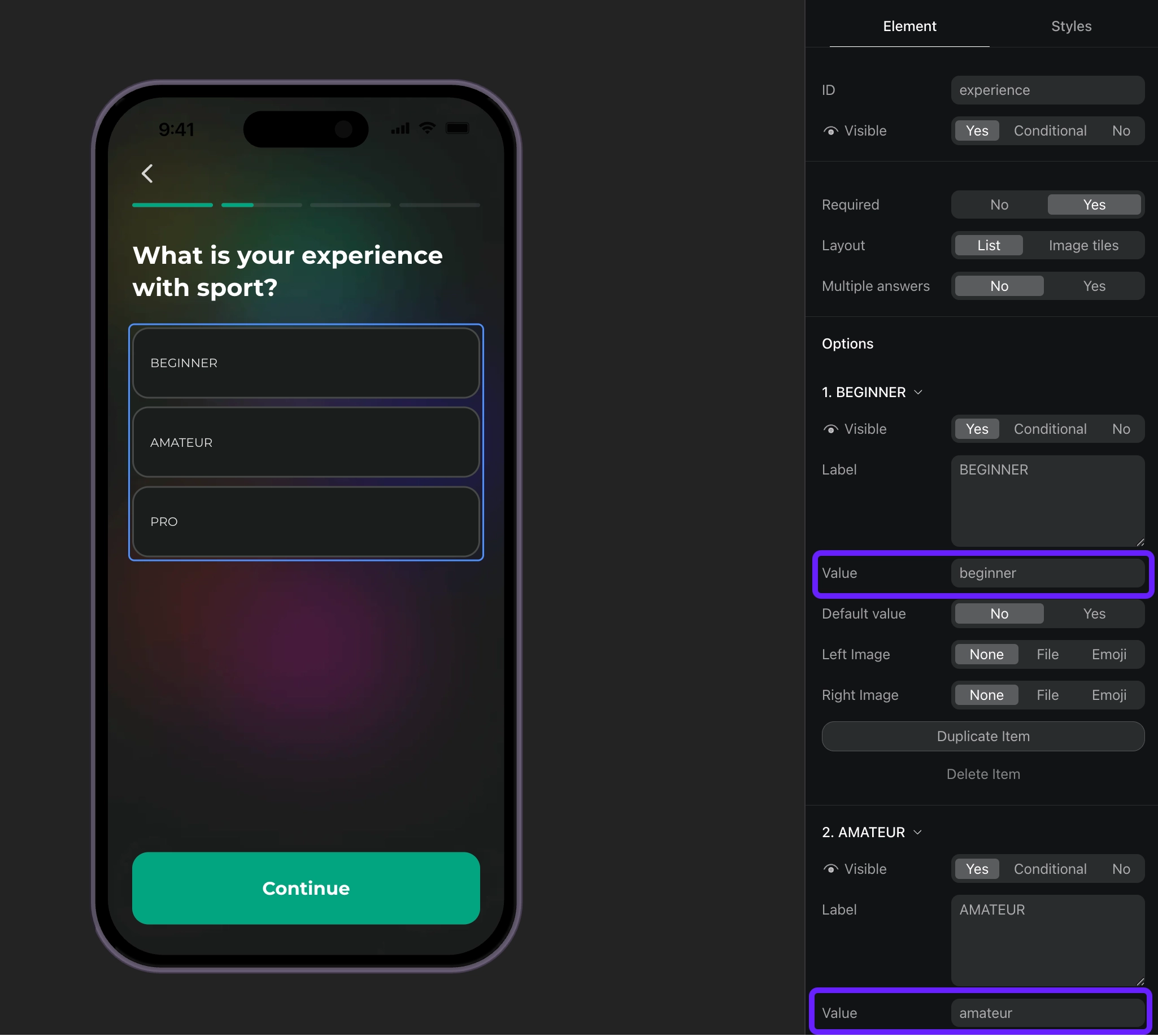
For example, you can ask users about their experience with sport and show different CTAs and products to different user groups.
- Add a quiz in the onboarding builder and assign meaningful IDs to its options.
- Handle the quiz responses based on their IDs and set custom attributes for users.
public class OnboardingManager : MonoBehaviour, AdaptyOnboardingsEventsListener
{
    public void OnboardingViewOnStateUpdatedAction(
        AdaptyUIOnboardingView view,
        AdaptyUIOnboardingMeta meta,
        string elementId,
        AdaptyOnboardingsStateUpdatedParams @params
    )
    {
        if (@params is AdaptyOnboardingsSelectParams selectParams) {
            var builder = new AdaptyProfileParameters.Builder();

            switch (elementId) {
                case "experience":
                    // set custom attribute 'experience' with the selected value (beginner, amateur, pro)
                    builder.SetCustomStringAttribute("experience", selectParams.Value);
                    break;
            }

            Adapty.UpdateProfile(builder.Build(), (error) => {
                if (error != null) {
                    // handle the error
                }
            });
        }
    }

    // ... other interface methods
}- Create segments for each custom attribute value.
- Create a placement and add audiences for each segment you’ve created.
- Display a paywall for the placement in your app code. If your onboarding has a button that opens a paywall, implement the paywall code as a response to this button’s action.