
Правила кампаний в Adapty Ads Manager
Добавьте правило кампании, если хотите, чтобы бюджет или статус кампании изменялись автоматически на основе её показателей. В отличие от правил группы объявлений, которые действуют на одну группу, правило кампании изменяет всю кампанию целиком.
Каждое правило состоит из условия и действия. Например: если кампания потратила больше $200 за три дня без ни одной подписки — снизить её дневной бюджет на 20%. Adapty проверяет ваши кампании по заданному расписанию — раз в час, раз в день, раз в неделю и так далее — и применяет действие каждый раз, когда условие выполняется. А поскольку Adapty отслеживает триалы, подписки и выручку, условия можно строить на основе реального дохода, а не просто установок.
Доступные условия
Правило отслеживает набор кампаний и срабатывает, когда их показатели пересекают заданный порог. Сначала выберите, какие кампании оно будет отслеживать:
- Campaigns in selected campaign groups
- Campaigns in selected apps
- Selected campaigns
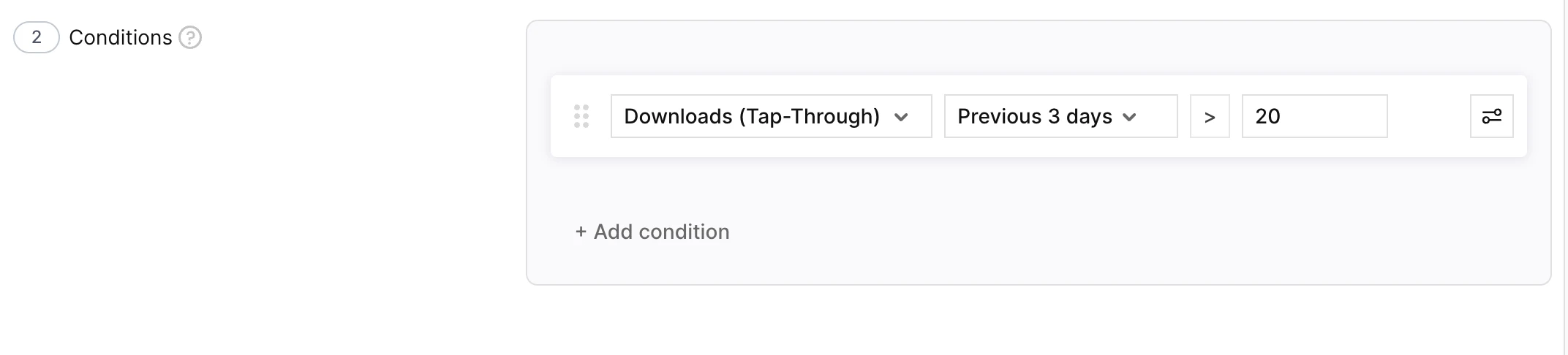
Затем задайте условие, при котором правило срабатывает. Каждое условие состоит из следующих частей:
| Часть | Описание | Пример |
|---|---|---|
| Метрика | Любая метрика, которую отслеживает Adapty Ads Manager — расходы, установки, пробные периоды, подписки, выручка и другие. | Spend |
| Временной период | Период, за который измеряется метрика. | Yesterday |
| Сравнение | Способ сравнения метрики с заданным значением. | is greater than |
| Пороговое значение | Значение для сравнения — фиксированная сумма или собственный Daily Budget кампании. | Daily Budget |
Объедините несколько условий с помощью And или Or для точного таргетинга — например, расходы > Daily Budget and ROAS < 100%.
Доступные действия и их настройки
Когда кампания удовлетворяет заданному условию, Adapty может изменить её настройки, выполнив одно из следующих действий:
| Действие | Что делает | Когда использовать | Настройка |
|---|---|---|---|
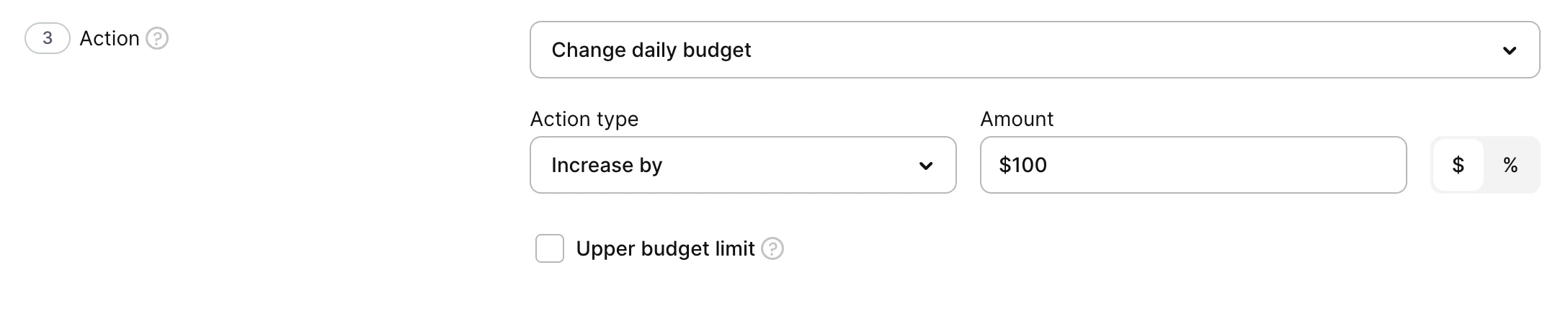
| Change daily budget | Увеличивает, уменьшает или задаёт дневной бюджет кампании — максимальную сумму расходов в день. | Снижайте бюджет кампаний с перерасходом; увеличивайте у тех, что масштабируются с прибылью. | Action type: Increase by, Decrease by или Set to. Value type: $ (абсолютное значение) или % (от текущего бюджета). Limit (опционально): верхний предел при увеличении или нижний при уменьшении — ограничивает, насколько далеко повторные запуски могут сдвинуть бюджет. |
| Enable campaign | Повторно включает приостановленную кампанию. | Возвращайте кампании, которые восстанавливаются после поступления отложенных доходов от триалов и подписок. | Нет. |
| Pause campaign | Приостанавливает активную кампанию. | Останавливайте кампании, которые продолжают тратить деньги без конверсий. | Нет. |
Создайте правило кампании
Чтобы начать с готового шаблона, нажмите Templates в заголовке Automations и выберите Decrease budget for low-performing campaigns, затем проверьте и сохраните. Чтобы создать правило с нуля:
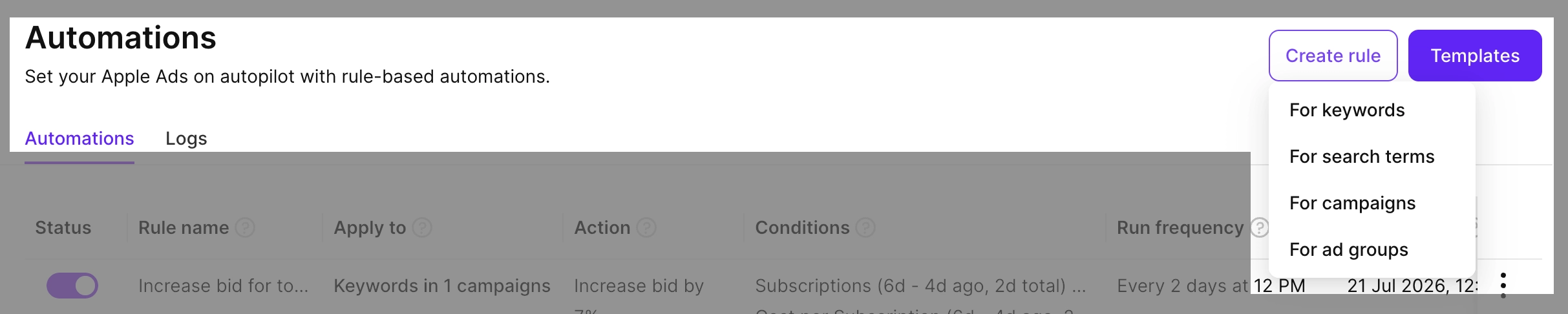
- Перейдите в Automations, нажмите Create rule и выберите For campaigns.
- Введите Rule name.
- В разделе Apply to выберите область действия и укажите кампании.

- В разделе Conditions добавьте одно или несколько условий. Условия можно комбинировать с помощью логических операторов.
- В разделе Action выберите действие и настройте его параметры.
- В разделе Schedule задайте, как часто будет выполняться правило — от Every hour до Every 90 days или Once — и время запуска (UTC). Чтобы правило также выполнилось сразу после сохранения, отметьте Run this rule right now.

- Нажмите Save.
После сохранения правило появляется на вкладке Automations. Столбцы Date last run и Date next run отображают расписание запусков. Чтобы проверить изменения статусов между запусками, откройте Automations > Logs. Инструкции по приостановке, дублированию, удалению правила или его немедленному запуску см. в разделе Automations.