
Tạo tiền tệ ảo
Bài viết chính: Tiền tệ ảo
Để bán credits tiền tệ ảo, bạn chỉ cần định nghĩa một loại tiền tệ ảo, sau đó liên kết với các sản phẩm của mình.
Quá trình này gồm hai bước — cả hai đều được mô tả trong bài viết này. Khi đã liên kết sản phẩm, mỗi lần mua hàng hoặc gia hạn sẽ tự động cấp credits.
Tạo tiền tệ ảo
Trong Adapty Dashboard, mở Products > Virtual currency.
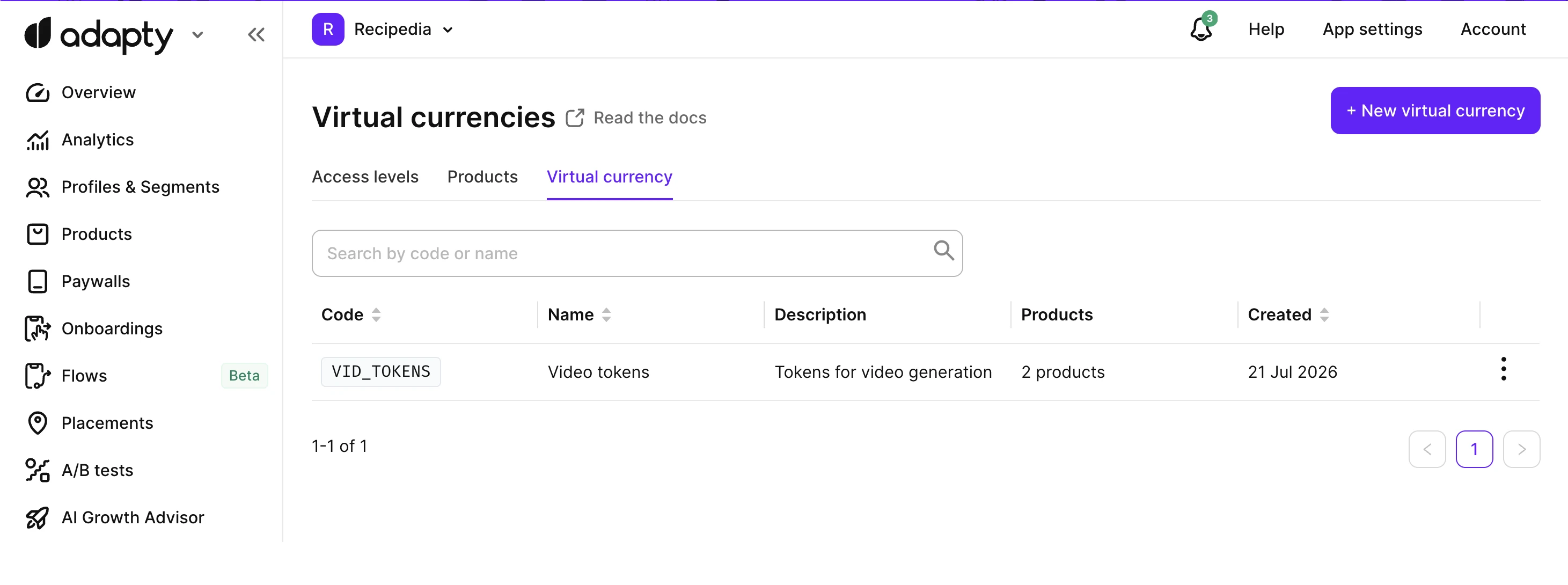
Để tạo tiền tệ ảo:
- Nhấn New virtual currency. Thanh trượt sẽ mở ra ở bước General.
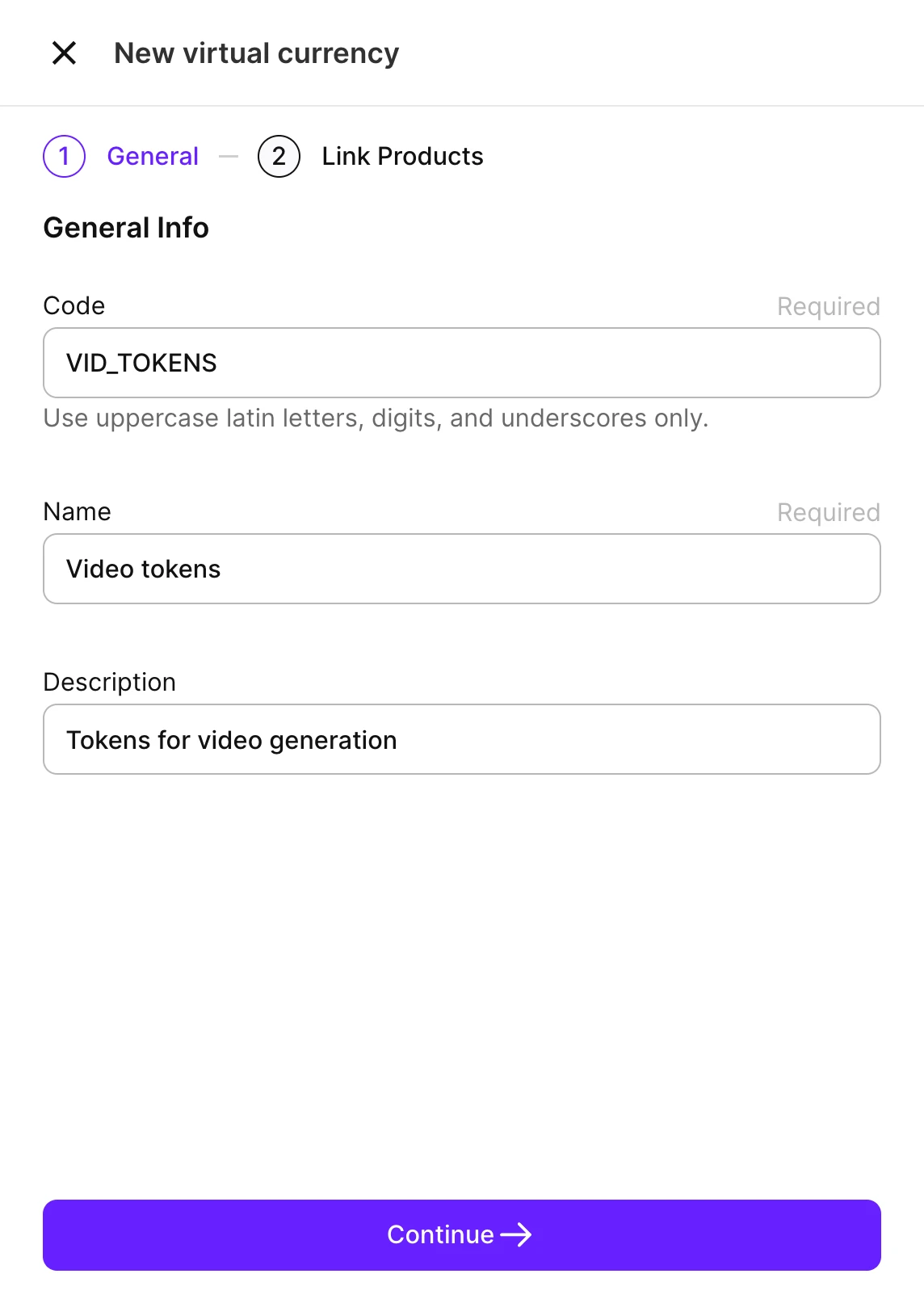
- Điền thông tin chi tiết về đồng tiền:
- Code: Mã định danh cố định, duy nhất cho đồng tiền trong ứng dụng của bạn, ví dụ như
COINS. Dùng để xác định đồng tiền trong API phía máy chủ và theo dõi số dư của từng người dùng.
- Code: Mã định danh cố định, duy nhất cho đồng tiền trong ứng dụng của bạn, ví dụ như
Sử dụng chữ cái Latin, chữ số và dấu gạch dưới, tối đa 32 ký tự. Chữ thường sẽ được tự động chuyển thành chữ hoa.
- Name: Tên hiển thị, ví dụ như
Gold. Bạn có thể thay đổi sau. - Description: Ghi chú tùy chọn về đơn vị tiền tệ.
- Nhấn Continue để chuyển sang bước Link Products.
Bạn không thể thay đổi Code của đơn vị tiền tệ sau khi đã tạo. Bạn vẫn có thể chỉnh sửa Name sau này.
Khi bạn tạo một loại tiền tệ mới, số dư ban đầu của mọi hồ sơ người dùng đều là 0. Để tặng cho người dùng số dư trước khi họ mua bất cứ thứ gì, hãy xem Cấp số dư ban đầu.
Liên kết sản phẩm
Liên kết một sản phẩm với một loại tiền tệ ảo để khi mua hàng hoặc gia hạn, người dùng sẽ nhận được tín dụng trong loại tiền tệ đó. Bạn có thể liên kết một sản phẩm với nhiều loại tiền tệ, và một loại tiền tệ với nhiều sản phẩm. Bạn có thể liên kết sản phẩm ngay bây giờ, trong bước Link Products, hoặc thêm sau khi chỉnh sửa loại tiền tệ.
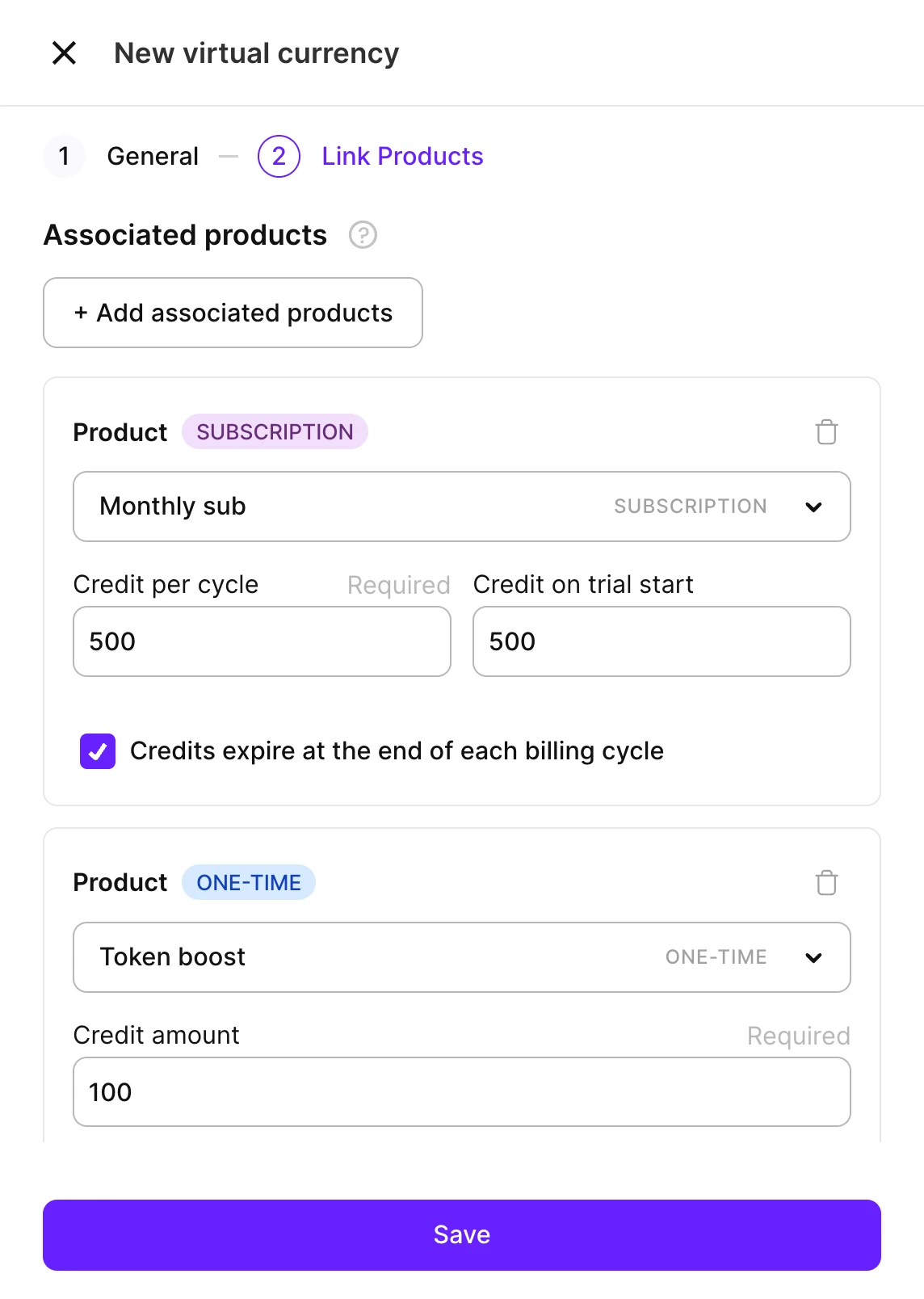
Trong bước Link Products, phần Associated products liệt kê các sản phẩm cấp loại tiền tệ này. Để thêm một sản phẩm, nhấn Add associated products, rồi chọn sản phẩm.
Mỗi lần cấp phép sẽ cộng thêm vào số dư của người dùng thay vì ghi đè lên, do đó tín dụng từ các sản phẩm khác nhau sẽ tích lũy lại. Cài đặt tín dụng phụ thuộc vào loại sản phẩm:
- Sản phẩm gói đăng ký có ba cài đặt credit:
- Credit per cycle (bắt buộc): Số credit được cấp tại mỗi kỳ gia hạn, bao gồm cả lần gia hạn chuyển từ dùng thử sang trả phí.
- Credit on trial start (tùy chọn): Một khoản riêng biệt, chỉ cấp một lần khi bắt đầu dùng thử miễn phí.
- Credits expire at the end of each billing cycle (bật/tắt): Khi bật, Adapty đặt lại credit chưa dùng về 0 tại mỗi kỳ gia hạn, trước khi cấp credit cho chu kỳ mới. Khi tắt, credit tích lũy qua các chu kỳ và không bao giờ hết hạn.
- Sản phẩm mua một lần: Đặt Credit amount — số credit được cấp cho mỗi lần mua. Credit của sản phẩm mua một lần không bao giờ hết hạn.
Nhấn Save để tạo loại tiền tệ cùng với các liên kết sản phẩm.
Các liên kết sản phẩm chỉ có hiệu lực từ thời điểm tạo trở đi. Một sản phẩm mới được liên kết sẽ cấp tín dụng từ lần mua hoặc gia hạn tiếp theo. Adapty không tự động cấp tiền tệ cho những người đang đăng ký — họ cần gia hạn gói đăng ký trước. Khi bạn xóa một liên kết, các khoản cấp trong tương lai sẽ dừng lại, nhưng tín dụng đã được cấp vẫn giữ nguyên.
Khi bật chế độ hết hạn, tín dụng có thời hạn sẽ tuân theo vòng đời của gói đăng ký:
- Trong thời gian thử lại thanh toán hoặc thời gian ân hạn, Adapty không cấp thêm credit mới.
- Sau khi hủy, credit vẫn được giữ cho đến hết kỳ đã thanh toán.
- Khi gói đăng ký hết hạn, Adapty đặt lại số credit còn lại về 0.
Cách số dư hỗn hợp được sử dụng
Số dư của một loại tiền tệ có thể chứa credit từ nhiều nguồn khác nhau cùng lúc — ví dụ: một khoản cấp từ gói đăng ký có thời hạn và một khoản cấp từ sản phẩm mua một lần không có thời hạn. Khi một giao dịch chi tiêu trừ vào số dư, Adapty sẽ ưu tiên trừ các credit có thời hạn trước, theo thứ tự khoản cấp cũ nhất trước, và chỉ chuyển sang trừ các credit không có thời hạn khi không còn credit có thời hạn nào. Đó là lý do tại sao khi một gói đăng ký hết hạn, chỉ phần chưa sử dụng đến từ gói đăng ký đó mới bị đặt lại — các credit được cấp từ sản phẩm mua một lần vẫn giữ nguyên trong số dư.
Các bước tiếp theo
Sau khi tạo tiền tệ ảo và liên kết sản phẩm, các giao dịch mua sẽ tự động cộng credits. Từ đây, bạn có thể:
- Theo dõi số dư của từng người dùng trên trang Virtual currency balance.
- Cấp, tiêu và đọc số dư trong thời gian thực qua server-side API: Create virtual currency transaction và List virtual currency balances. Để xem ví dụ thực tế, hãy xem Virtual currency quickstart.