
プロファイル/CRM
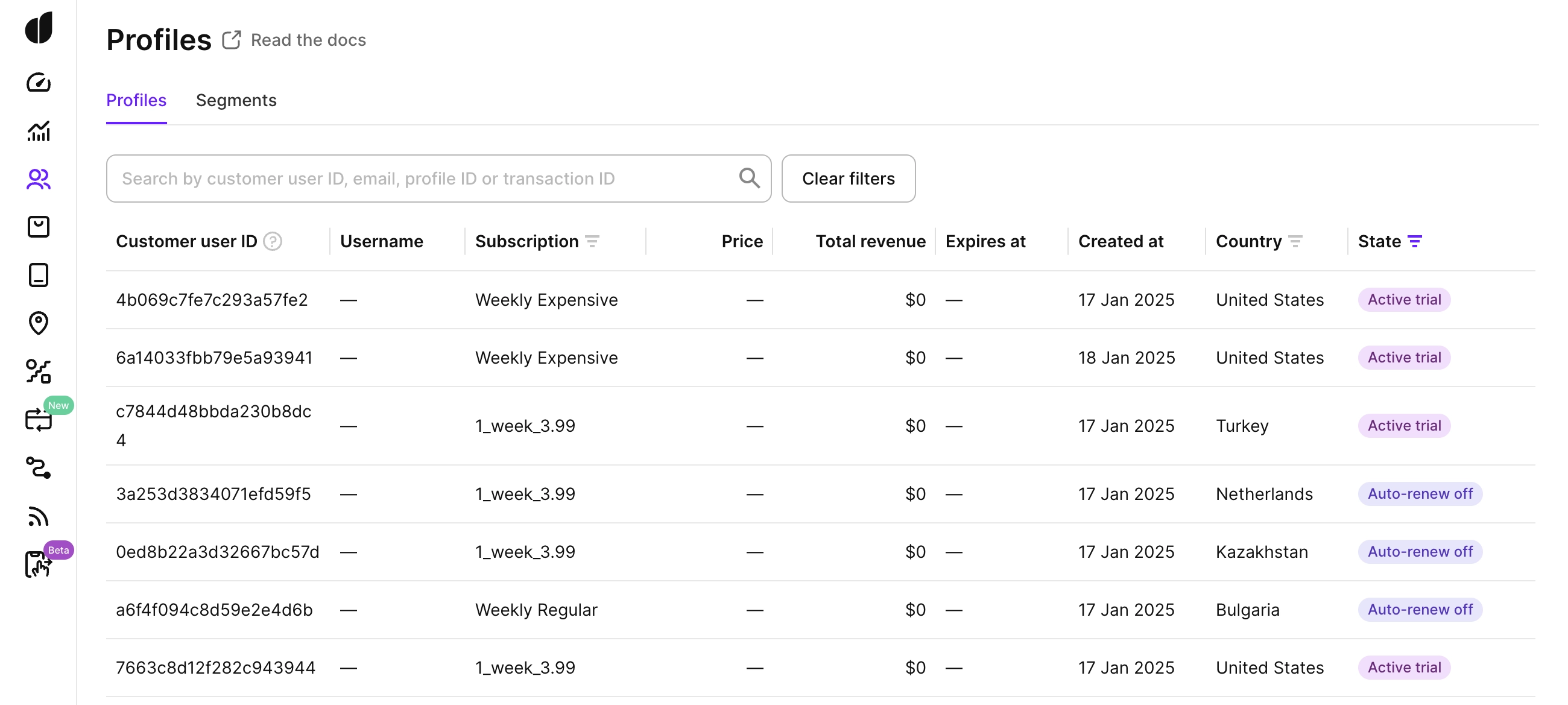
プロファイルはユーザー向けのCRMです。プロファイルを使うと、次のことができます:
- プロファイル ID、カスタマーユーザー ID、メールアドレス、またはトランザクション ID で特定のユーザーを検索する。
- 請求の問題、グレース期間、その他のイベントを含む、ユーザーのイベントタイムラインを確認する。
- サブスクリプションの状態、総収益・手取り額など、ユーザーのプロパティを分析する。
- ユーザーにサブスクリプションを付与する。
イベントフィードのイベントはダッシュボードに届くまでに遅延が発生します。新しいプロファイルや属性の変更はすぐに反映されない場合があります。
Adapty がどのようにユーザープロファイルを作成・紐付けするかについては、プロファイルの仕組みをご覧ください。
ユーザーの検索
プロファイル一覧では、以下の方法で特定のユーザーを検索できます:
- Profile ID: Adapty がユーザーに割り当てた内部識別子(Adapty ID とも呼ばれます)。
- Customer user ID: アプリ側でユーザーに設定した識別子(設定済みの場合)。
- Email: カスタム属性として送信されたユーザーのメールアドレス(送信済みの場合)。
- Transaction ID: 購入時にストアから発行されたトランザクション ID。
検索は値の完全一致で機能します。部分一致はできません。また、前後に余分なスペースがあると検索結果が返されません。識別子全体をそのままコピー&ペーストしてください。カスタムユーザーID、メールアドレス、トランザクションIDは大文字・小文字も区別されます。
任意の行をクリックすると、そのユーザーの完全なプロファイルを表示できます。
サブスクリプション状態
プロファイル一覧では、サブスクリプション状態でユーザーをフィルタリングおよび並べ替えることができます。状態の値は以下のとおりです:
| ユーザーの状態 | 説明 |
|---|---|
| Subscribed | ユーザーは自動更新が有効なアクティブなサブスクリプションを持っています。 |
| Auto-renew off | ユーザーは自動更新をオフにしましたが、サブスクリプション期間の終了までプレミアム機能にアクセスできます。 |
| Subscription cancelled | ユーザーはサブスクリプションをキャンセルし、完全に終了しました。 |
| Billing issue | サブスクリプションまたはトライアル終了後に請求の問題が発生し、ユーザーに課金できませんでした。 |
| Grace period | サブスクリプションまたはトライアル終了後の課金試行時に請求の問題が発生したため、ユーザーは現在グレース期間中です。 |
| Active trial | ユーザーはトライアル期間中のアクティブなサブスクリプションを持っています。 |
| Trial cancelled | ユーザーはトライアルをキャンセルし、アクティブなサブスクリプションはありません。 |
| Never subscribed | ユーザーはサブスクリプションを開始したことがなく、トライアルも利用したことがない無料ユーザーです。 |
ユーザー属性
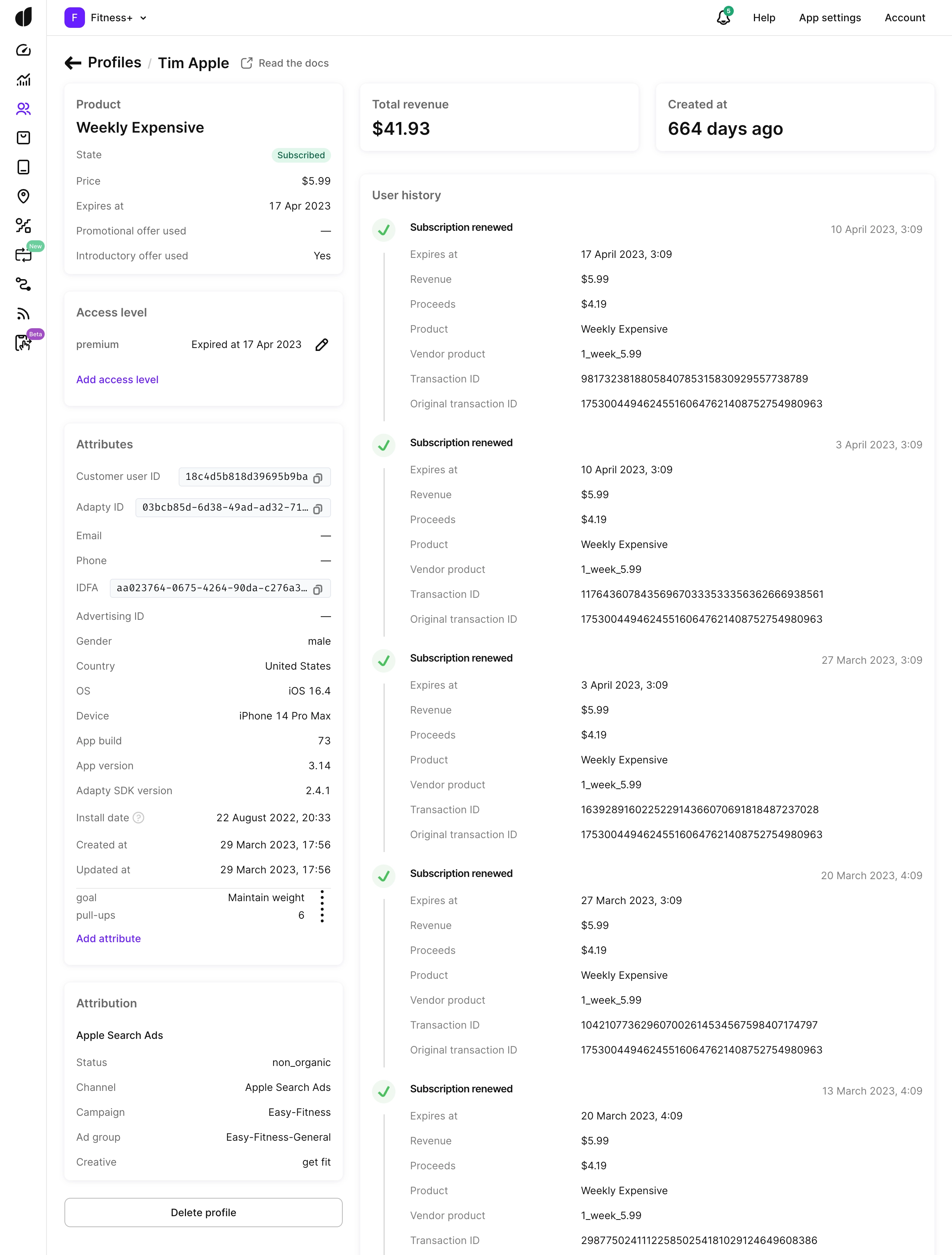
SDKを使って、追加のユーザープロパティをAdaptyに送信できます。
デフォルトでは、Adaptyが設定する項目:
| プロパティ | 説明 |
|---|---|
| Customer user ID | あなたのシステムにおけるエンドユーザーの識別子です。 |
| Adapty ID | エンドユーザーの Adapty 内部識別子で、Profile ID と呼ばれます。 |
| IDFA | Apple がユーザーのデバイスに割り当てる広告識別子です。iOS 14+ では App Tracking Transparency(ATT)の許可が必要です。Android では利用できません。 |
| IP country | エンドユーザーの最初のリクエスト元 IP アドレスの国です。Adapty はその後のリクエストでは更新しません。Country セグメント属性はこの値を使用します。詳細は利用可能な属性を参照してください。 |
| Store country | ストアから報告されるエンドユーザーの App Store または Google Play アカウントの国です。Adapty はストアのトランザクションと一緒に受信するため、購入履歴のないユーザーでは空になります。 |
| OS | エンドユーザーが使用しているオペレーティングシステムです。 |
| Device | エンドユーザーに表示されるデバイスのモデル名です。 |
| Install date | ユーザーが Adapty に最初に記録された日付です:
|
| Created at | ユーザーが作成された日付です。 |
SDKをインストールした後、Adaptyは支払いキューからユーザーイベントを自動的に収集し、ユーザープロファイルに表示します。上記の表の属性は自動的に収集されるため、送信する必要はありません。
カスタム属性
プロファイルの Attributes セクションでは、SDK または API を通じて設定されたカスタム属性を確認できます。また、Add attribute ボタンを使って手動で属性を追加することもできます。
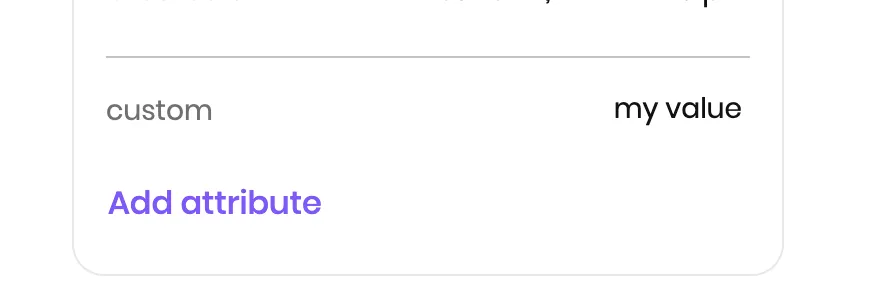
属性を変更または削除するには、その属性の横にある三点メニューをクリックして Edit または Delete を選択します。属性を削除しても、影響を受けるのはそのプロファイルのみです。同じ属性を持つ他のプロファイルには影響しません。
サブスクリプションの付与
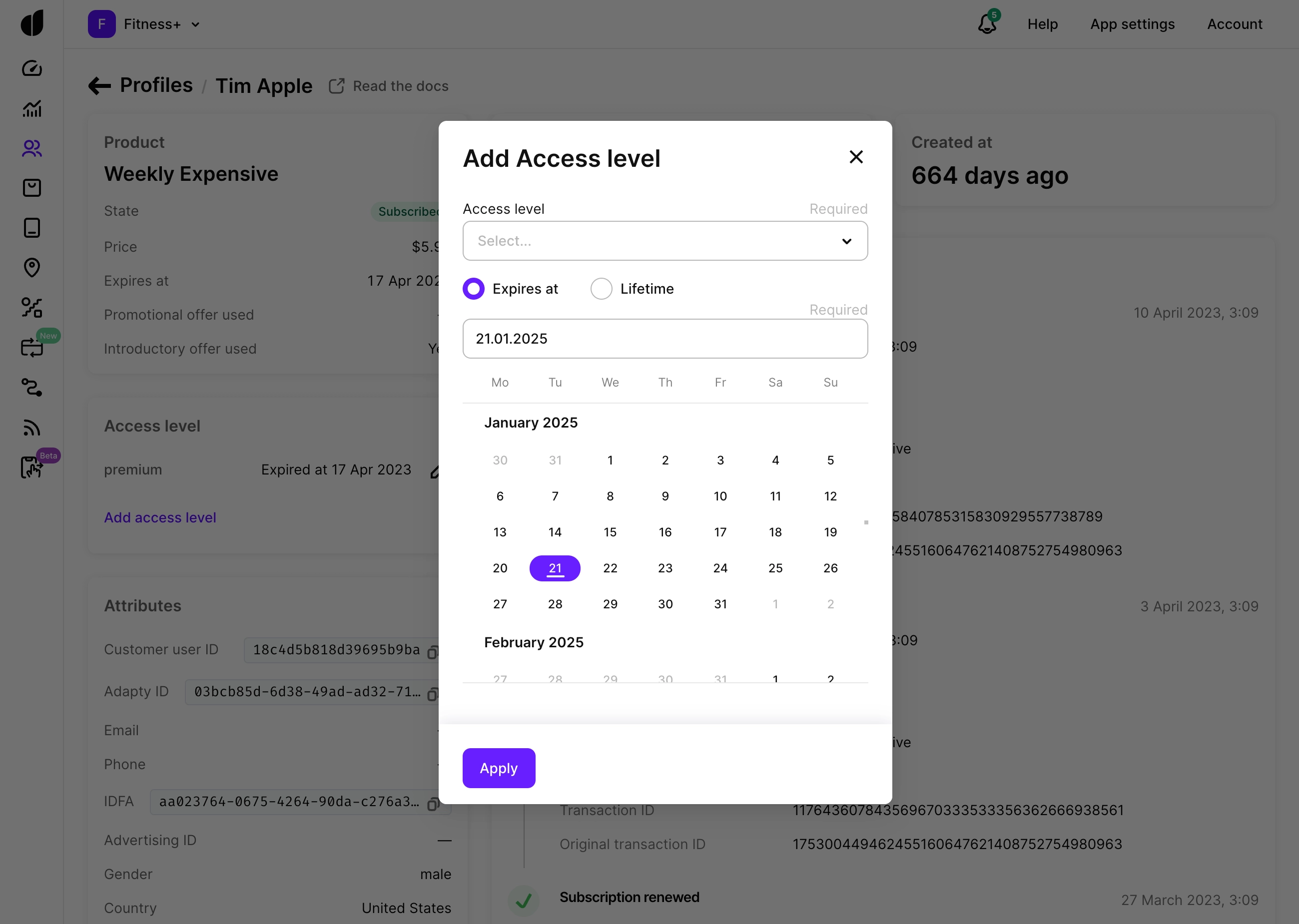
プロファイルでは、実際に購入しなくても、有効なサブスクリプションを延長したり、アクセスレベルへの永続アクセスをユーザーに付与したりすることができます。
主な用途は以下のとおりです:
- 請求やサポートに関する問題が発生したユーザーへの補償。
- 手動プロモーションやベータプログラムの実施。
- 実際に購入せずにサブスクリプションのフローをテストする。
アクセスを付与するには、ユーザーのプロファイルを開き、Access levels セクションに移動して Edit をクリックします。有効期限を設定して保存してください。有効期限は未来の日時である必要があり、一度設定したら短縮することはできません。有効なサブスクリプションに対して調整しても、継続中の支払いには影響しません。
アクセスの付与は、App Store や Google Play の購入イベントを作成しません。ユーザーのイベントフィードやアナリティクスは、実際の購入フローとは異なります。
プログラムからアクセスを付与する場合は、Grant access level API メソッドを使用してください。
ユーザーアカウント間での有料アクセスの共有
メイン記事: ユーザーアカウント間での有料アクセスの共有
アクセス共有の履歴
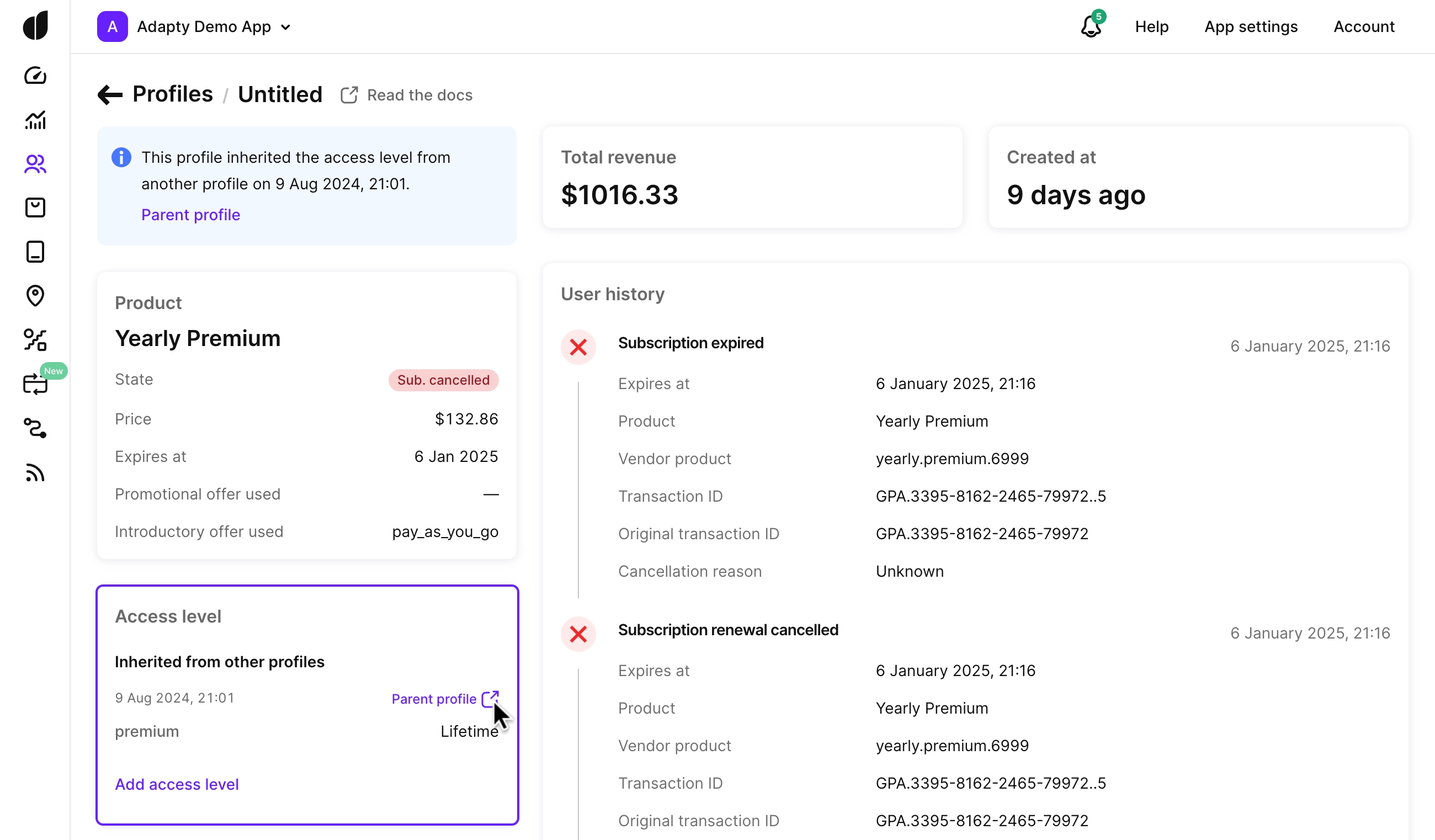
アクセスレベルが共有または転送されると、ユーザーのプロファイルに接続されたプロファイルへのリンクが表示されます。このリンクは、アクセスを共有したプロファイル、またはアクセスを受け取ったプロファイルを示しています。接続されたプロファイルを表示するには、ユーザーの Profile でアクセスレベルの横にあるリンクをクリックしてください。
バーチャル通貨の残高は、アクセスレベルのようにプロファイル間で共有・転送されません。各残高は単一のプロファイルに紐づきます — 詳細は残高、プロファイル、デバイスをご覧ください。
次のステップ
- Adapty がプロファイルを作成・リンクする仕組みについては、プロファイルの仕組みを参照してください。
- アクセス共有ポリシーの設定については、ユーザーアカウント間での有料アクセスの共有を参照してください。
- プログラムからアクセスを付与するには、アクセスレベルの付与 API メソッドを参照してください。