
在 Capacitor SDK 中处理用户引导数据
Warning
从 Adapty SDK v4 开始,用户引导功能已弃用。 请改用流程:与运行在 WebView 中的用户引导不同,流程直接在设备上原生渲染——动画更流畅、外观更统一、加载更快,且无需依赖 WebView 运行时。
当用户回答测验问题或在输入框中填写数据时,onStateUpdated 方法将被调用。你可以在代码中保存或处理相应的字段类型。
例如:
view.setEventHandlers({
  onStateUpdated(action, meta) {
    // Process data
  },
});
查看 action 格式,请参考此处。
已保存的数据示例(实际格式可能因实现方式而有所不同)
// Example of a saved select action
{
    "elementId": "preference_selector",
    "meta": {
        "onboardingId": "onboarding_123",
        "screenClientId": "preferences_screen",
        "screenIndex": 1,
        "screensTotal": 3
    },
    "params": {
        "type": "select",
        "value": {
            "id": "option_1",
            "value": "premium",
            "label": "Premium Plan"
        }
    }
}

// Example of a saved multi-select action
{
    "elementId": "interests_selector",
    "meta": {
        "onboardingId": "onboarding_123",
        "screenClientId": "interests_screen",
        "screenIndex": 2,
        "screensTotal": 3
    },
    "params": {
        "type": "multiSelect",
        "value": [
            {
                "id": "interest_1",
                "value": "sports",
                "label": "Sports"
            },
            {
                "id": "interest_2",
                "value": "music",
                "label": "Music"
            }
        ]
    }
}

// Example of a saved input action
{
    "elementId": "name_input",
    "meta": {
        "onboardingId": "onboarding_123",
        "screenClientId": "profile_screen",
        "screenIndex": 0,
        "screensTotal": 3
    },
    "params": {
        "type": "input",
        "value": {
            "type": "text",
            "value": "John Doe"
        }
    }
}

// Example of a saved date picker action
{
    "elementId": "birthday_picker",
    "meta": {
        "onboardingId": "onboarding_123",
        "screenClientId": "profile_screen",
        "screenIndex": 0,
        "screensTotal": 3
    },
"params": {
    "type": "datePicker",
    "value": {
        "day": 15,
        "month": 6,
        "year": 1990
        }
    }
}
使用场景
用户画像数据补充
如果你希望立即将用户输入的数据与其用户画像关联,避免重复询问相同信息,则需要在处理操作时,将输入数据更新到用户画像中。
例如,你让用户在 ID 为 name 的文本框中输入姓名,并希望将该字段的值设置为用户的名字;同时让用户在 email 字段中输入邮箱地址。在你的应用代码中,实现方式如下:
view.setEventHandlers({
  onStateUpdated(action, meta) {
    // Store user preferences or responses
    if (action.elementType === 'input') {
      const profileParams: any = {};

      // Map elementId to appropriate profile field
      switch (action.elementId) {
        case 'name':
          if (action.value.type === 'text') {
            profileParams.firstName = action.value.value;
          }
          break;
        case 'email':
          if (action.value.type === 'email') {
            profileParams.email = action.value.value;
          }
          break;
      }

      // Update profile if we have data to update
      if (Object.keys(profileParams).length > 0) {
        adapty.updateProfile({ params: profileParams }).catch((error) => {
          // handle the error
        });
      }
    }
  },
});
根据答案自定义付费墙
在用户引导中使用问卷,你还可以根据用户完成用户引导后的答案,为其展示不同的付费墙。
例如,你可以询问用户的运动经验,然后向不同用户群体展示不同的 CTA 和产品。
- 在用户引导编辑器中添加问卷,并为各选项设置有意义的 ID。
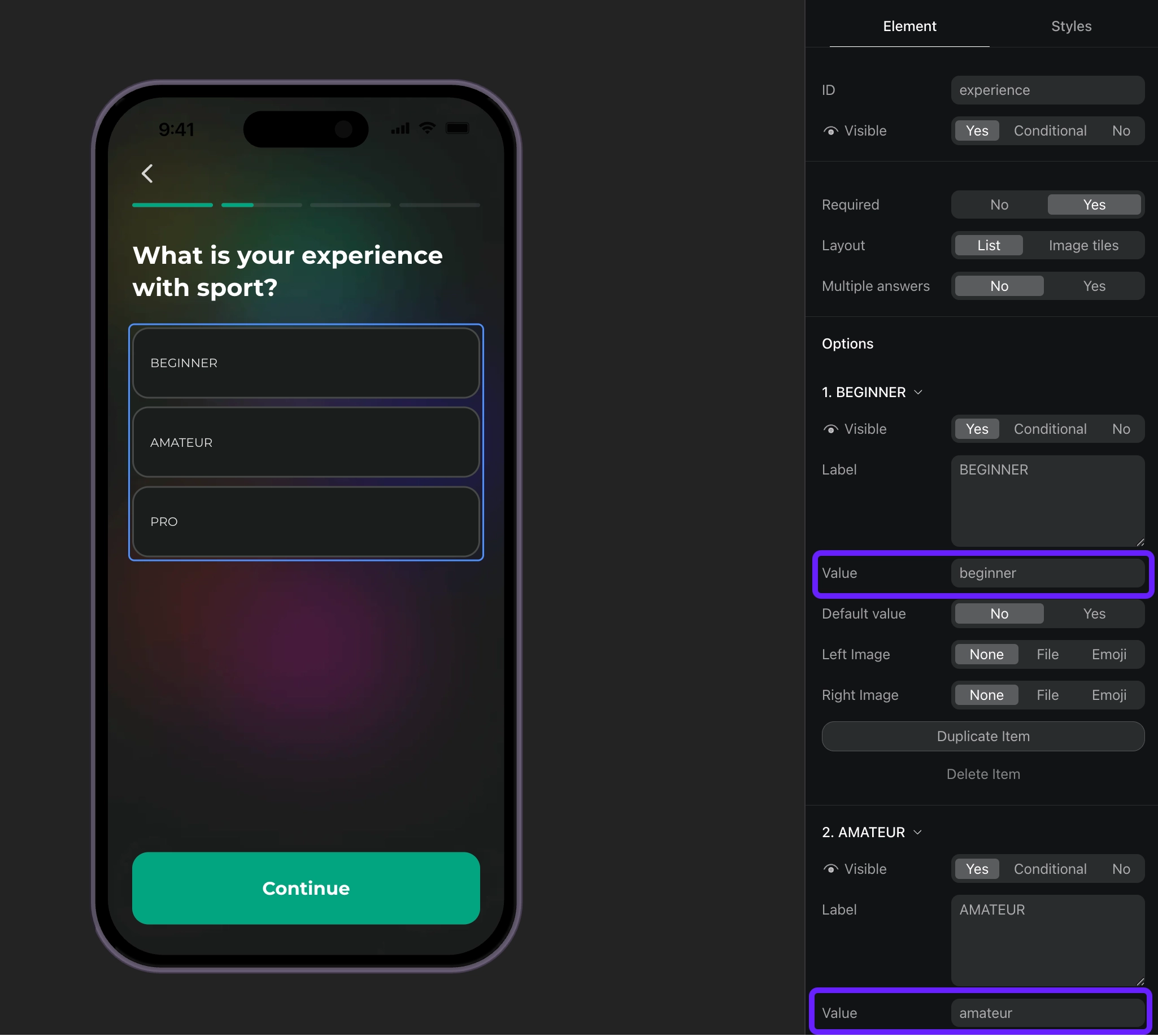
- 根据 ID 处理问卷响应,并为用户设置自定义属性。
view.setEventHandlers({
  onStateUpdated(action, meta) {
    // Handle quiz responses and set custom attributes
    if (action.elementType === 'select') {
      const profileParams: any = {};

      // Map quiz responses to custom attributes
      switch (action.elementId) {
        case 'experience':
          // Set custom attribute 'experience' with the selected value (beginner, amateur, pro)
          profileParams.codableCustomAttributes = {
            experience: action.value.value
          };
          break;
      }

      // Update profile if we have data to update
      if (Object.keys(profileParams).length > 0) {
        adapty.updateProfile({ params: profileParams }).catch((error) => {
          // handle the error
        });
      }
    }
  },
});