
Android SDKでオンボーディングイベントを処理する
オンボーディングは Adapty SDK v4 以降で非推奨となりました。 代わりにフローを構築してください。オンボーディングは WebView 内で動作しますが、フローはデバイス上でネイティブにレンダリングされるため、アニメーションがスムーズで、一貫したネイティブの外観と操作感、高速な読み込み、そして WebView ランタイムへの依存がありません。
始める前に、以下を確認してください。
- Adapty Android SDK 3.8.0 以降をインストール済みであること。
- オンボーディングを作成済みであること。
- オンボーディングをプレースメントに追加済みであること。
ビルダーで設定したオンボーディングは、アプリが応答できるイベントを生成します。これらのイベントへの応答方法については、以下をご覧ください。
Android アプリのオンボーディング画面で発生するプロセスを制御・監視するには、AdaptyOnboardingEventListener インターフェースを実装してください。
カスタムアクション
ビルダーでは、ボタンにカスタムアクションを追加してIDを割り当てることができます。そのIDをコード内で使用し、カスタムアクションとして処理できます。
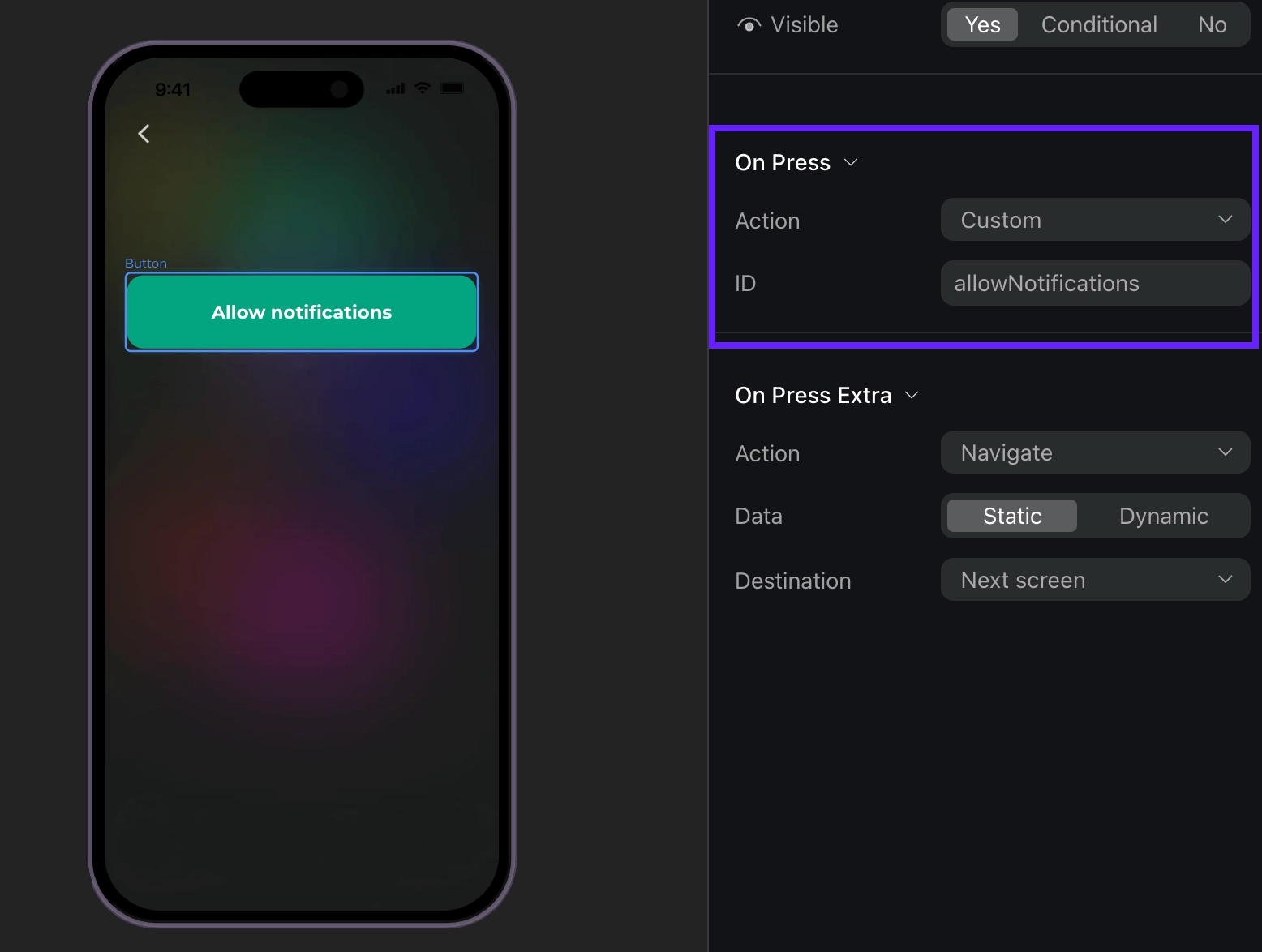
例えば、ユーザーが Login や Allow notifications などのカスタムボタンをタップすると、デリゲートメソッド onCustomAction がビルダーで設定したアクション ID とともに呼び出されます。“allowNotifications” のように、任意の ID を自由に作成できます。
class YourActivity : AppCompatActivity() {
    private val eventListener = object : AdaptyOnboardingEventListener {
        override fun onCustomAction(action: AdaptyOnboardingCustomAction, context: Context) {
            when (action.actionId) {
                "allowNotifications" -> {
                    // Request notification permissions
                }
            }
        }

        override fun onError(error: AdaptyOnboardingError, context: Context) {
            // Handle errors
        }

        // ... other required delegate methods
    }
}
イベントの例(クリックして展開)
{
  "actionId": "allowNotifications",
  "meta": {
    "onboardingId": "onboarding_123",
    "screenClientId": "profile_screen",
    "screenIndex": 0,
    "screensTotal": 3
  }
}
オンボーディングを閉じる
オンボーディングは、ユーザーがCloseアクションが割り当てられたボタンをタップすると閉じられます。ユーザーがオンボーディングを閉じたときの処理を実装する必要があります。例えば:
ユーザーがオンボーディングを閉じたときの処理を実装する必要があります。たとえば、オンボーディング画面自体を非表示にする必要があります。
例:
override fun onCloseAction(action: AdaptyOnboardingCloseAction, context: Context) {
    // Dismiss the onboarding screen
    (context as? Activity)?.onBackPressed()
}
イベントの例(クリックして展開)
{
  "action_id": "close_button",
  "meta": {
    "onboarding_id": "onboarding_123",
    "screen_cid": "final_screen",
    "screen_index": 3,
    "total_screens": 4
  }
}
ペイウォールを開く
オンボーディング内でペイウォールを開きたい場合は、このイベントを処理してください。ペイウォールが閉じられた後に開きたい場合は、AdaptyOnboardingCloseAction を処理してペイウォールをイベントデータに依存せずに開く、よりシンプルな方法があります。
オンボーディングでペイウォールを扱う最もスムーズな方法は、アクション ID をペイウォールのプレースメント ID と同じにすることです。こうすることで、AdaptyOnboardingOpenPaywallAction の後、プレースメント ID を使ってすぐにペイウォールを取得して開くことができます。
override fun onOpenPaywallAction(action: AdaptyOnboardingOpenPaywallAction, context: Context) {
    // Get the paywall using the placement ID from the action
    Adapty.getPaywall(placementId = action.actionId) { result ->
        when (result) {
            is AdaptyResult.Success -> {
                val paywall = result.value
                // Get the paywall configuration
                AdaptyUI.getViewConfiguration(paywall) { result ->
                    when(result) {
                        is AdaptyResult.Success -> {
                            val paywallConfig = result.value
                            // Create and present the paywall
                            val paywallView = AdaptyUI.getPaywallView(
                                activity = this,
                                viewConfig = paywallConfig,
                                products,
                                eventListener = paywallEventListener
                            )
                            // Add the paywall view to your layout
                            binding.container.addView(paywallView)
                        }
                        is AdaptyResult.Error -> {
                            val error = result.error
                            // handle the error
                        }
                    }
                }
            is AdaptyResult.Error -> {
                val error = result.error
                // handle the error
            }
        }
    }
}
イベント例(クリックして展開)
{
    "action_id": "premium_offer_1",
    "meta": {
        "onboarding_id": "onboarding_123",
        "screen_cid": "pricing_screen",
        "screen_index": 2,
        "total_screens": 4
    }
}
オンボーディングの読み込み完了
オンボーディングの読み込みが完了すると、このメソッドが呼び出されます:
override fun onFinishLoading(action: AdaptyOnboardingLoadedAction, context: Context) {
    // Handle loading completion
}
イベント例(クリックして展開)
{
    "meta": {
        "onboarding_id": "onboarding_123",
        "screen_cid": "welcome_screen",
        "screen_index": 0,
        "total_screens": 4
    }
}
ナビゲーションイベント
onAnalyticsEvent メソッドは、オンボーディングフローの進行中にさまざまな分析イベントが発生したときに呼び出されます。
event オブジェクトには、以下のタイプがあります。
| タイプ | 説明 |
|---|---|
OnboardingStarted | オンボーディングが読み込まれたとき |
ScreenPresented | 任意の画面が表示されたとき |
ScreenCompleted | 画面が完了したとき。オプションの elementId(完了した要素の識別子)とオプションの reply(ユーザーからの応答)を含みます。ユーザーが画面を離れるアクションを実行したときにトリガーされます。 |
SecondScreenPresented | 2番目の画面が表示されたとき |
UserEmailCollected | 入力フィールドを通じてユーザーのメールアドレスが収集されたときにトリガーされます |
OnboardingCompleted | ユーザーが final IDを持つ画面に到達したときにトリガーされます。このイベントが必要な場合は、最後の画面に final IDを割り当ててください。 |
Unknown | 認識されないイベントタイプの場合。name(不明なイベントの名前)と meta(追加のメタデータ)を含みます |
各イベントには以下のフィールドを含む meta 情報が含まれています:
| フィールド | 説明 |
|---|---|
onboardingId | オンボーディングフローの一意識別子 |
screenClientId | 現在の画面の識別子 |
screenIndex | フロー内での現在の画面の位置 |
totalScreens | フロー内の画面の総数 |
以下は、トラッキングのためにアナリティクスイベントを利用する方法の例です:
override fun onAnalyticsEvent(event: AdaptyOnboardingAnalyticsEvent, context: Context) {
    when (event) {
        is AdaptyOnboardingAnalyticsEvent.OnboardingStarted -> {
            // Track onboarding start
            trackEvent("onboarding_started", event.meta)
        }
        is AdaptyOnboardingAnalyticsEvent.ScreenPresented -> {
            // Track screen presentation
            trackEvent("screen_presented", event.meta)
        }
        is AdaptyOnboardingAnalyticsEvent.ScreenCompleted -> {
            // Track screen completion with user response
            trackEvent("screen_completed", event.meta, event.elementId, event.reply)
        }
        is AdaptyOnboardingAnalyticsEvent.OnboardingCompleted -> {
            // Track successful onboarding completion
            trackEvent("onboarding_completed", event.meta)
        }
        is AdaptyOnboardingAnalyticsEvent.Unknown -> {
            // Handle unknown events
            trackEvent(event.name, event.meta)
        }
        // Handle other cases as needed
    }
}
イベントの例(クリックして展開)
// OnboardingStarted
{
  "name": "onboarding_started",
  "meta": {
    "onboarding_id": "onboarding_123",
    "screen_cid": "welcome_screen",
    "screen_index": 0,
    "total_screens": 4
  }
}

// ScreenPresented

{
    "name": "screen_presented",
    "meta": {
        "onboarding_id": "onboarding_123",
        "screen_cid": "interests_screen",
        "screen_index": 2,
        "total_screens": 4
    }
}

// ScreenCompleted

{
    "name": "screen_completed",
    "meta": {
        "onboarding_id": "onboarding_123",
        "screen_cid": "profile_screen",
        "screen_index": 1,
        "total_screens": 4
    },
    "params": {
        "element_id": "profile_form",
        "reply": "success"
    }
}

// SecondScreenPresented

{
    "name": "second_screen_presented",
    "meta": {
        "onboarding_id": "onboarding_123",
        "screen_cid": "profile_screen",
        "screen_index": 1,
        "total_screens": 4
    }
}

// UserEmailCollected

{
    "name": "user_email_collected",
    "meta": {
        "onboarding_id": "onboarding_123",
        "screen_cid": "profile_screen",
        "screen_index": 1,
        "total_screens": 4
    }
}

// OnboardingCompleted

{
    "name": "onboarding_completed",
    "meta": {
        "onboarding_id": "onboarding_123",
        "screen_cid": "final_screen",
        "screen_index": 3,
        "total_screens": 4
    }
}