
Google Cloud Consoleでサービスアカウントを作成する
サービスアカウントは、AdaptyがGoogleのプロジェクトやアプリにアクセスするために使用する特別なGoogleアカウントです。
始める前に
Developer APIs を有効化してください(Google Cloud プロジェクトは同じものを使用)。Developer APIs が有効になるまで、サービスアカウントには呼び出せるものがありません。
サービスアカウントを作成する
-
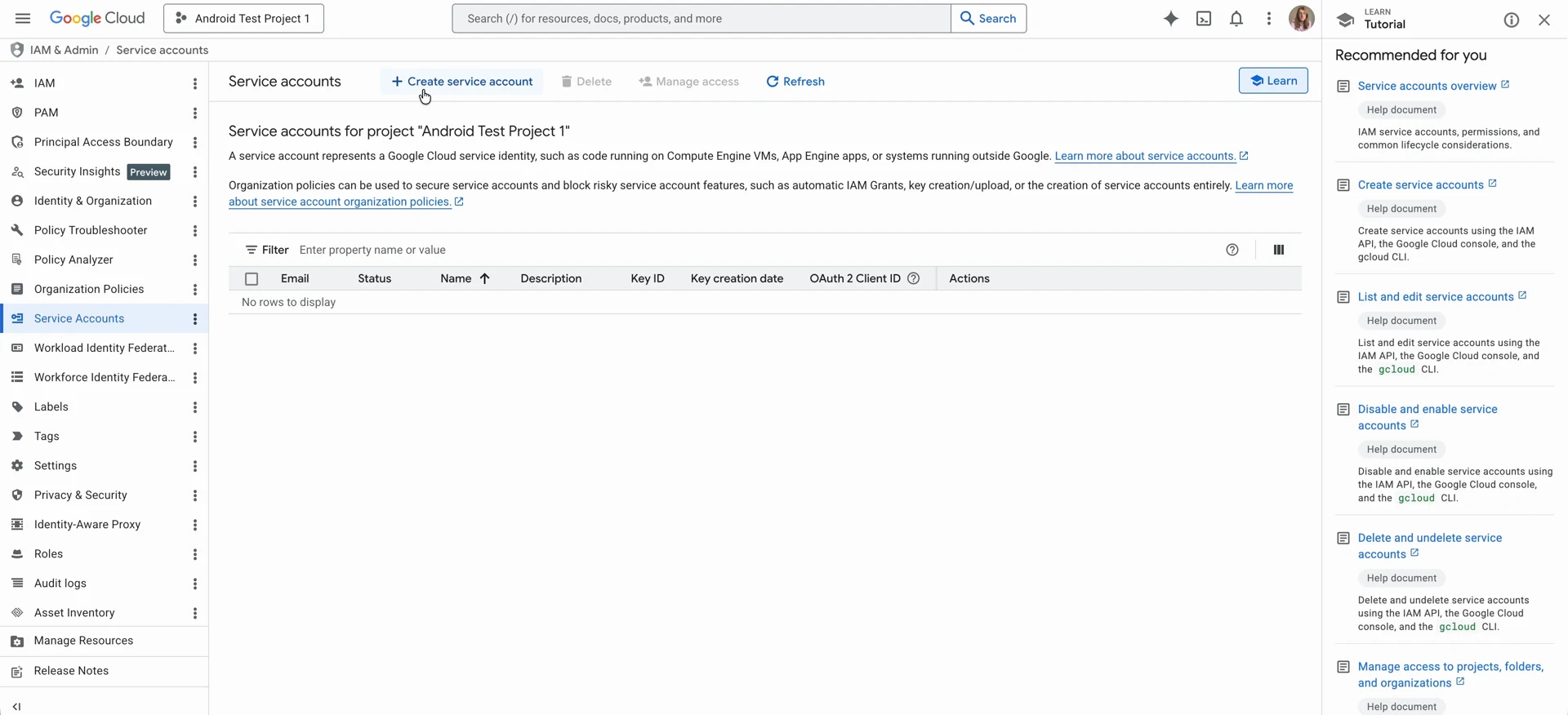
Google Cloud Console で IAM & Admin > Service accounts を開き、正しいプロジェクトにいることを確認します。
-
Create service account をクリックします。
-
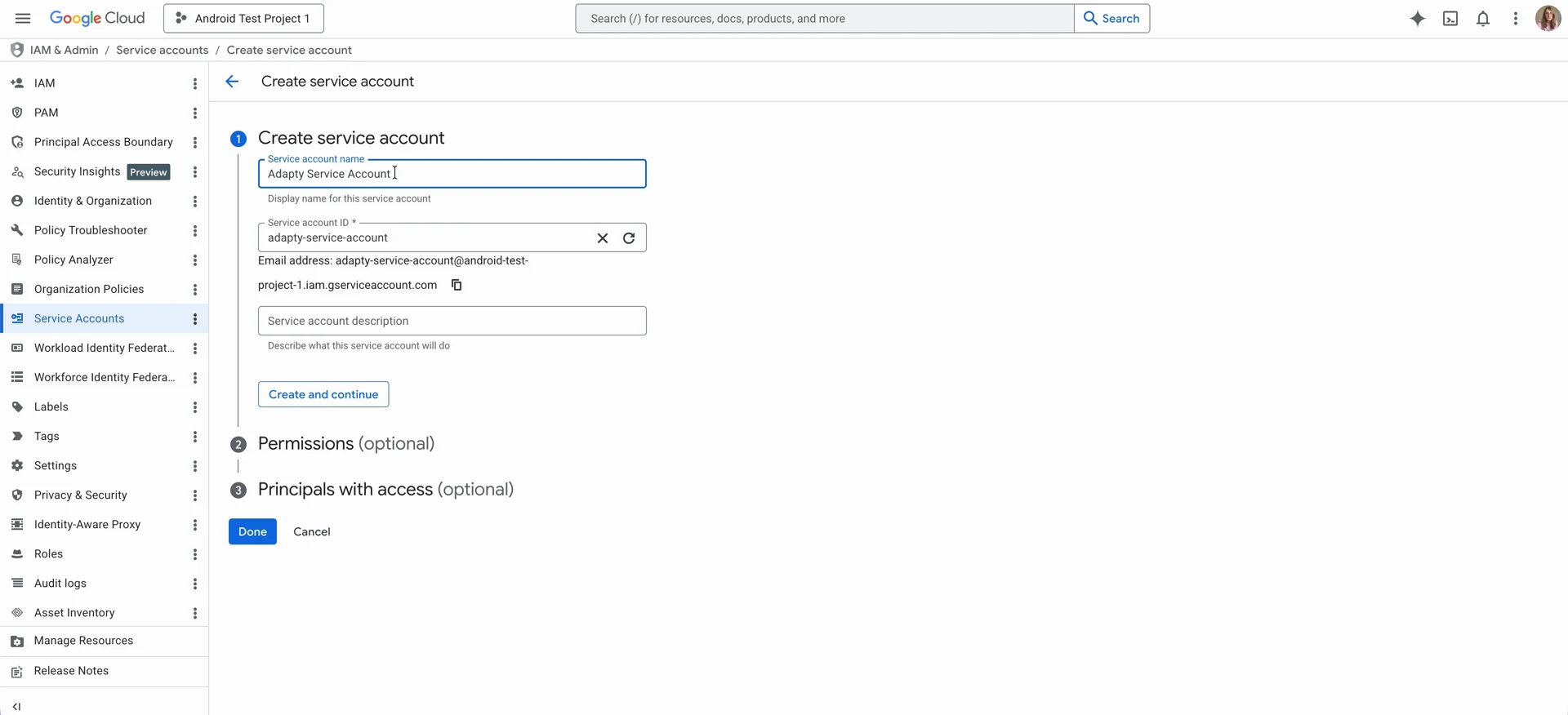
Service account name を入力します。アカウントの用途がわかるよう、「Adapty」を名前に含めてください。Service account ID フィールドは自動的に入力されます。
-
アカウントのメールアドレスをコピーします。このメールアドレスを使って、必要な Play Console の権限を共有します。
-
Create and continue をクリックします。
-
新しく作成したアカウントに Pub/Sub Admin ロールを付与します。Adapty がリアルタイムのデベロッパー通知を受け取るために必要です。Select a role をクリックし、Pub/Sub > Pub/Sub Admin を選択します。
-
Monitoring Viewer ロールを付与します。Adapty が通知キューを監視するために必要です。Add another role をクリックし、Monitoring > Monitoring Viewer を選択します。
-
Continue をクリックします。
-
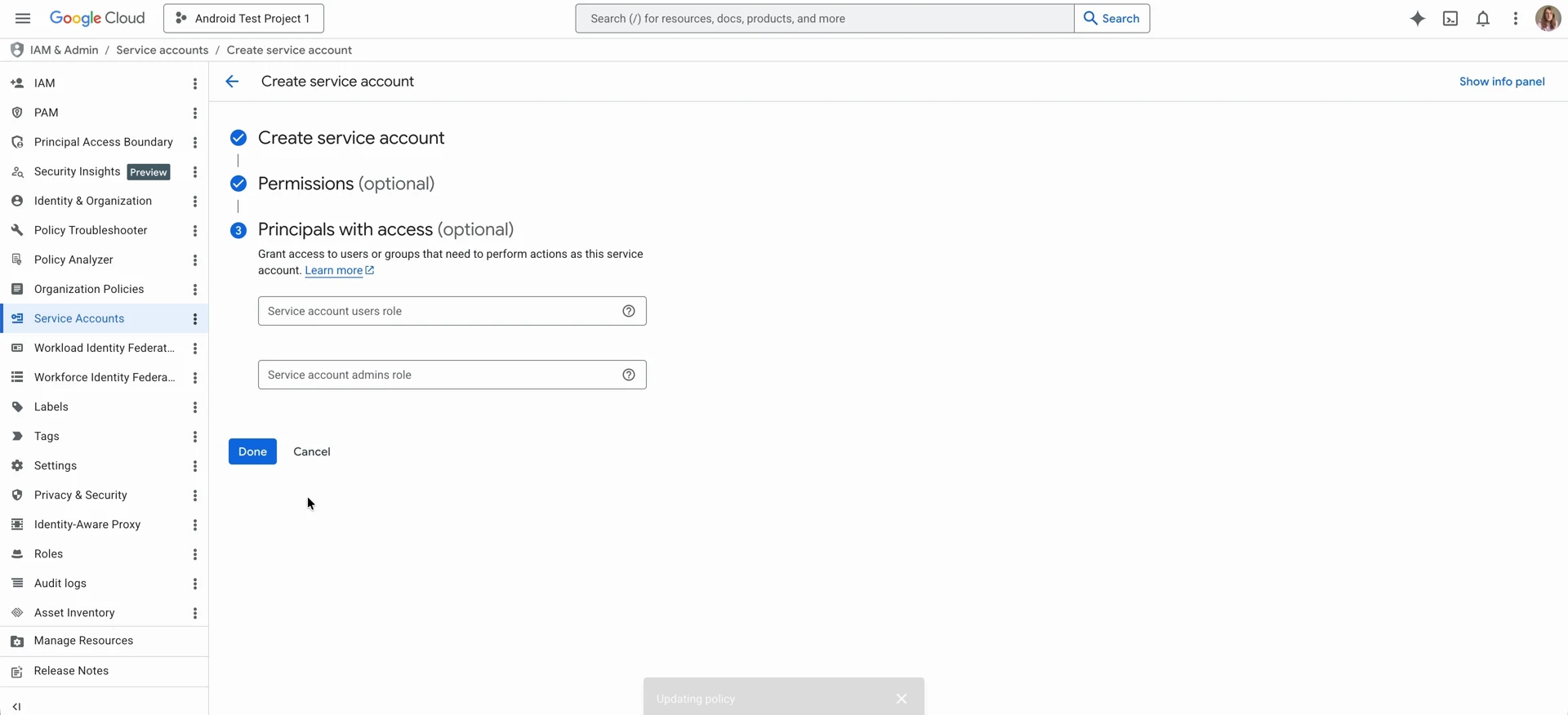
Principals with access はスキップして、Done をクリックします。
Pub/Sub Admin の代わりにカスタムロールを使用する
セキュリティポリシーで事前定義された Admin ロールの使用が制限されている場合は、Pub/Sub Admin の代わりに以下の権限を持つカスタム IAM ロールを付与してください:
pubsub.topics.listpubsub.topics.createpubsub.topics.setIamPolicypubsub.topics.attachSubscriptionpubsub.subscriptions.listpubsub.subscriptions.create
Adaptyの設定では、Pub/SubトピックおよびサブスクリプションAPIのみを呼び出します。Monitoring APIは一切使用しません。Monitoring Viewerロールは、通知キューの状態を自分で確認するためのものであり、Adaptyの呼び出しには必要ありません。
次のステップ
サービスアカウントに権限を付与するには、Google Play Console でアプリのデータにアクセスできるようにする必要があります。