App Store Asset Library is live: headers, search, PPO, Duo


TL;DR:
- On October 5, 2026, Apple turned on App Store Connect creative assets: a product page header, an App Store search results asset, and an App Store Asset Library to store and approve them.
- Custom product pages and product page optimization can use them too.
- iPhone Duo uploads opened the same day.
- Apple Ads custom creative is not part of this release.
What changed in App Store Connect
App Store Connect changed in four visible places. We covered the WWDC26 announcement in August 2026. This is what sits in your account now.
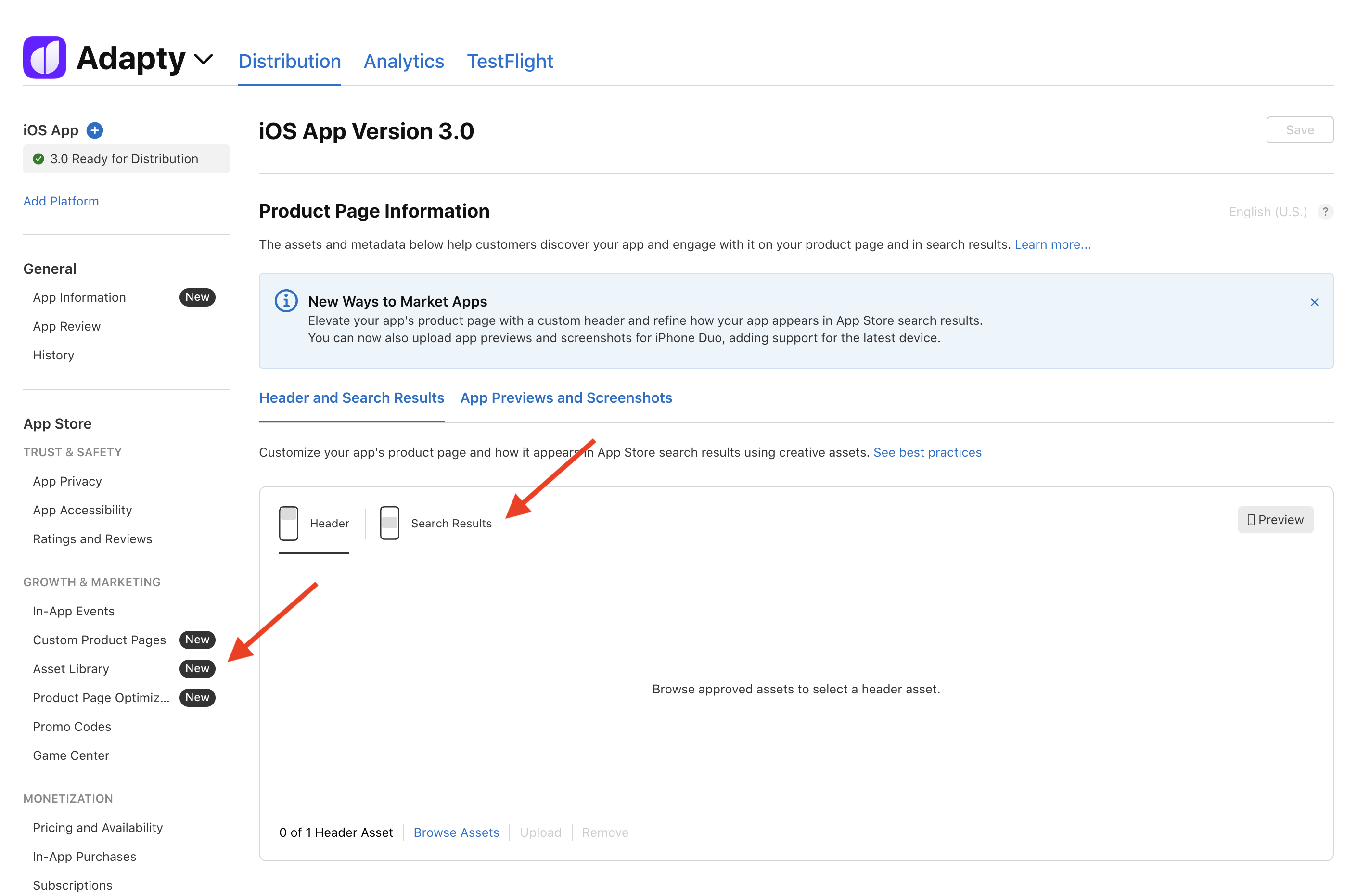
Open the iOS app version page. A "New Ways to Market Apps" banner sits at the top. Product Page Information now has two tabs: Header and Search Results and App Previews and Screenshots. The first splits into Header and Search Results. Each has Browse Assets, Upload, Remove, and a Preview button.
The sidebar marks four items as "New":
- App Information;
- Custom Product Pages;
- Asset Library;
- Product Page Optimization.
Your existing screenshots are already in Asset Library, with their review status. Ours showed up as "Approved" or "Archived". Nothing needs a re-upload.
Creative assets are optional. They sit next to your screenshots and app previews and do not replace them. Per Apple's help page, they show only on iOS 27 or iPadOS 27 and later, as of October 2026.
The new preview tool shows how the header, screenshots, and metadata will look before you submit. It covers Dark Mode, devices, and orientations.
Key point: Two new creative placements, a shared library, and a preview tool are live in App Store Connect; screenshots stay as they are.
Product page header vs App Store search results asset
The product page header and the App Store search results asset are different placements with different shapes. The header sits at the top of your product page. The search results asset is what a searcher sees before any tap.
Treat the search results asset as the more important one. A searcher meets it first. The header only appears after the tap.
That makes it a conversion lever. Conversion and relevance decide your numbers, not the bid. Better conversion from organic search means more installs from the same demand.
| Product page header | Search results asset | |
| Image | 21:9 at 3840 x 1646 px, or 16:9 PNG at 5244 x 2950 px | 3:2 from 1920 x 1280 to 3840 x 2560 px, or 16:9 PNG at 5244 x 2950 px |
| Video | 21:9, 5–30 s, 30 or 60 fps | 3:2, 5–30 s, 30 or 60 fps |
| Sound | Muted by default, people can unmute | Muted, cannot be unmuted |
A "Use header asset in search results" option lets one universal asset serve both. Per Apple's specifications as of 2026, the only image size both accept is 16:9. Check the asset's "Works With" field before you commit. Images cannot carry transparency, and videos loop.
Creative assets can be set per localization. An English header in a non-English storefront is the same mistake as an English screenshot set. Localize for your main markets.
Key point: Brief the search results asset first; it is the creative most searchers see.
App Store Asset Library: creative without a release
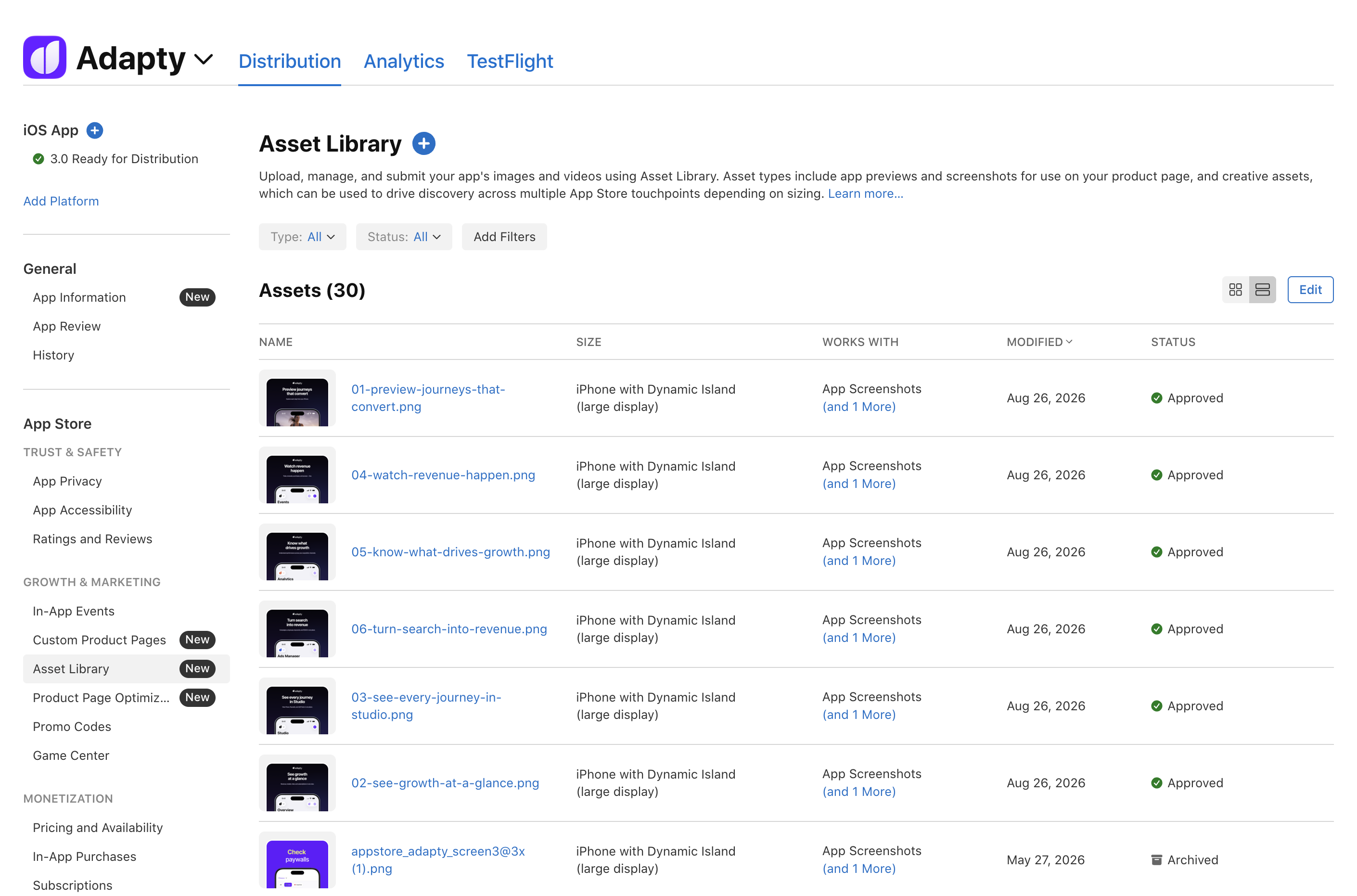
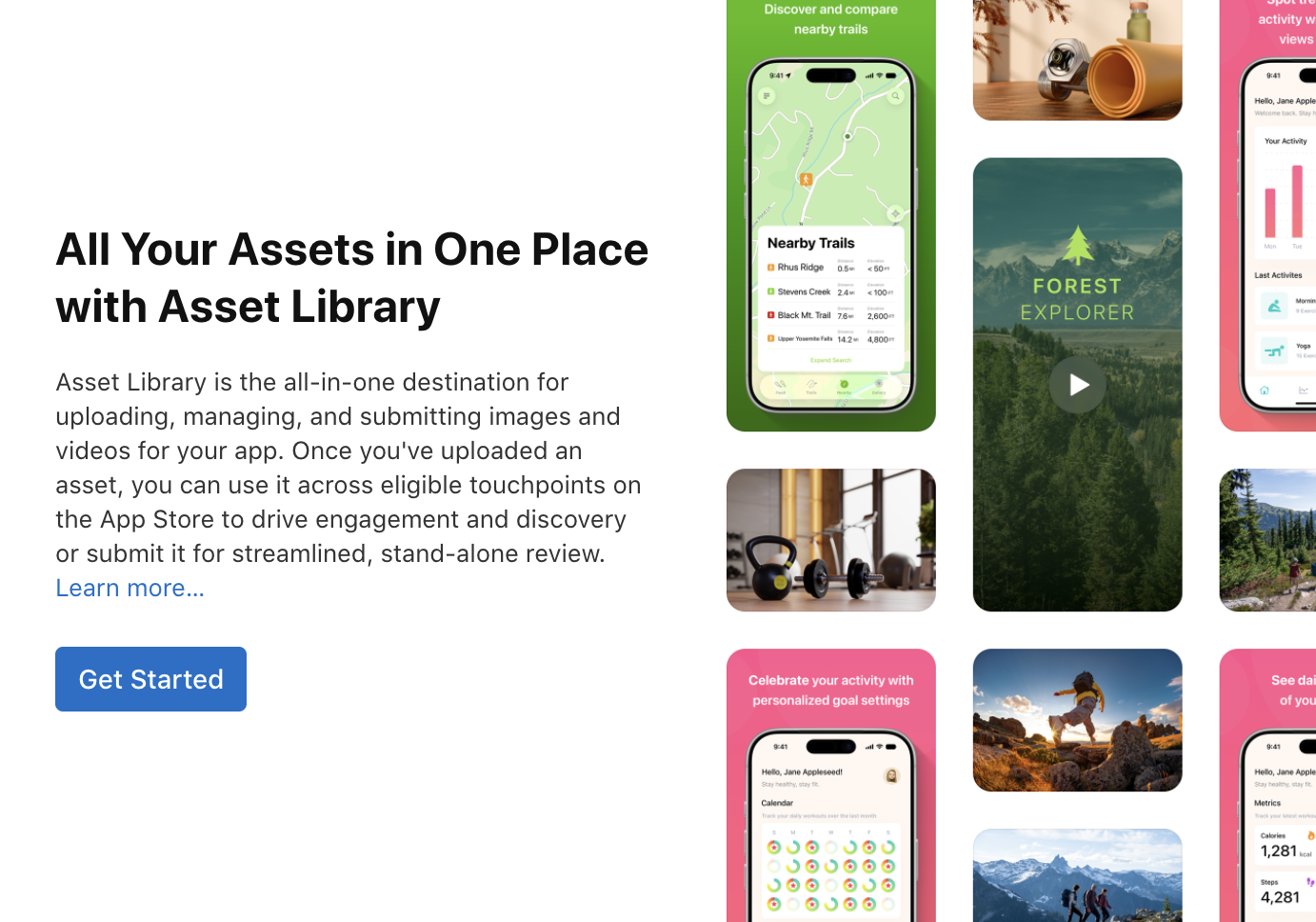
The App Store Asset Library changes how creative gets approved. Creative assets can go in as a standalone submission. No new app version, and no need to say where the asset will run. Apple reviews it against your latest version.
If your current version is live, you can swap its creative assets for approved ones without a new build.
That is the seasonal workflow, finally. Approve the Black Friday header in October. Switch it on the day. Switch it off after. No release in the middle.
A few rules from Apple's help page:
- each asset shows "Works With" and "Recent Usage";
- assets can be archived, and only "Prepared for Submission" assets can be deleted;
- poster frames cannot be edited after approval;
- you need the Account Holder, Admin, App Manager, or Marketing role;
- the App Store Connect API has an App Asset Library API.
Custom product pages can browse and use approved Asset Library assets, scoped to the page you edit. Each page keeps its own screenshots, previews, promotional text, keywords, and URL.
For an Apple Ads team, that extends the chain from our creative post: keyword → custom product page → paywall. The top of that page now has a visual hook you choose.
Key point: Asset approval no longer waits for a release, so seasonal creative can be approved weeks ahead.
Testing creative assets in product page optimization
Product page optimization can now test creative assets. A PPO treatment has its own Header and Search Results tab. These placements become testable against a control, not argued about in a design review.
Design the first test so you can read it. Change only the search results asset. Keep the header, screenshots, and everything else identical to control. Change both placements at once and you will not know which one moved the number. Test the header next, on its own.
Apple's PPO help allows up to 3 treatments per test as of 2026, and more treatments may take longer to conclude. Treatment metadata must be approved first, without a new app version.
Read results with care. Creative assets only show on newer OS versions, so a test reflects that slice of your audience. We have no performance data on these placements yet. Treat early numbers as a hypothesis, not a benchmark.
Apple Ads is the other half, and it is not live. The Apple Ads help page still lists custom creative as "coming this fall" in 2026. Apple's order: approval in App Store Connect first, then use in Apple Ads, then a separate Apple Ads review. Plan for two approvals. The second has no published turnaround.
Do not expect ranking effects. Apple Ads installs do not directly move organic positions, and new assets do not change keyword rankings.
Key point: Test one placement per treatment; App Store Connect approval is also the first step for future Apple Ads creative.
iPhone Duo screenshots and what to do this week
iPhone Duo screenshots are the deadline item in this update. Apple's iPhone Duo notice puts the device in customers' hands on October 23, 2026. The latest Xcode adds support, and you can submit iPhone Duo optimized apps today.
The date for your roadmap: per the App Store Connect release notes, every app or game submitted from April 2027 must include iPhone Duo screenshots.
Apple's templates now cover iPhone Duo across orientations, including headers and search result assets. The preview tool shows your page on the device.
Here is the short list for this week:
- Open Asset Library and confirm your role.
- Download Apple's templates and design guidance.
- Brief the search results asset first, the header second.
- Pick universal or dedicated; for universal, design at 16:9.
- Run the preview tool in Dark Mode, on each device and orientation.
- Plan a PPO test that changes only the search results asset.
- Plan localized creative assets for your main markets.
- Submit seasonal assets as standalone submissions now.
- Put iPhone Duo screenshots in the Q1 2027 design batch.
Key point: Approve search and header creative now, and schedule iPhone Duo screenshots before the April 2027 requirement.