App Store creative assets: what's new in iOS 27


TL;DR:
- Apple has announced a new creative layer for the App Store. App Store creative assets sit beside screenshots and app previews.
- They can carry brand, seasonal, or new-content messages.
- Apple's 2026 guidance ties the new placements to iOS 27 and iPadOS 27 or later.
- Most supporting tools arrive this fall.
- The job now is to prepare, not deploy.
What App Store creative assets are and where they appear
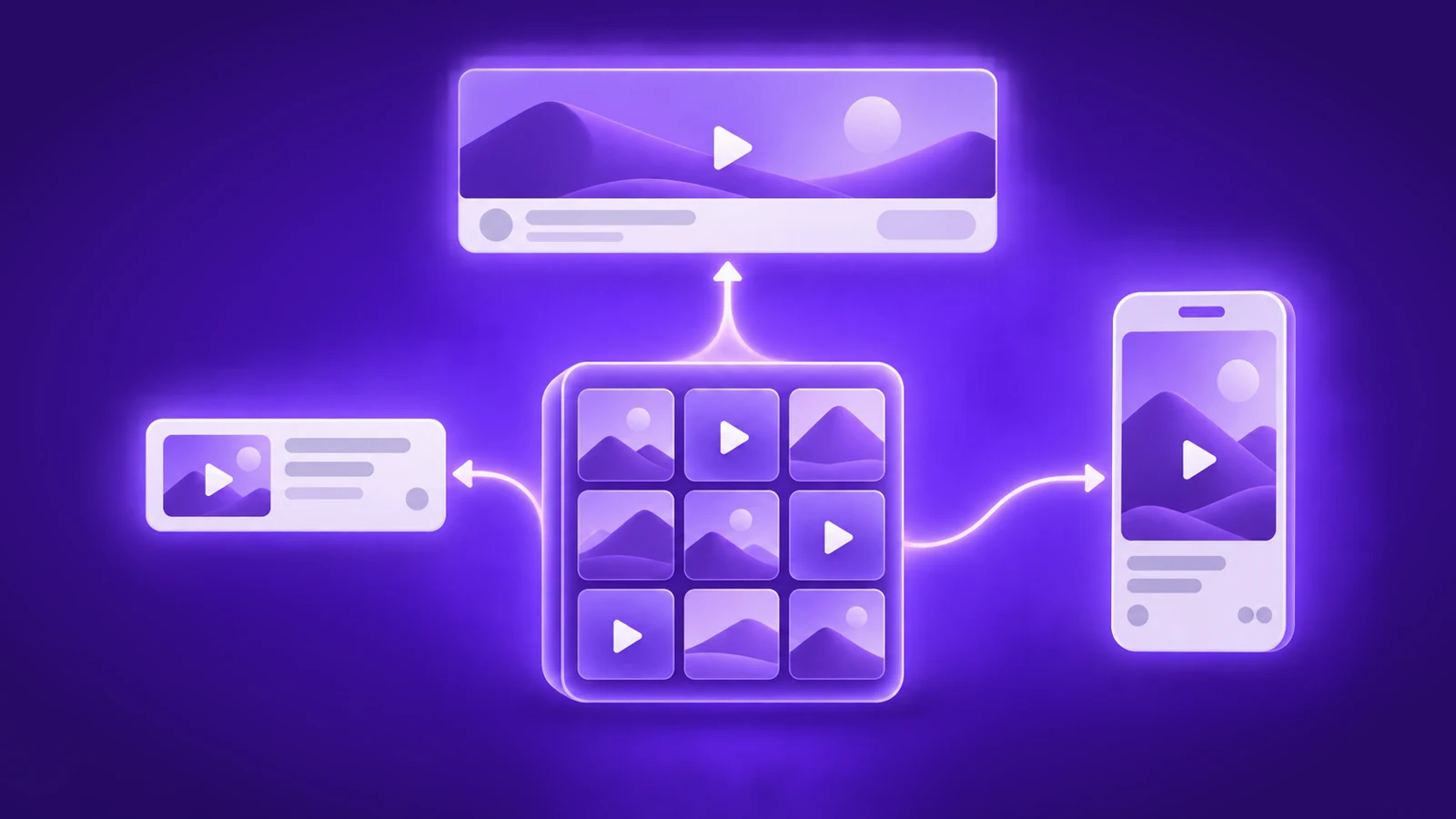
App Store creative assets are images or videos with a marketing job. They can show a brand, a season, a feature launch, or new content. They still need a clear link to the real app.
Screenshots and app previews have a different job. They show the product in use. That means the UI, the content, or the gameplay. Apple is not removing them.
The new layer adds more surfaces. A creative asset can lead the product page header. A dedicated asset can also appear in Search. Apple also lists featuring, custom product pages, and Apple Ads.
Search is the sharpest change. Today, many teams treat their first screenshots as both page content and search creative. The new search result creative asset can take that first job instead.
If you do not supply one, Search can still use In-App Events, app previews, and screenshots. Your current set remains useful. It just stops being the only option.
The product page header is another new canvas. It sits above the familiar screenshot story. Apple allows an image or video there. The header can set the brand or campaign idea before a visitor explores the page.
The rollout is not complete today. Apple's What's New in App Store page says the new marketing tools are coming this fall. Teams can prepare the work now and deploy when each tool becomes available.
Key point: Creative assets add a reusable marketing layer. They do not replace screenshots or app previews.
How App Store Asset Library changes creative operations
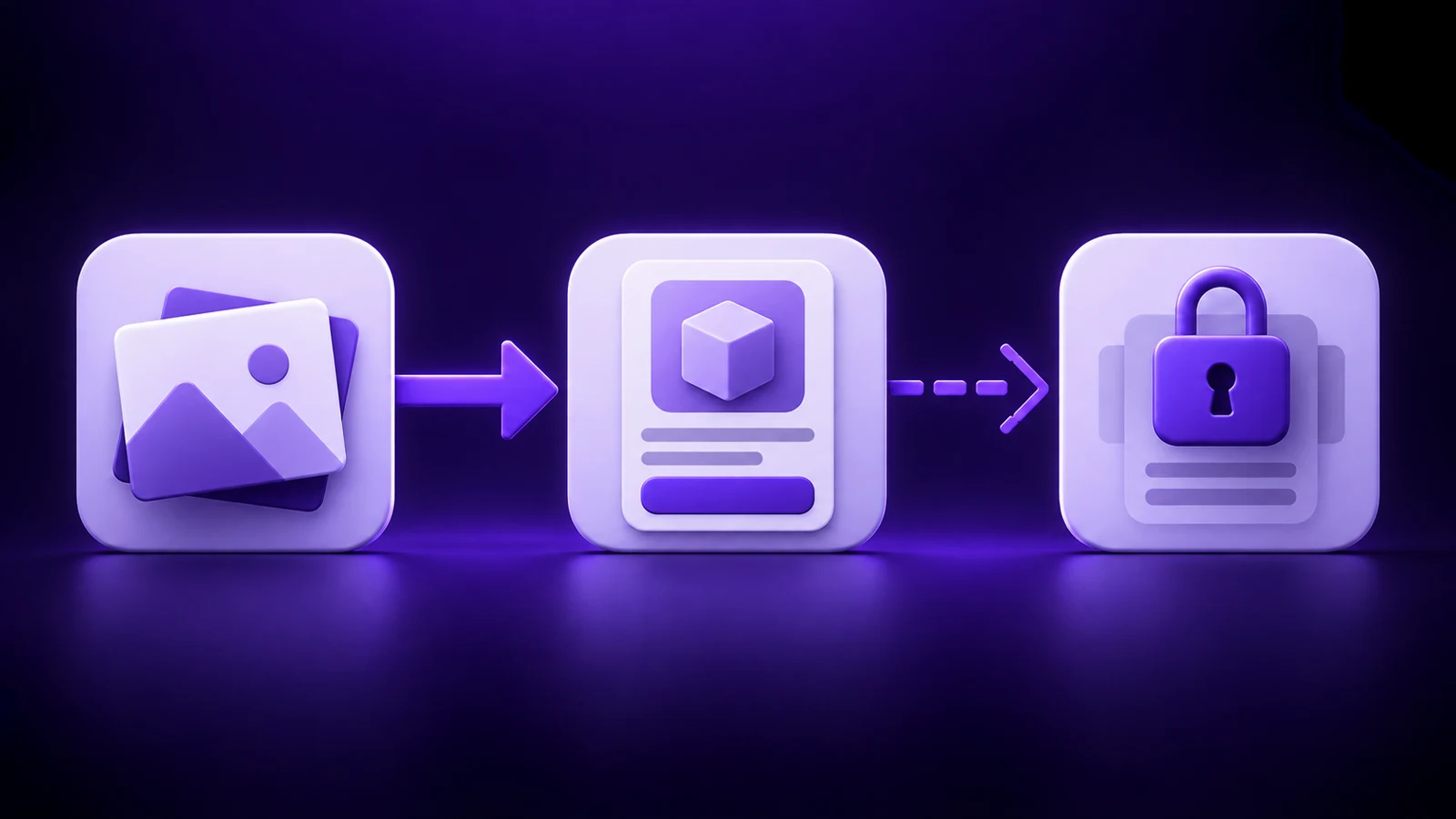
App Store Asset Library is the bigger story behind the new pixels. It gives teams one place for images, videos, previews, and screenshots. Approved assets sit together in App Store Connect.
That changes the review path. A team can submit a creative asset on its own. The asset still goes through App Review. It does not need to wait for a new app version.
Approval can now happen before the campaign needs the asset. That matters for a seasonal launch or a fixed media date. Creative review moves off the app release calendar.
Apple also says teams can reuse approved assets across eligible placements. “Approved” does not mean “valid everywhere.” Each placement still has its own template and rules.
Apple's 2026 WWDC session shows why this matters. Its example swaps a summer header for an approved winter asset without a new app submission.
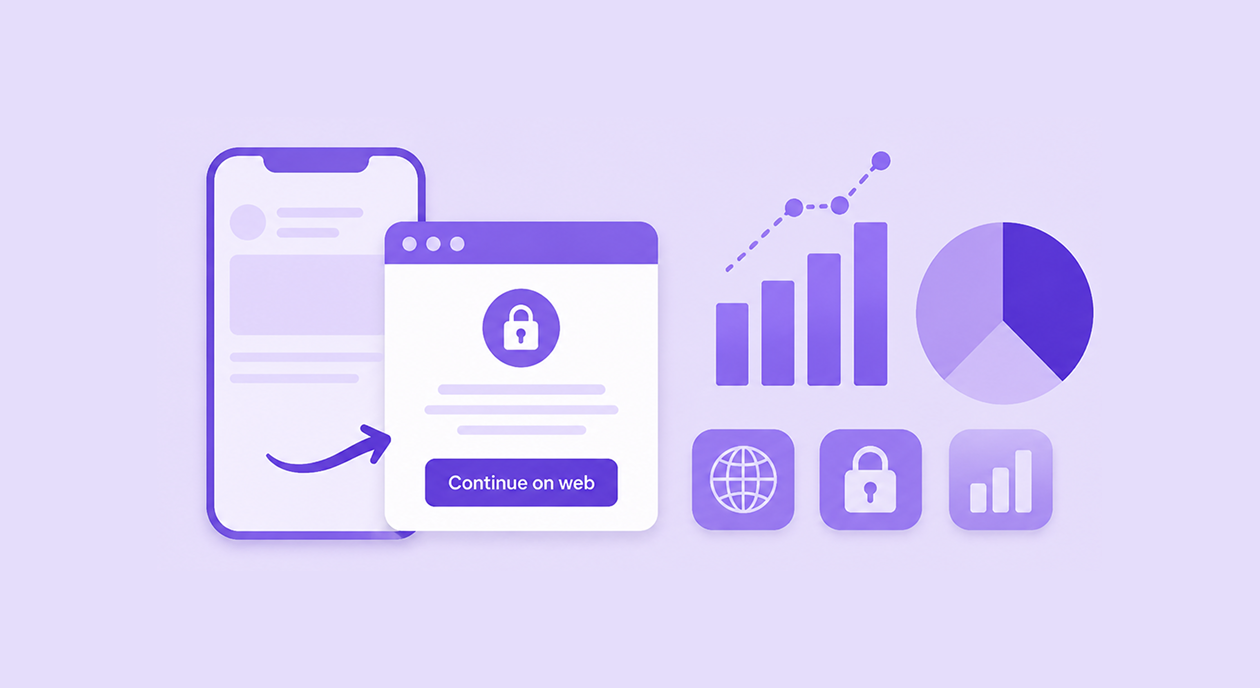
The App Store Connect preview supports the same workflow. It shows the header, app name, description, screenshots, and Search creative before release. A team can check the whole journey in one view.
Apple also describes API support. The App Store Connect API can upload assets. The Apple Ads Platform API can help automate ad setup.
This is closer to campaign operations than old metadata work. Build a library. Clear review early. Then select the right approved asset for the right moment.
Key point: Asset Library separates creative review from the app release calendar.
What can get a creative asset rejected
Apple's App Store asset best practices page is the main creative reference. It is not a full list of every rejection reason. It does name several hard limits.
Every asset must relate to the app's real purpose. A broad brand image is fine. A promise that the product cannot deliver is not.
Apple says artwork should not include:
- specific prices or discounts;
- website URLs or copyright symbols;
- awards that cannot be verified;
- logos or references to other marketplaces;
- Apple's own editorial badges or award labels.
One rule deserves its own brief. Apple's 2026 asset policy requires every App Store asset to suit a 4+ audience. The rule applies even when the app has a higher age rating.
That can affect dating, horror, health, and game creatives. It also affects any team that puts a price offer inside the artwork. Audit those ideas before design starts.
The page also asks teams to think globally. Use inclusive imagery. Localize text for every supported language. Keep key content inside safe areas.
These checks protect the lead time created by early review. A rejected asset cannot help a campaign until the team fixes and resubmits it.
Key point: Early review helps only when the asset passes the policy check the first time.
How to brief and test the new placements
App Store creative asset briefs should separate constraints from test ideas. Apple's design advice is not a conversion law.
For images, start with one clear focal point. Keep overlay text short. Localize it. Apply the safe-area discipline used in app icon design.
For video, choose a strong poster frame. Lead with the value. Give each cut time to land. Make the loop smooth. The idea must still work while muted.
Apple provides Figma, Photoshop, and Pixelmator templates. Use them before you build the composition. They encode the shape and safe areas for each placement.
Search and the header need separate briefs. Search has to state what the app is for. The header can carry the wider brand or campaign idea. They can share one promise without sharing one crop.
Apple documents a native test for header visuals through product page optimization. The current material does not name an equal native test for a dedicated Search asset. Do not imply that it does.
For UA teams, Apple Ads creative assets create a useful two-step model. The Search asset is pre-click campaign creative. The header is the first post-click continuation. This is an inference from the placements, not a claim about ranking, TTR, CR, or CPT.
Key point: Keep one campaign promise, but give Search and the header different creative jobs.
What growth teams should do next
Growth teams can start App Store creative asset preparation before the rollout. They can build a review-ready package now.
- Inventory current assets. List each image, video, preview, and screenshot by locale and placement.
- Run a policy audit. Check the real-purpose rule, the banned elements, and the age requirement.
- Write two briefs. Search explains the app fast. The header carries the wider campaign promise.
- Download Apple's templates. Build inside the official header and Search canvases.
- Create modular variants. Prepare evergreen, seasonal, feature, and keyword-intent ideas.
- Localize and check crops. Short text and focal points must survive each language and safe area.
- Plan review and measurement. Name an owner, map each asset to eligible placements, and define the header test.
Three actions wait for the rollout. Use the App Store Connect preview. Submit the package through App Store Asset Library or the API. Then start the documented header test.
Custom product pages can keep each message tied to an audience. Read our guide to custom product pages before mapping keyword themes. For the old layer, keep our screenshot optimization guide nearby.
The first advantage will not come from the prettiest header. It will come from having approved options ready when the campaign needs them.
Key point: Prepare the library now, so review does not become the campaign bottleneck later.