iPhone Duo paywall: how to make it sell on both displays

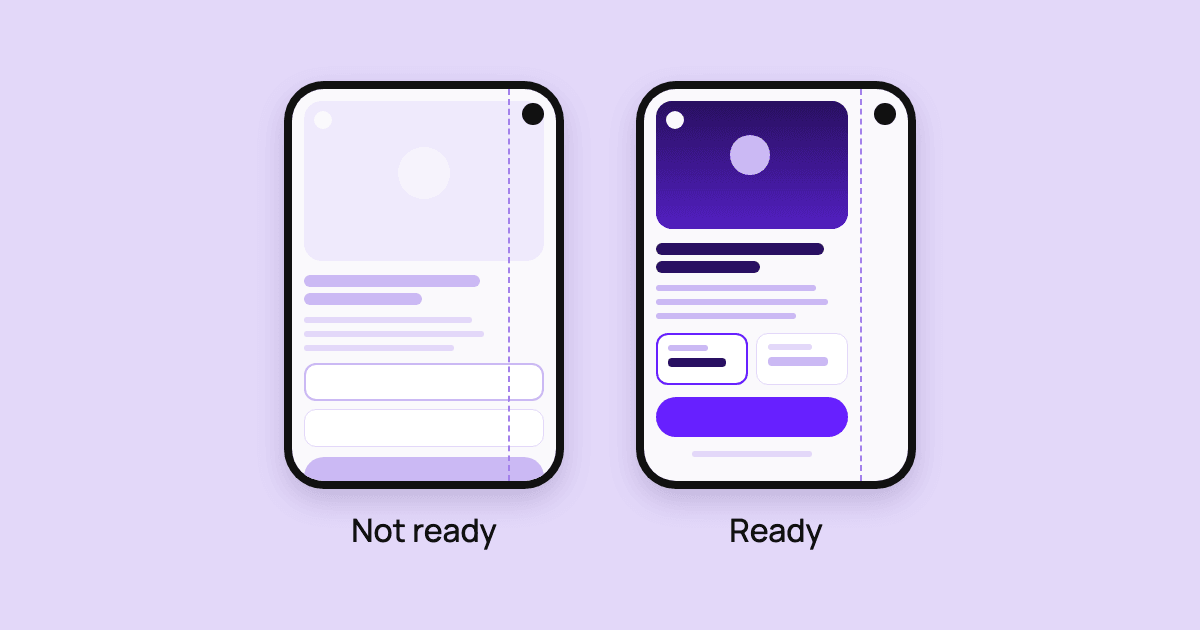
TL;DR:
- Nothing changes until your app ships a build made with the iOS 27.1 SDK. Until then, iPhone Duo shows your app at a regular phone size, and your paywall looks the way it does on any iPhone.
- From that build on, the app fills both displays. Flow Builder keeps your paywall clear of the camera band on its own, the way it keeps it clear of the notch. Flows published before November 10, 2026 need one republish to get this.
- What Flow Builder can't do for you is fit a tall paywall into the outer display, which is more than a fifth shorter than an iPhone 17 Pro. The price and the purchase button can end up below the fold.
- You can check this in the Flow Builder preview in a few minutes and fix it in the builder, with no SDK update and no app release.
iPhone Duo shipped on October 23, 2026. It has two displays, a 5.4-inch one outside and a 7.6-inch one inside, and both are squarer than a regular iPhone. If your app sells through an Adapty paywall, you probably want to know three things: whether anything is broken, what Adapty takes care of, and what is left for you. This article answers them in that order.
Our September guide for developers covered the app side and promised to report back once we could test paywalls. This is that report. I run Flow Builder at Adapty: in November my team added iPhone Duo to its preview, and for this article I built four paywalls and checked each on both displays.
Do you need to do anything right now?
Not until your app ships a build made with the iOS 27.1 SDK. Older builds don't get the whole screen: on the outer display iOS keeps the app clear of the camera, and on the inner display the app runs at a regular phone size. Your paywall looks the way it does on any iPhone.
The build made with the iOS 27.1 SDK changes this, and from then on the app fills both displays. Xcode 27.1 comes with that SDK, so if you don't know when your team moves to it, ask your iOS developer which Xcode version builds the next release. Check your paywall before that build goes out. The rest of this article is that check.
What does Flow Builder handle for you?
The camera band. On the closed display, the outer one, a band with the camera runs down the right edge, where a regular iPhone has nothing. Flow Builder treats it the way it treats the notch: text, buttons, plans and the footer stay clear of it, and the background still fills the screen to the edge. Turn the phone upside down and the band moves to the left edge, and the paywall follows. If someone folds, unfolds or turns the phone while the paywall is open, the layout adjusts on the spot, and Close, Restore and the purchase button stay tappable.
This works through the Safe area setting, which is on for every screen by default. You don't need to turn anything on for iPhone Duo.
There is one thing to do. Flow Builder started to handle the band on November 10, 2026, and it builds the band into a flow when you publish it. A flow published before that date doesn't know about the band, and on iPhone Duo its content runs under the camera. Publish each live flow from before November 10 once more. Your app picks up the new version the next time it loads the placement, with no SDK update and no release.
Sometimes you want a photo or video to run under the band, the way a cover photo runs under the status bar. Give it a Fixed or Absolute position and select Ignore safe area. Keep this for backgrounds and textures: the camera sits on top of whatever is there, so a face, a product shot or a line of text under it looks broken.
What do you need to check yourself?
Height. The closed display is 678 points tall, against 874 on an iPhone 17 Pro, so it is more than a fifth shorter. Flow Builder can't decide what to drop from your paywall. A paywall drawn as a tall stack of picture, headline, plans and button still opens, but the screen scrolls, and the price and the purchase button end up below the fold. A user who doesn't scroll never sees them.
Two smaller things on the same display: a close button in the top right corner ends up next to the camera, and plan cards side by side have less width next to the band.
The open display rarely loses the button. Check instead that headlines and plan cards still read well when the layout widens, including with the phone turned sideways.
How do you make one paywall fit both displays?
Give the spare height to the picture and keep everything else at its natural size. Each screen in Flow Builder has one layout that runs on every device, so the work is making that layout flex with the height it gets. Three moves, from cheapest to most work:
- Let the hero image fill. Set the image height to fill and leave the headline, plans and button at their natural size. The image shrinks on the closed display, grows on the open one, and the button stays on screen in both.
- Put two plans in one row. Side by side they take one row of height where a stack takes two. Check a third plan in the preview: the closed display has little width to spare, and extra plans can move to a bottom sheet.
- Pin the purchase button. Move it into a sticky footer. The rest of the screen scrolls, and the button stays in view. Keep the footer to the button, the price line and the legal links, or it eats the screen.
What does a paywall that works on both displays look like?
One layout where the picture takes the spare height and the plans, timer and button keep their size. Here are three paywalls we built in Flow Builder for this article, each on both displays.
Every element in these paywalls (an image that fills, plan cards side by side, a countdown timer) is a standard Flow Builder element.
Should iPhone Duo users get their own paywall?
Only when the layout that suits Duo looks wrong on other phones, or when you want an offer for Duo owners alone. A second flow doubles the upkeep: every copy change and every test now happens twice. Start with one flexible layout and split when it stops working.
If you do split:
- Duplicate the flow, adjust it for both displays and publish it.
- Create a segment with the Device attribute set to iPhone Duo. iPhone Duo is already in the device list.
- In the placement that serves your main flow, add an audience with the Duo segment and the Duo flow.
- If another audience can also match Duo users, raise the Duo audience above it.
What should you check before your iOS 27.1 build ships?
Seven checks, in the order we would run them. All but the last take a minute in the preview.
| Check | Where | Why |
| Every live flow published before November 10, 2026 is republished | Publish the flow again | Older flows don't know about the camera band |
| The price and the purchase button are visible without scrolling | Preview, iPhone Duo, closed | The closed display is more than a fifth shorter |
| The close button is easy to see and tap | Preview, closed | In the top right corner it sits next to the camera |
| Every plan card is fully visible | Preview, closed | The band takes width from the display |
| Only backgrounds sit under the camera band | Preview, closed | Matters only if you used Ignore safe area |
| The layout reads well on the open display, upright and sideways | Preview, open, portrait and landscape | Apps built for portrait only can still appear in landscape there |
| The flow works in your app | iPhone Duo simulator in Xcode 27.1, or a device | The preview is close to the device, the device is the final check |
Check the closed display today
If your paywall was drawn for a tall iPhone, pick iPhone Duo in the Flow Builder preview and look at the closed display before your iOS 27.1 build ships. If the button has slipped below the fold, fix the layout and publish: the change goes live without an app release. The step-by-step settings are in Prepare flows for iPhone Duo.