Quickstart Adapty Setup Guide: iOS with UIKit

Get from zero Adapty setup to displaying a paywall and processing purchases in under 30 minutes.
Pre-requisites
- You have a working iOS app built with UIKit
- You’re using Xcode 14+
- Your app has at least one in-app purchase product created in App Store Connect
- You’ve created an Adapty account and your app is added in the Adapty dashboard with at least one product, paywall, and placement.
Project Files
To follow along with the written, video, or LLM-based tutorial, download the project files from Github. The branch named starter contains the app without any Adapty integration. The main branch contains the finished project.
Install the Adapty SDK in your project
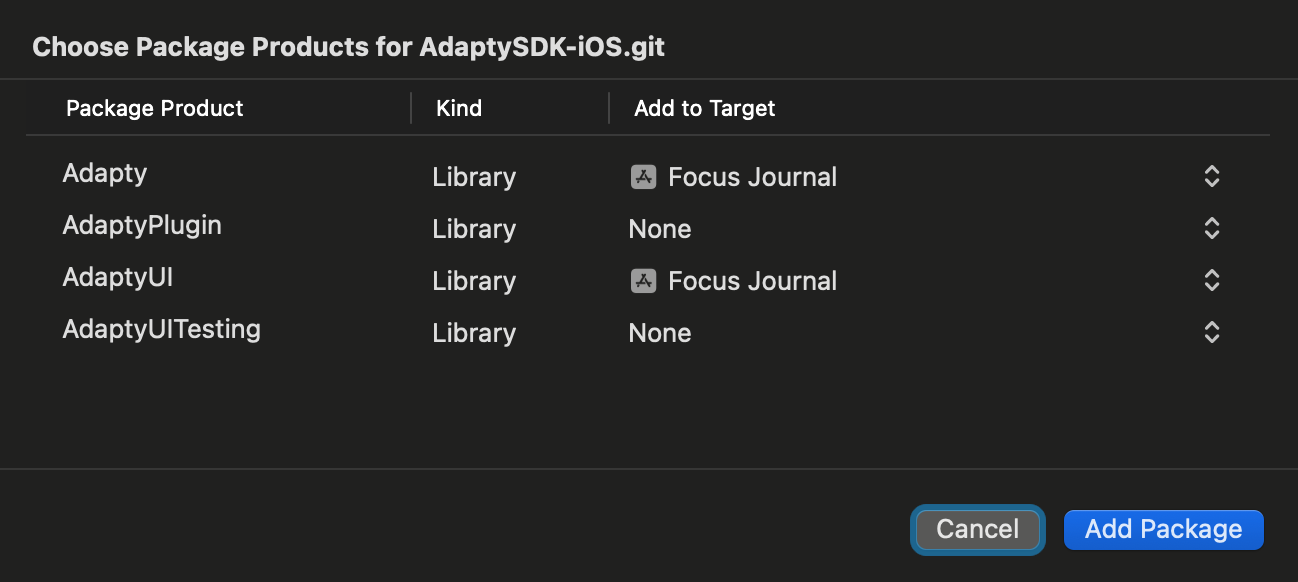
- In Xcode, go to File > Add Packages
- Enter the URL: https://github.com/adaptyteam/AdaptySDK-iOS.git
- Select the latest version and add the Adapty and AdaptyUI packages to your app target
Initialize Adapty in Your App
Add the following constants to your existing constants management system, or just add this file as-is:
🔐 You can find your public SDK key in the Adapty Dashboard > Settings > API Keys
In your SceneDelegate, import the Adapty frameworks and add the following task to the end of the scene(_:willConnectTo:options:) method:
The above will configure and activate the Adapty SDK as well as the AdaptyUI framework, allowing you to display remotely configured paywalls with Paywall Builder.
Check for Purchases on Launch
It’s important to have up-to-date information on the user’s subscription status. Adapty makes this easy with something called a user profile.
Import the Adapty framework into your ProfileManager class:
And add the following property:
Finally, add the following functions:
Each time the app launches you should check to see if there has been a change in subscription status since the last launch. To do so, add the following as a task at the end of the viewDidLoad method of the HomeViewController:
The refreshProfile function gets an updated AdaptyProfile object from the SDK with the latest subscription and access level information. Upon setting the property, the didSet will check the access level and update the isPremium boolean flag automatically. You can use this within the app to determine whether to show premium content or functionality.
The Adapty SDK is now installed, configured, and activated, and a fresh user profile has been loaded, notifying the app of the user’s subscription status.
Learn more about the Adapty profile and access levels.
Configure Paywall Builder in Adapty
The next step is to present a paywall from Paywall Builder where applicable. In the sample app, we want the journal history view to be available only to paying users, so the button to show it will present either the history view or the paywall, depending on whether the user has subscribed.
In the HomeViewController, create a property to store the paywall configuration so it is ready to use when the user triggers the paywall view:
Before we can show the Paywall Builder paywall, we need to fetch it and its configuration from Adapty’s servers. Append to the task in the HomeViewController’s viewDidLoad method the following:
The above code uses the SDK to fetch the paywall and its configuration based on the placement ID, and stores the configuration in our config property to use when we actually present the paywall.
Now we’re ready to show a real paywall. In the function named showHistory, find the lines in the else clause that create the PaywallViewController and remove them. This was just a mock view used for demo. You can also delete the PaywallViewController file from the project if you wish.
Replace it with the following so that the paywall is shown when isPremium is false:
The above block configures and shows the paywall view controller and assigns the delegate to the HomeViewController. The delegate is the conduit for the paywall view controller to send information back to the app about the transaction and the user’s choices.
Add the following extension to the HomeViewController to conform to the AdaptyPaywallControllerDelegate:
These methods are not the entirety of what’s available from the delegate, but they represent the most important outcomes from the paywall view controller.
| ✅ Define and manage your Access Levels in the Adapty Dashboard > Monetization > Access Levels
Congrats!
At this point, your app:
- Loads a paywall from Adapty
- Lets users purchase a subscription
- Unlocks premium features based on access level