Quickstart Adapty setup guide: Flutter

Get from zero Adapty setup to displaying a paywall and processing purchases in under 60 minutes.
Pre-requisites
Before you begin, make sure you have:
- A working Flutter app with iOS deployment configured
- Flutter SDK 3.0 or later
- iOS development environment (Xcode, CocoaPods)
- At least one in-app purchase product created in App Store Connect
- An Adapty account with your app added to the dashboard, including at least one product, paywall, and placement
Project files
To follow along with this tutorial, download the project files from GitHub. The starter branch contains the app without Adapty integration, while the main branch contains the finished project.
Install the Adapty SDK in your project
Add the Adapty Flutter SDK to your pubspec.yaml file:
Run flutter pub get to install the dependencies.
iOS Configuration
Since Flutter apps require native iOS configuration for in-app purchases, run the following:
Initialize Adapty in your app
First, add these constants to your existing constants management system:
🔐 Find your public SDK key: Adapty Dashboard > Settings > API Keys
Next, initialize Adapty in your main.dart file:
This code configures and activates the Adapty SDK.
Set up profile handling
Next, edit the file lib/providers/profile_manager.dart to add Adapty integration.
The primary changes are the addition of the Adapty profile property, the call to update the profile, and the updating of premium status based on the contents of the profile object.
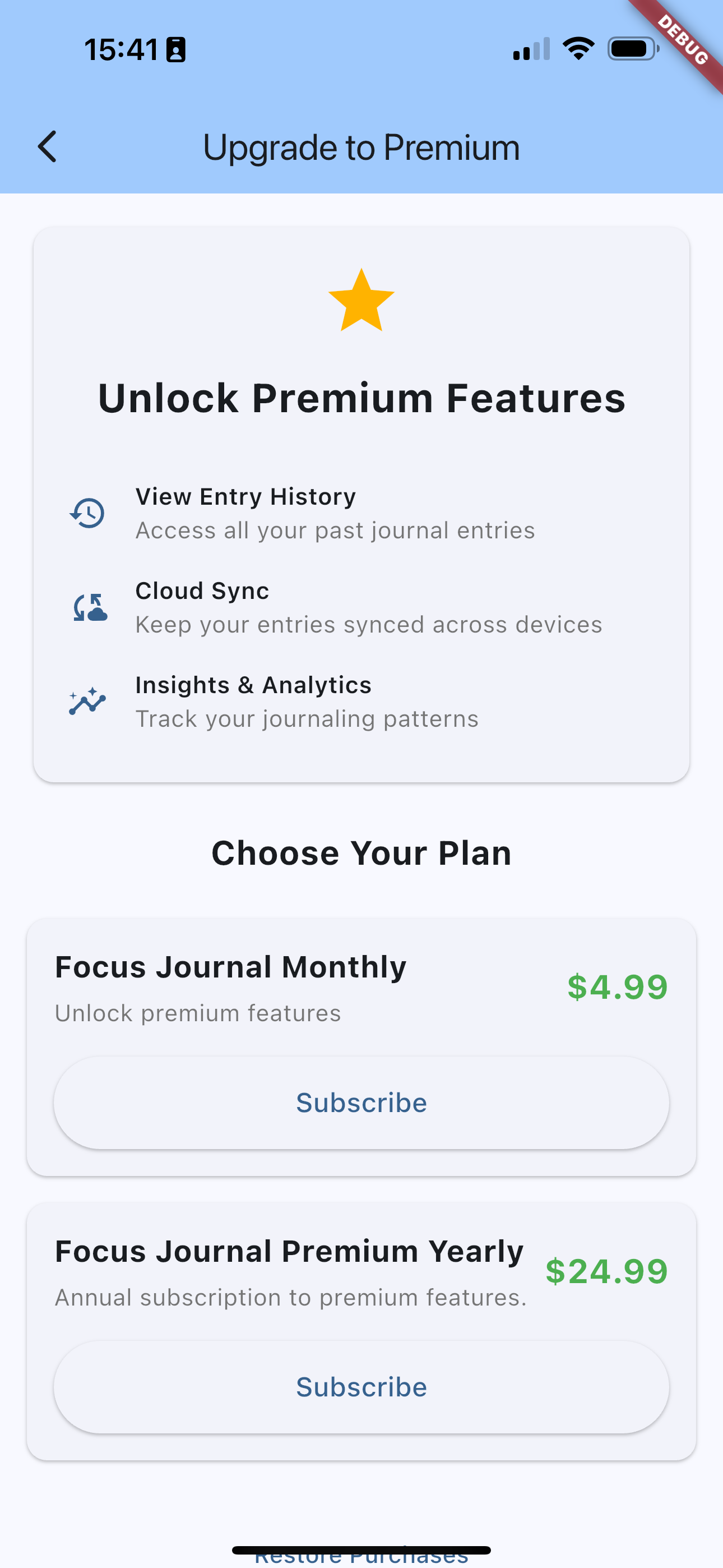
Create the paywall view
Create a file in lib/views called paywall_view.dart with the following contents:
The above sets up a basic paywall view with subscription options and pricing. It's designed to showcase the basics of interfacing with the Adapty SDK to get information on products and present them to the user. You also have the option of using our Paywall Builder feature to design and deploy paywalls from the Adapty dashboard without requiring a new submission to the App or Play stores.
Update the main journal interface to show a paywall
Edit the home_view.dart file to call the paywall instead of simulating a purchase:
Check for purchases on app launch
The initialization code we added to main.dart handles checking subscription status when the app launches. The ProfileManager automatically updates the premium status based on the user's access levels.
Here's how the purchase flow works:
- App Launch:
refreshProfile()gets the latest subscription status - Profile Updates: The SDK automatically notifies your app when purchases are made
- Access Control: The
isPremiumflag controls which features are available
Test your integration
Build and run your app:
The expected flow is as follows:
- Load subscription status from Adapty on launch
- Show premium features to subscribers
- Display paywalls to non-subscribers
- Process purchases and unlock content immediately
Cross-Platform Considerations
While this guide focuses on iOS, the Flutter implementation works on Android too. For Android deployment, you'll need:
- Google Play Console setup for in-app purchases
- Android-specific product configuration in Adapty
- Additional gradle configuration for billing permissions
The core Dart code remains identical across platforms.
Congrats!
At this point, your Flutter app:
- Loads paywalls from Adapty using your remote configuration
- Lets users purchase subscriptions through native iOS interfaces
- Unlocks premium features based on access levels
- Handles subscription status automatically across app launches
- Uses Flutter best practices with Provider state management
Learn more about Flutter best practices with Adapty in our documentation.