---
title: "修复 React Native SDK 中的 Code-1000 noProductIDsFound 错误"
description: "解决在 Adapty 中管理订阅时出现的无效产品标识符错误。"
---
1000 代码错误 `noProductIDsFound` 表示您在付费墙上请求的产品在 App Store 中均无法购买,尽管它们已在 App Store 中列出。此错误有时会伴随 `InvalidProductIdentifiers` 警告。如果该警告在没有错误的情况下出现,可以安全忽略。
如果您遇到 `noProductIDsFound` 错误,请按照以下步骤解决:
## 步骤 1:检查 Bundle ID \{#step-2-check-bundle-id\}
---
no_index: true
---
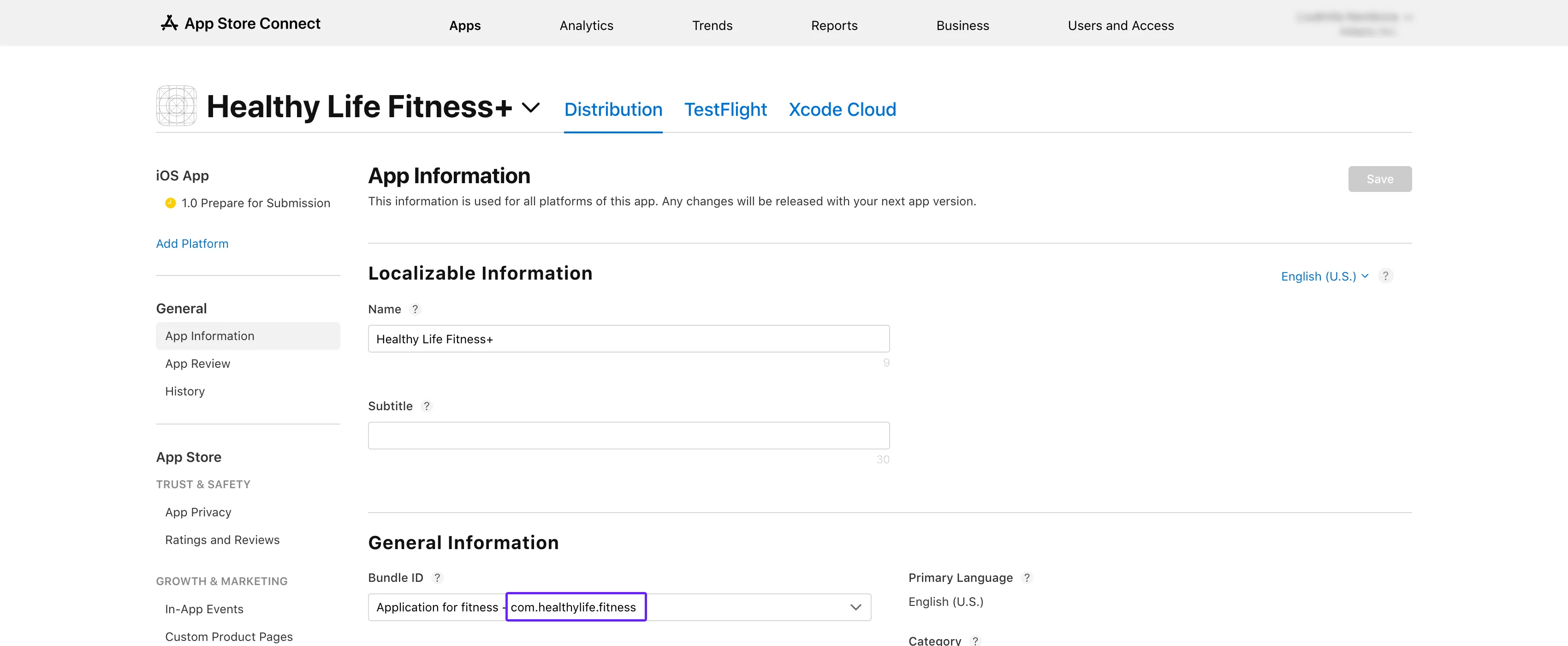
1. 打开 [App Store Connect](https://appstoreconnect.apple.com/apps)。选择您的应用,然后进入 **General** → **App Information** 部分。
2. 在 **General Information** 子部分中复制 **Bundle ID**。
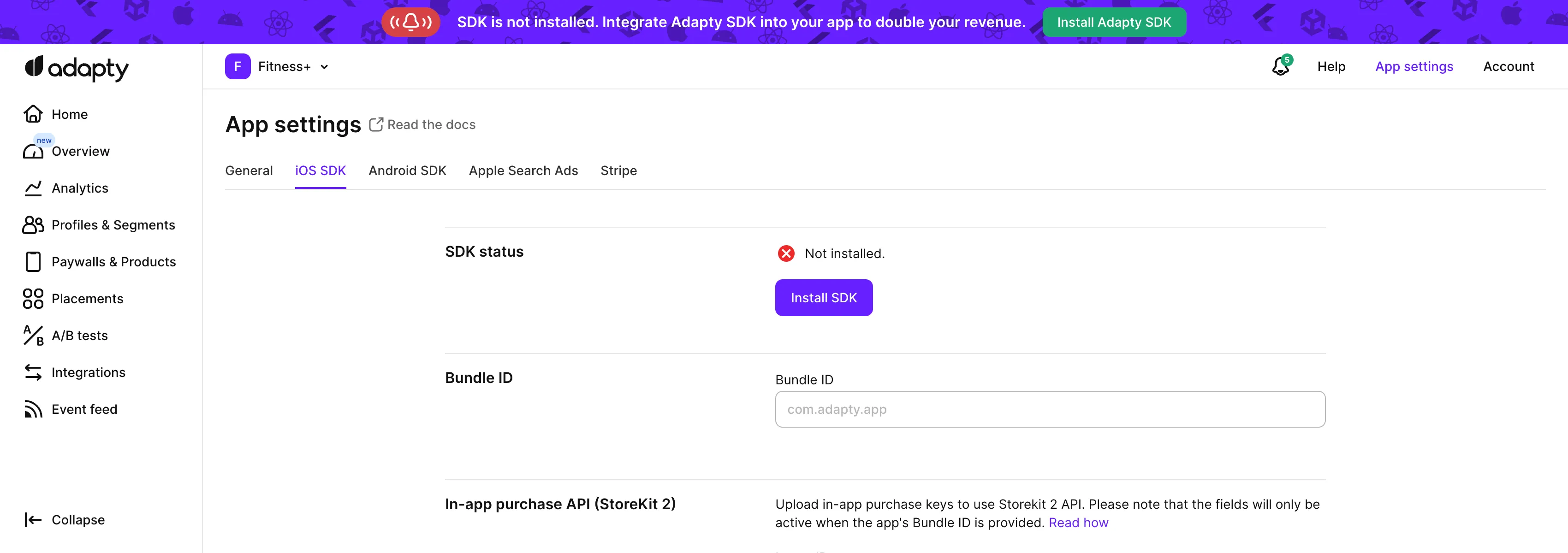
 3. 从 Adapty 顶部菜单打开 [**App settings** -> **iOS SDK** 标签页](https://app.adapty.io/settings/ios-sdk),将复制的值粘贴到 **Bundle ID** 字段中。
 4. 返回 App Store Connect 中的 **App information** 页面,从中复制 **Apple ID**。
5. 在 Adapty 看板的 [**App settings** -> **iOS SDK**](https://app.adapty.io/settings/ios-sdk) 页面中,将该 ID 粘贴到 **Apple app ID** 字段。
## 步骤 2:检查产品 \{#step-3-check-products\}
1. 前往 **App Store Connect**,在左侧菜单中导航至 [**Monetization** → **Subscriptions**](https://appstoreconnect.apple.com/apps/6477523342/distribution/subscriptions)。
4. 返回 App Store Connect 中的 **App information** 页面,从中复制 **Apple ID**。
5. 在 Adapty 看板的 [**App settings** -> **iOS SDK**](https://app.adapty.io/settings/ios-sdk) 页面中,将该 ID 粘贴到 **Apple app ID** 字段。
## 步骤 2:检查产品 \{#step-3-check-products\}
1. 前往 **App Store Connect**,在左侧菜单中导航至 [**Monetization** → **Subscriptions**](https://appstoreconnect.apple.com/apps/6477523342/distribution/subscriptions)。
 2. 点击订阅组名称,您将在 **Subscriptions** 部分看到您的产品列表。
3. 确保您正在测试的产品标记为 **Ready to Submit**。
2. 点击订阅组名称,您将在 **Subscriptions** 部分看到您的产品列表。
3. 确保您正在测试的产品标记为 **Ready to Submit**。
 4. 将表格中的产品 ID 与 Adapty 看板中 [**Products**](https://app.adapty.io/products) 标签页的产品 ID 进行比对。如果 ID 不匹配,请从表格中复制产品 ID,并在 Adapty 看板中[创建产品](create-product)。
 ## 步骤 3:检查产品可用性 \{#step-4-check-product-availability\}
1. 返回 **App Store Connect**,打开相同的 **Subscriptions** 部分。
2. 点击订阅组名称以查看您的产品。
3. 选择您正在测试的产品。
## 步骤 3:检查产品可用性 \{#step-4-check-product-availability\}
1. 返回 **App Store Connect**,打开相同的 **Subscriptions** 部分。
2. 点击订阅组名称以查看您的产品。
3. 选择您正在测试的产品。
 4. 滚动至 **Availability** 部分,确认所有所需的国家和地区均已列出。
 ## 步骤 4:检查产品价格 \{#step-5-check-product-prices\}
1. 再次前往 **App Store Connect** 中的 **Monetization** → **Subscriptions** 部分。
2. 点击订阅组名称。
3. 选择您正在测试的产品。
4. 向下滚动至 **Subscription Pricing**,展开 **Current Pricing for New Subscribers** 部分。
## 步骤 4:检查产品价格 \{#step-5-check-product-prices\}
1. 再次前往 **App Store Connect** 中的 **Monetization** → **Subscriptions** 部分。
2. 点击订阅组名称。
3. 选择您正在测试的产品。
4. 向下滚动至 **Subscription Pricing**,展开 **Current Pricing for New Subscribers** 部分。
 5. 确保所有所需价格均已列出。
 ## 步骤 5:检查应用付费状态、银行账户及税务表格是否有效 \{#step-5-check-app-paid-status-bank-account-and-tax-forms-are-active\}
1. 在 [**App Store Connect**](https://appstoreconnect.apple.com/) 主页,点击 **Business**。
## 步骤 5:检查应用付费状态、银行账户及税务表格是否有效 \{#step-5-check-app-paid-status-bank-account-and-tax-forms-are-active\}
1. 在 [**App Store Connect**](https://appstoreconnect.apple.com/) 主页,点击 **Business**。
 2. 选择您的公司名称。
 3. 向下滚动,确认您的 **Paid Apps Agreement**、**Bank Account** 和 **Tax forms** 均显示为 **Active**。
 按照以上步骤操作后,您应该能够解决 `InvalidProductIdentifiers` 警告,并使您的产品在商店中正常上架。