React Native in-app purchases: The complete implementation tutorial

TL;DR:
Building React Native IAP from scratch takes 2–6 weeks and creates technical debt that haunts you for months. Using Adapty’s SDK gets you production-ready in 2–3 hours with enterprise-grade features built in.
Hey there! I’m Ben, a Developer Advocate at Adapty. When I first jumped from web apps to mobile development, I thought React Native would be a piece of cake. I mean, it looks just like React, right? Well… not exactly. Especially when you start messing with in-app purchases in React Native.
Let me be honest – out of everything I’ve built, my React Native IAP flow was by far the messiest part of my code. It wasn’t scalable, wasn’t clean, and was definitely a nightmare to maintain. Every time I found a bug or needed to add a feature to my React Native in-app purchase system, it felt like I was starting from scratch.
If you’ve been there (or you’re just getting started with React Native IAP), I want to walk you through how I would’ve done things differently. Hopefully, I can save you from the headaches I went through.
Understanding in-app purchase types in React Native
Before writing a single line of code, you need to understand the three types of in-app purchases that Apple and Google support. Each type behaves differently in your app’s logic and requires specific handling:
| Purchase type | How it works | Common examples | Restore needed? |
| Consumable | Can be purchased multiple times; depleted after use | Virtual coins, credits, extra lives | No |
| Non-consumable | Purchased once and permanently tied to the account | Remove ads, unlock premium level, lifetime access | Yes |
| Auto-renewable subscription | Recurring billing at a set interval until the user cancels | Monthly/yearly premium plans, content access | Yes |
Subscriptions are the most common monetization model for React Native apps and the primary focus of this tutorial. They involve the most complexity: free trials, grace periods, upgrade/downgrade logic, and renewal tracking.
No matter which type you choose, both Apple and Google require you to finish (acknowledge) every transaction. Unfinished transactions will re-queue on every app launch and can block future purchases.
What you’ll need before we begin
Before we dive in, here’s what you’ll need:
- An Apple Developer Program membership ($99/year) and/or a Google Play Developer account ($25 one-time fee)
- Products configured in App Store Connect and/or Google Play Console (we’ll cover this next)
- A React Native development environment set up on your machine (React Native 0.71+ recommended)
- A physical device for testing
Here are some concepts that might be new to you:
- Paywall — the screen that blocks users from accessing content until they buy a subscription or product.
- Consumable — a one-time product that users can purchase and use up, then buy again.
- Xcode — Apple’s IDE for iOS development. Required for React Native iOS work and only available on macOS.
- Expo — a toolkit that simplifies React Native development. It comes pre-configured with native modules and services.
- SDK — Software Development Kit, a set of tools and libraries for integrating third-party services into your app.
Setting up products in the app stores
This is the step most tutorials skip — and it’s the reason many developers spend hours debugging only to find their products never load. You need to create your in-app purchase products in the platform stores before any code will work.
App Store Connect (iOS)
Sign the Paid Applications Agreement
This is critical. To sell anything on the App Store, you must sign Apple’s Paid Applications Agreement:
- Go to App Store Connect.
- Navigate to Agreements, Tax, and Banking (under Business).
- Under Paid Applications, accept the agreement and fill in your banking and tax information.
⚠️ Until this agreement is signed and approved, your in-app products will never be returned from StoreKit — even in sandbox mode. This is the single most common gotcha for developers new to iOS IAP.
Create your in-app purchase products
- In App Store Connect, go to your app → Monetization → In-App Purchases.
- Click + to add a new product.
- Choose the type: Consumable, Non-Consumable, or Auto-Renewable Subscription.
- Enter a Product ID (e.g., com.yourapp.premium_monthly). Note this carefully — it’s case-sensitive.
- Add a Display Name, Description, and Price.
For subscriptions, create a Subscription Group first. Apple groups subscriptions together so users can upgrade or downgrade between tiers.
Enable the In-App Purchase capability in Xcode
Open your project in Xcode, click on your project target, go to Signing & Capabilities, click + Capability, and add In-App Purchase. This adds the entitlements so StoreKit can communicate with Apple’s servers. Without this step, purchase requests will silently fail.
Google Play Console (Android)
Set up a merchant account
In the Google Play Console, set up a merchant account to accept payments. Without this, you can’t create purchasable products.
Create your products
- Select your app from the All Apps page.
- Scroll to Monetize in the sidebar → Products → choose In-app Products or Subscriptions.
- Click Create Product and fill in the Product ID, name, description, and price.
- Click Save, then Activate to make the product available.
Important: to test in-app purchases on Android during development, you need to publish your app to the internal testing track first. Products won’t load from the Google Play Billing Library unless there’s at least an internal test build published.
Newly created products on both platforms can take a few hours to propagate. If your products don’t load immediately after creation, wait before debugging your code.
The reality check: DIY vs. ready-made solution
Sooner or later in your mobile dev journey, you’ll want to monetize your app with React Native in-app purchases or subscriptions. I’m not going to sugarcoat it — this part of app development can be really tough.
Here’s what building it yourself actually involves:
| What you need to build | Time investment | Ongoing maintenance |
| Basic purchase flow | 2–3 weeks | High |
| Cross-platform compatibility | 1–2 weeks | Medium |
| Receipt validation | 1 week | Medium |
| Analytics & tracking | 2–3 weeks | High |
| A/B testing infrastructure | 3–4 weeks | High |
| Refund handling | 1–2 weeks | Medium |
Total: 10–15 weeks of development + ongoing maintenance headaches.
Comparing React Native IAP libraries
Before choosing an approach, it helps to understand the landscape. Here are the main options available in 2026:
| Library | Approach | Server validation | Paywalls & A/B | Analytics | Best for |
| react-native-iap | Low-level wrapper | You build it | You build it | You build it | Full control, consumables |
| expo-iap | Expo-native wrapper | You build it | You build it | You build it | Expo managed workflow |
| react-native-adapty | Full-service SDK | Built in | Builder, full A/B, Autopilot | Built in | Paywall optimization |
A note on react-native-iap: as of v14, the library has migrated to Nitro Modules and requires React Native 0.79+ and Kotlin 2.0+. If you’re on an older React Native version, pin to [email protected].
Adapty setup
At its core, Adapty provides a Dashboard where you can configure your paywalls and products, run A/B tests, check analytics, and track user subscription status. It’s essentially a toolkit that combines backend infrastructure for purchases with client-side libraries to integrate into your app.
The Adapty React Native SDK makes implementing React Native in-app purchases much simpler than trying to build everything from scratch.
Signing up and configuration
Head over to the Adapty homepage to sign up. You can skip the last step about installing the SDK — we’ll get into that later.
Creating products
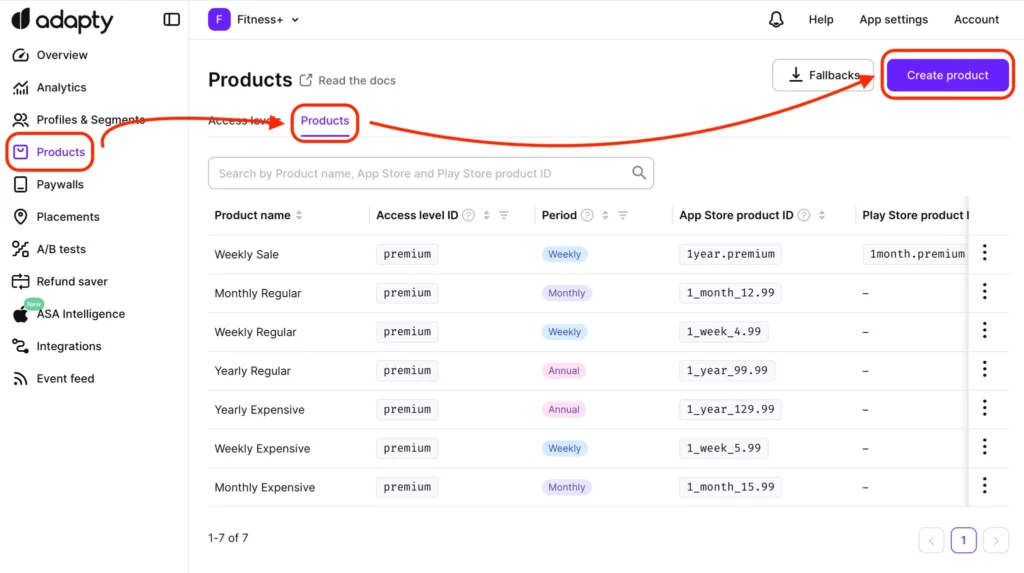
- Go to the Products page, click the Products tab, and hit Create product.
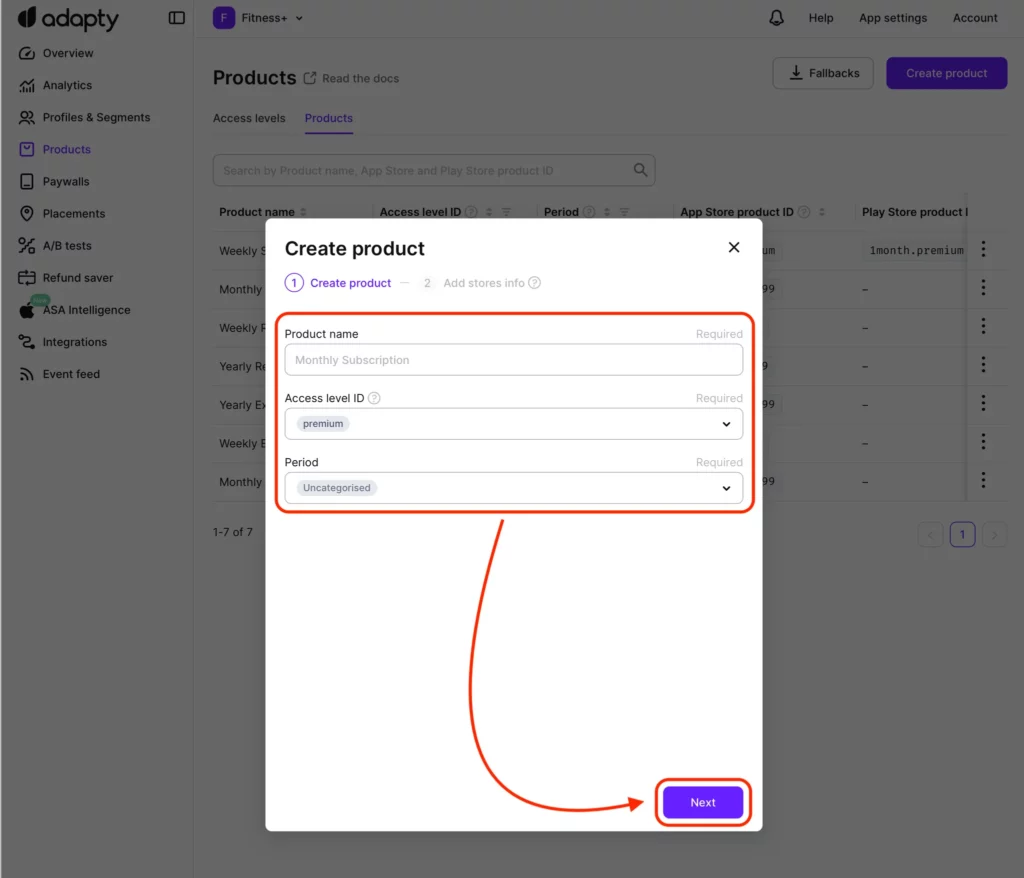
- Create a product with a name, access level, and appropriate period matching your store products.
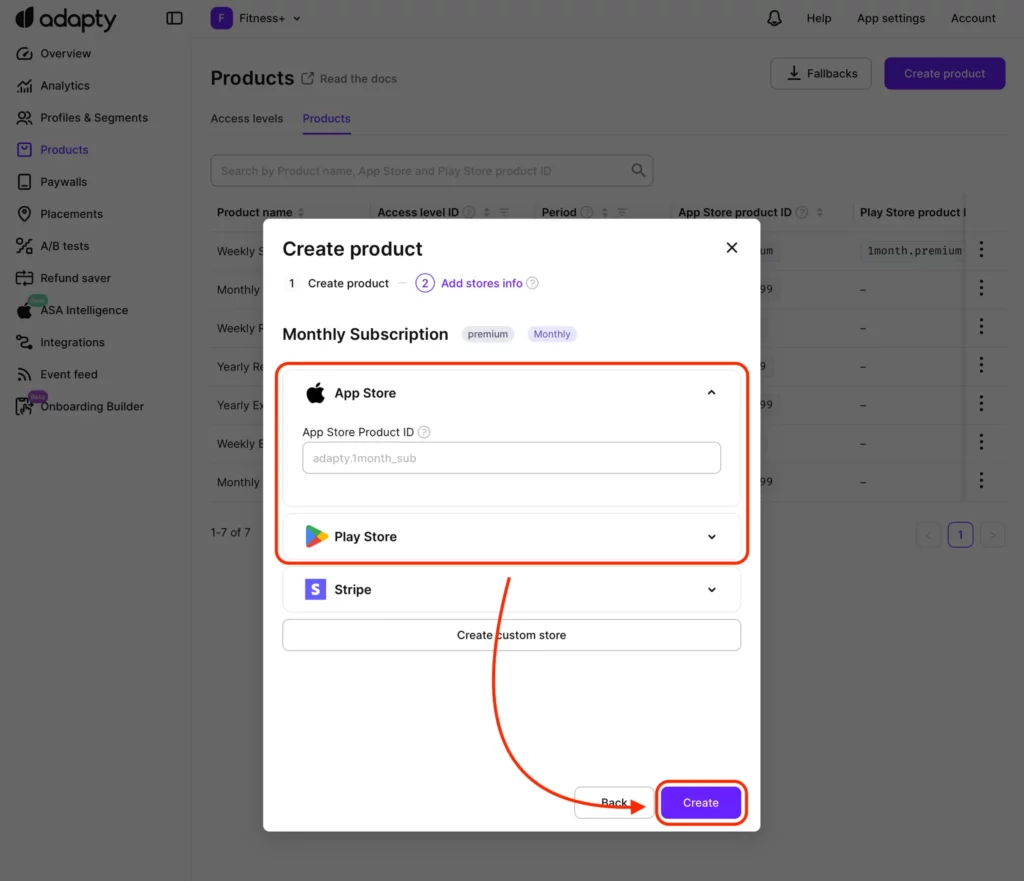
- Enter the App Store and/or Google Play IDs. This is how Adapty maps store products to the product you’re creating.
Creating a paywall
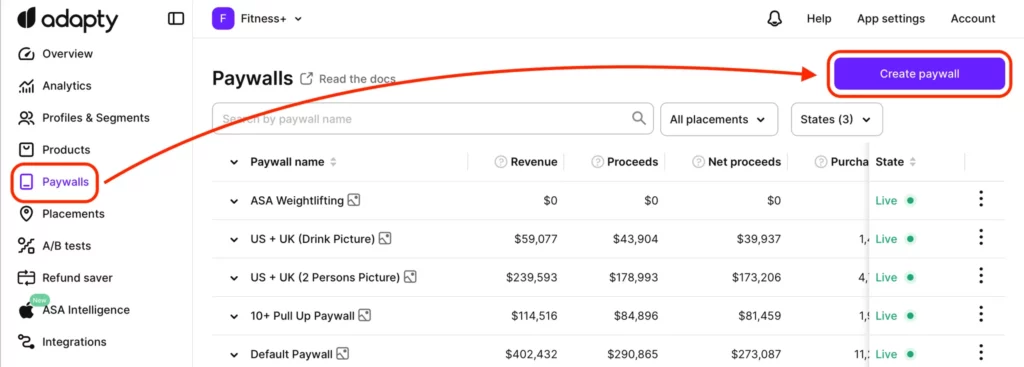
Go to the Paywalls page and click Create paywall. Give your paywall a name, add the products you want to offer, then save it as a draft. For our case, one paywall is plenty.
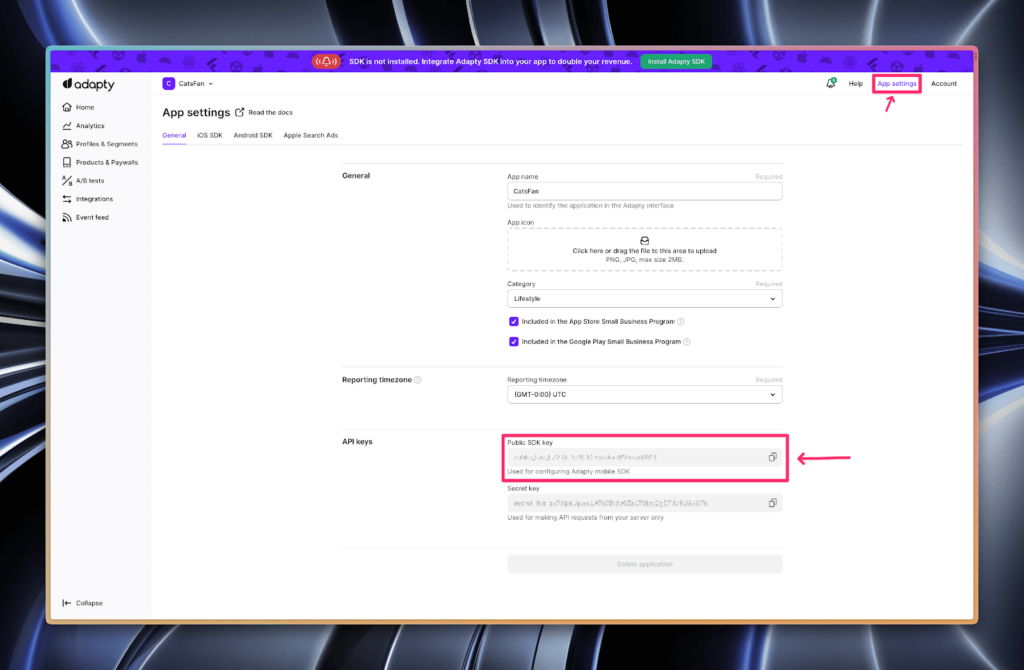
Getting your SDK key
In your App Settings, copy the public SDK key and keep it somewhere safe. You can find it under App settings → API keys → Public SDK key.
Installation
The process for pure React Native is pretty straightforward, but Expo requires a few extra considerations.
React Native (bare workflow)
- Add the Adapty dependency:
- For iOS, install the Adapty pod:
- For Android, add or update kotlin-gradle-plugin in android/build.gradle:
Expo (managed workflow)
Expo Go doesn't support real in-app purchases, but you can still use it for real-time testing with Adapty's mock mode, which simulates paywalls and purchase flows without requiring native code — perfect for fast UI iteration. For testing actual in-app purchases, you'll need a development build created through EAS. The EAS Build flow: build your app with EAS Build (when native code changes) → start a dev server with --dev-client flag → debug in your custom app (not Expo Go).
- Install EAS CLI:
- Add expo-dev-client:
- Add the Adapty dependency:
- Build for your platform:
- Install your app on your test device using the QR code or URL from EAS. Launch a development server with the --dev-client flag and debug through your custom app, not Expo Go.
Designing the app architecture
Let’s look at the full purchase flow:
- Activate the SDK so it can work its magic.
- Check if the user has an active subscription.
- If they try to access premium content: without a subscription, fetch the paywall and show it; with a subscription, display the premium content.
- If they purchase access, go back to step 2.
To build this model, we need a global check like isSubscribed or hasAccess, plus a paywall to restrict access for non-subscribers.
Activating the Adapty SDK
Adapty’s SDK does a lot behind the scenes for your React Native IAP implementation. One key feature is listening for subscription status changes. All of this requires an active SDK, which is why you should activate it as soon as your app launches.
Activating outside of React components
Calling code outside of components happens during module evaluation, which is much earlier than useEffect. This is the recommended approach:
Alternative: activating from a React Native hook
Sometimes you need certain data before activating the SDK. The problem with useEffect is concurrency — there’s no guarantee activation happens before other SDK calls (a race condition). Use AsyncStorage to pass static values like a custom userID:
Checking the user’s subscription status
The user’s Adapty profile contains their subscription status and purchased products. The API is straightforward:
Fetching to state when needed
Listening to profile updates
Events fire when a new purchase completes or a subscription expires:
Alternative: memoizing network calls
Most apps don’t need to fetch profiles this frequently. Use an event listener to update a cached value:
Building the paywall
There are three key methods: getPaywall, logShowPaywall, and getPaywallProducts:
Pre-fetching paywalls and products
Pre-fetching paywall data creates a much smoother experience. Here’s a custom hook:
Making a purchase
Once the user selects a product, making the purchase with Adapty is straightforward:
Adapty handles transaction finishing (acknowledging) automatically. With raw react-native-iap, you’d need to call finishTransaction() manually after every purchase.
Restoring purchases
Apple requires all apps with in-app purchases to include a “Restore Purchases” button. With Adapty:
Place this behind a clearly visible button on your paywall or settings screen. App Store reviewers will look for it.
How server-side receipt validation works
One of the biggest advantages of using Adapty is that you don’t need to build your own server for receipt validation. Here’s the flow:
- The user completes a purchase. Apple or Google returns a receipt (a cryptographic proof of payment).
- Your app sends this receipt to a backend server (Adapty’s servers in our case).
- The server verifies the receipt directly with Apple’s App Store Server API or Google’s Play Developer API.
- The server confirms the purchase is legitimate, records it, and returns the updated subscription status.
Without server-side validation, a malicious user could modify the receipt or use jailbreak tools to fake purchases. Adapty handles this entire pipeline automatically when you call adapty.makePurchase().
Testing in-app purchases
You cannot test in-app purchases on a simulator or emulator. Both Apple and Google require a physical device.
iOS sandbox testing
- In App Store Connect, go to Users and Access → Sandbox Testers.
- Create a sandbox tester account. Use an email that is not linked to a real Apple ID.
- On your physical device, sign out of the App Store, then sign in with the sandbox account when prompted during a test purchase.
Sandbox purchases are free and subscriptions auto-renew at an accelerated rate (a monthly subscription renews every 5 minutes).
Android license testing
- In the Google Play Console, navigate to License testing.
- Click Create email list and add the Gmail addresses of your test accounts.
- In the Internal testing section of your app, go to the Testers tab and add your tester list.
- Copy the invite URL and open it on a device with the test account.
Testing with Adapty
Adapty’s Dashboard shows real-time events for sandbox purchases. Check the Event Feed while testing to confirm transactions, subscription activations, and profile updates are all flowing correctly.
Common errors and troubleshooting
| Error / symptom | Likely cause | Solution |
| Products return empty array | Paid Applications Agreement not signed (iOS) or products not activated | Sign agreement; activate products; wait a few hours |
| "Cannot connect to iTunes Store" | Running on a simulator or IAP capability not enabled | Use a physical device; add IAP capability in Xcode |
| Purchase succeeds but status doesn’t update | Transaction not finished (acknowledged) | Adapty handles this automatically; with react-native-iap call finishTransaction() |
| Android: "Service is disconnected" | Google Play Billing connection dropped | Ensure initConnection() is called early; Adapty manages this automatically |
| Subscription not showing price | No active subscription with price tier in the group | Configure pricing in App Store Connect subscription group |
| Android: products not loading | No build uploaded to internal testing track | Upload signed APK/AAB to internal testing; wait 8–24 hours |
| Expo: Invariant Violation | Running in Expo Go instead of dev build | Create EAS development build; native IAP not available in Expo Go |
| iOS: purchase dialog never appears | Product IDs don’t match (case-sensitive) | Double-check IDs match exactly between store and code |
StoreKit 2 and Google Play Billing: what React Native developers should know
Apple introduced StoreKit 2 with a revamped async/await API. Google has similarly updated Play Billing to version 7+ with new subscription features.
For React Native developers, these updates matter because the underlying libraries wrap these APIs. react-native-iap v14 uses StoreKit 2 on iOS and Play Billing 8.x on Android. Adapty’s native SDK uses the latest versions of both, abstracting differences so you work with a single unified API.
You don’t need to interact with StoreKit 2 or Play Billing directly in React Native. Your library of choice handles the native layer. But understanding these APIs exist helps you debug issues and understand behavior changes.
How to add in-app purchases to your Expo app – Quickstart guide
Here’s a short video walkthrough showing exactly how to set up in-app purchases with Adapty in a React Native + Expo app:
Wrapping up
Implementing React Native in-app purchases is a multi-step process, but once each piece is in place, it flows naturally. Here’s a quick summary:
- Understand the purchase types (consumable, non-consumable, subscription) and choose the right one.
- Set up products in App Store Connect and Google Play Console — don’t forget the Paid Applications Agreement on iOS.
- Choose your library. Adapty handles server-side validation, A/B testing, analytics, and paywalls out of the box.
- Install and activate the SDK, design your subscription check and paywall architecture, and implement the purchase flow.
- Add restore purchases support (required by Apple) and test thoroughly with sandbox/license testers on physical devices.
Adapty offers a truly flexible SDK that helps you build straightforward, maintainable code. To see how Adapty can optimize your monetization strategies, improve user experiences, and boost your revenue, schedule a free demo call with us.
I hope you picked up some useful tips from this tutorial. Good luck with your app development!